Most email services can't put a password on an ordinary message, so you have four practical options. In Gmail, turn on confidential mode and choose SMS passcode, so the recipient needs a code texted to their phone. In Outlook with a Microsoft 365 subscription, select Options > Encrypt; recipients outside Outlook sign in or get a one-time passcode to read it. With any email account, you can lock the attachment itself (a password-protected PDF, Word file or 7-Zip archive) and send the password another way, by text or a phone call. Or use a secure-link tool that keeps the message behind a verification step and lets you expire or revoke it later.
The steps for each are below, along with why the recipient sometimes can't open what you sent. If you want the message encrypted rather than just gated, our guide to email security explains how the options compare.
Which option should you use?
| Option | Works with | What the recipient does | Main limit |
|---|---|---|---|
| Gmail confidential mode | Any Gmail account | Opens a link and enters an SMS or emailed passcode | Not end-to-end encrypted; Google keeps the message |
| Outlook Encrypt | Microsoft 365 Personal, Family, or a work or school plan | Signs in with Google, Yahoo or Microsoft, or uses a one-time passcode | No Encrypt button without a qualifying subscription |
| Password-protected attachment | Any email account | Opens the file and types the password you sent separately | Only the file is protected, not the email text |
| Secure link (SecureSend, Proton) | The app or service you send from | Verifies their identity or enters a password on a web page | You need that app or a new email service |
How to password-protect an email in Gmail
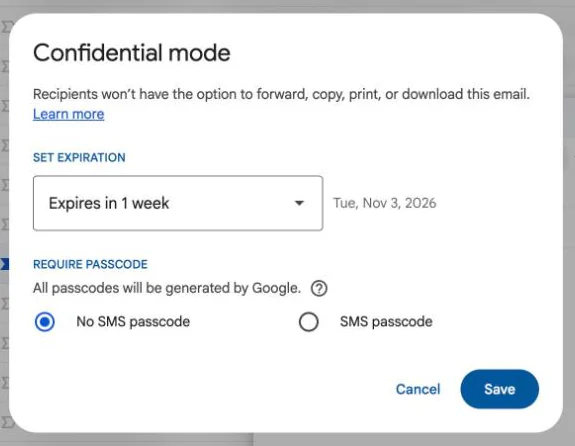
Gmail calls this confidential mode. It doesn't let you pick your own password. Instead, Gmail creates a passcode and sends it to the recipient, either by text message or, if they don't use Gmail, by email. You can also set an expiration date, remove access later, and turn off forwarding, copying, printing and downloading.
On a computer
- In Gmail, click Compose.
- At the bottom of the compose window, click Toggle confidential mode. If it's already on, click Edit at the bottom of the email.
- Choose an expiration date from the drop-down menu.
- Choose SMS passcode and type the recipient's phone number (not yours). No SMS passcode lets Gmail users open it directly and emails the passcode to everyone else.
- Click Save, then write and send the email.
On Android, iPhone or iPad
- In the Gmail app, tap Compose.
- Tap More options (top right) > Confidential mode, and turn it on.
- Under "Set expiration", pick a time frame.
- Under "Require passcode", choose SMS passcode (or Standard), then tap Save.
To cut off access early, open the message in Sent and choose Remove access.
What confidential mode doesn't do
It controls access. It doesn't encrypt the message end to end, and Google stores it like any other email. Google itself warns that recipients can still take screenshots or photos, and malware on their device may still copy the message. SMS passcodes only work for phone numbers in North America, South America, Europe, Australia, India, Korea and Japan. With the Standard option, the passcode goes to the same inbox as the link, so anyone who gets into that inbox can open both. On a work or school account, your admin can turn confidential mode off entirely. For real encryption in Gmail, see how to send encrypted email in Gmail.
How to password-protect an email in Outlook
Outlook has no "add a password" button either. What it has is Encrypt, which works like a password for anyone outside Outlook: they sign in or request a one-time passcode before they can read the message. You need a qualifying Microsoft 365 subscription. A free Outlook.com account can open encrypted mail but can't send it.
Outlook.com and new Outlook for Windows (Microsoft 365 Personal or Family)
- Compose a new message.
- Select the Options tab, then Encrypt.
- Choose Encrypt, or Do Not Forward if you also want to block copying and forwarding.
- Write the message and send it. To undo it, choose No permission set.
Work or school accounts (Microsoft 365)
In new Outlook, classic Outlook and Outlook on the web, the path is the same: in the message, select Options > Encrypt and pick a level such as Encrypt or Do Not Forward. This uses Microsoft Purview Message Encryption, and what you see depends on what your IT admin has set up. Some organizations use S/MIME instead, which only works if the recipient has a certificate too. Our step-by-step guide to encrypting email in Outlook covers each version, including Outlook for Mac and mobile.
What the recipient sees
People on Outlook.com or Microsoft 365 read the message as normal. Everyone else gets an email with a link. Google and Yahoo users can sign in with that account. Anyone else selects Sign in with a one-time passcode, gets the code by email and types it in. Each passcode expires after 15 minutes, so if it lapses they just request a new one.
Attachments are encrypted too. With Do Not Forward, Word, Excel and PowerPoint files stay encrypted after download, but PDFs and images can be downloaded without encryption.
How to password-protect an email attachment
This works with every email service, because the file carries its own lock. Put the sensitive details in the file, keep the email itself short, and send the password separately.
PDF on a Mac (Preview)
- Open the PDF in Preview and choose File > Export. Give it a new name if you want to keep an unprotected original.
- Click Permissions, select Require Password To Open Document, and type the password twice.
- Enter an owner password (it can be the same one), click Apply, then Save.
PDF in Adobe Acrobat (Windows or Mac)
Open the PDF and go to All tools > Protect a PDF > Protect with password, or Encrypt with Password for more control. Choose a password for viewing, type it twice and apply it. Adobe can't recover a lost password, so store it somewhere safe.
Word document
- Windows: File > Info > Protect Document > Encrypt with Password. Type the password, confirm it, then save the file.
- Mac: Review > Protect > Protect Document, then set a password to open the document.
Word for the web can't add a password, so use the desktop app. Microsoft says it can't recover a forgotten document password.
ZIP or 7z archive (several files)
7-Zip, a free archiver for Windows, can lock a ZIP or 7z file with AES-256 encryption. Add the files to an archive, enter a password and choose AES-256 rather than the older ZipCrypto method. One catch: Gmail doesn't allow password-protected archives as attachments, so an encrypted ZIP won't send from Gmail. Most guides still recommend it. For Gmail, send a protected PDF or Word file instead, or use one of the link options below.
How to send the password safely
The password protects nothing if it travels in the same email as the file. A few habits make a big difference:
- Send it by text, a phone call or an encrypted messaging app such as Signal. Not a second email to the same address.
- Agree on it in advance for people you send to often, like your accountant, and change it now and then.
- Keep the subject line neutral ("Documents you asked for"). Subjects aren't protected and show up on lock screens.
- Use a long password or passphrase, and a different one for each person.
Send a protected message to anyone with a secure link
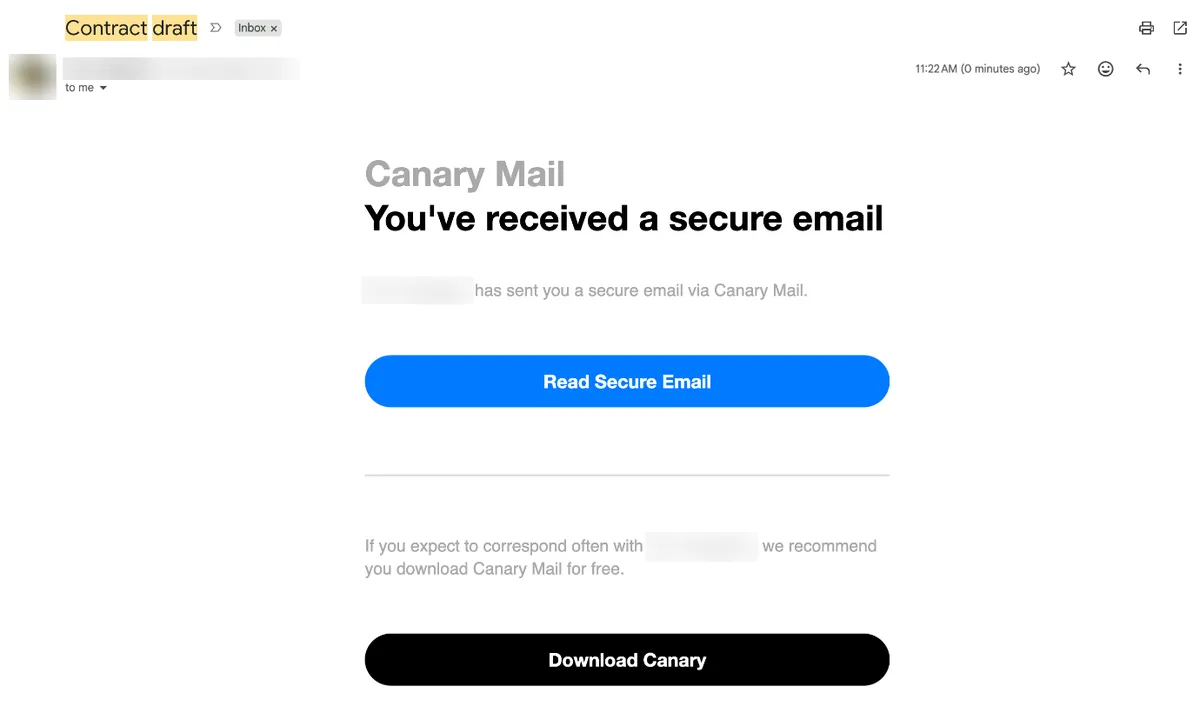
If the email text itself is the sensitive part, not just a file, a secure link does the job better than a locked attachment. The recipient gets a normal email with a link, proves who they are, and reads the message on a protected page. You keep control after sending.
SecureSend in Canary Mail
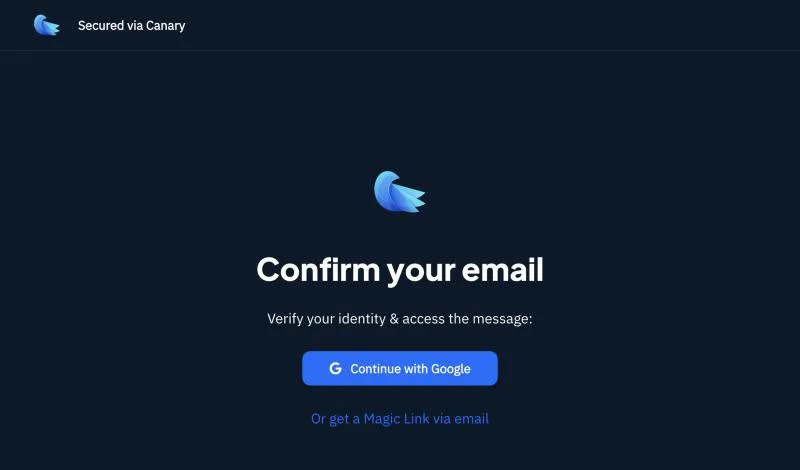
Disclosure: we make Canary Mail. Canary is an email app that works with Gmail, Outlook, iCloud and most IMAP accounts, so you keep your current address. Its SecureSend feature encrypts the message and attachments and sends the recipient a link instead. To open it, they verify their identity by signing in to their email account or with a one-time Magic Link sent to their address. They don't need Canary or a new account, and they can reply securely from the same page. You can set an expiration date when you compose the email or afterwards, and revoke access at any time, even after it's been opened.
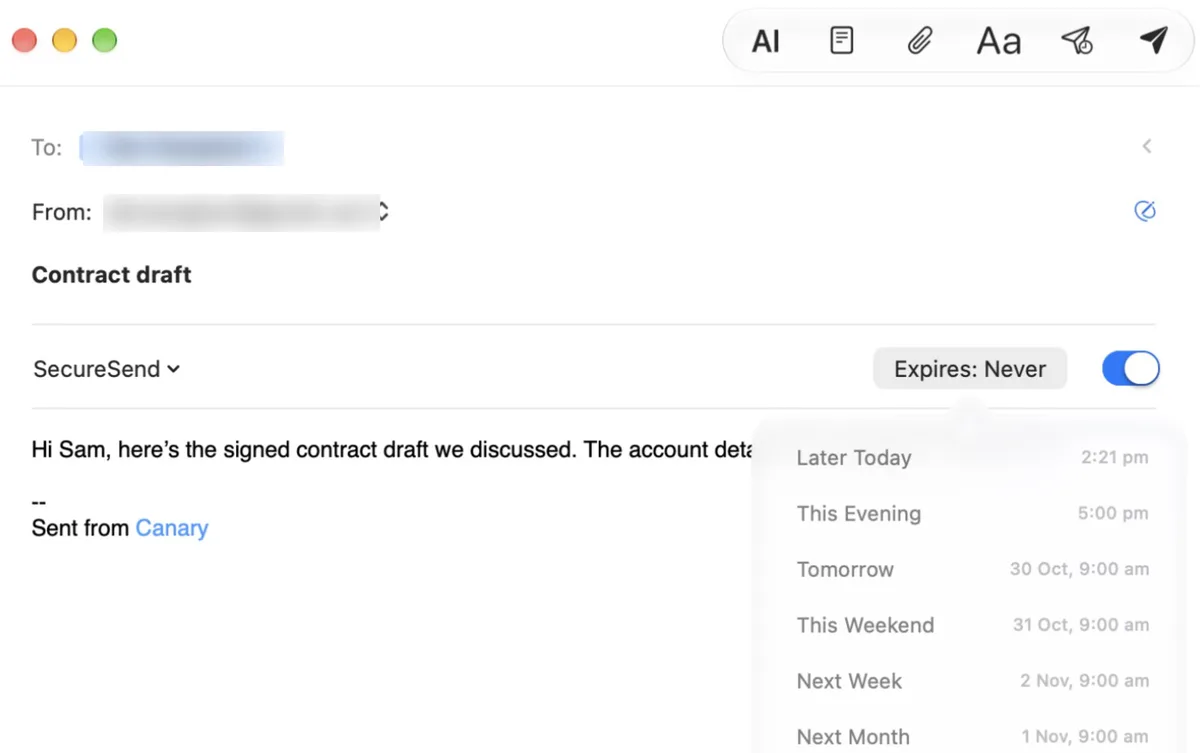
To send one, turn on SecureSend in Settings > Security, then flip the SecureSend toggle in compose (on iPhone it's the "Not Secure" switch above the keyboard). It works in the Mac, iPhone and iPad, Android and Windows apps.
- Who it's for: anyone sending tax forms, contracts or medical details to clients who won't set anything up.
- Price: SecureSend is part of Pro+, $100 a year or $300 once for a lifetime licence, with a 7-day free trial. The free plan doesn't include it.
- Downside: there's no monthly plan, only yearly or lifetime. Recipients read the message in Canary's cloud-based Secure Reader, and the verification goes to their own inbox, so it's only as safe as that inbox.
Canary has 2M+ users and has been featured by Apple. If your recipient already uses PGP keys, Canary can encrypt with PGP instead; our comparison of PGP vs SecureSend explains when each one fits.
Switch to an encrypted email service: Proton Mail
Proton Mail lets you set your own password on a message to any address, on every plan including Proton Free. Click the lock icon (External encryption) in compose, enter a password and an optional hint, and share the password another way. Messages expire after 28 days by default, and outside recipients can reply up to five times per email.
- Downside: it only works from a Proton address, so you'd be moving to a new email service. Mail to your old Gmail or Outlook address isn't covered.
For more apps and services, see our list of the best secure email apps.
Why isn't my password-protected email working?
- No Encrypt button in Outlook: your account doesn't have a qualifying Microsoft 365 subscription, or you're signed in with a different account from the one that has it.
- Confidential mode is missing in Gmail: on a work or school account, your admin may have turned it off.
- The recipient never got the SMS code: their number may be outside the supported regions. Resend with the Standard option, or use a protected file.
- "Passcode expired" in Outlook: one-time passcodes last 15 minutes. Request a new one from the same page.
- The encrypted ZIP bounced: Gmail blocks password-protected archives. Send a protected PDF or Word file.
- The link says the message is unavailable: it expired or the sender removed access. Ask them to resend it.
- Forgotten file password: Word and Acrobat can't recover it. Keep the original file and create a new protected copy.
Frequently asked questions
Can an email be password protected?
Not a regular email on its own. You can gate it with Gmail confidential mode or Outlook encryption, lock the attachment with a password, or send it as a secure link that requires verification.
How do I password protect an email in Outlook?
With a Microsoft 365 subscription, select Options > Encrypt in a new message and choose Encrypt or Do Not Forward. Recipients outside Outlook sign in or use a one-time passcode.
Can I add a password to a Gmail email?
Not one you choose. Confidential mode can require an SMS passcode that Gmail sends to the recipient's phone. For your own password, protect the attachment instead.
How do I password protect an email attachment?
Add a password in the app that made the file: Preview or Acrobat for PDFs, File > Info > Protect Document in Word. Attach it and send the password by text or phone.
Is a password-protected email encrypted?
Not always. A protected PDF or Word file is encrypted, and so are Outlook Encrypt and SecureSend messages. Gmail confidential mode isn't end-to-end encrypted.
What's the safest way to send the password?
Use a different channel from the email: a phone call, a text or an encrypted messaging app. Never put it in the same email or the subject line.
How can I put a lock on my email account?
That's account security, not message protection. Use a strong, unique password and turn on two-step verification or a passkey for your email account.
Sources
- Google: Send & open confidential emails
- Google Workspace Admin: Protect Gmail messages with confidential mode
- Google: File types blocked in Gmail
- Microsoft: Send encrypted messages with a Microsoft 365 personal or family subscription
- Microsoft: Send S/MIME or Microsoft Purview encrypted emails in Outlook
- Microsoft: How do I open a protected message?
- Microsoft: Learn about securing and protecting email messages in Outlook
- Microsoft: Protect a Word document with a password
- Apple: Password-protect a PDF in Preview on Mac
- Adobe: Add passwords to PDFs in Acrobat
- 7-Zip: 7-Zip
- Canary Mail: SecureSend: what it is and how it works, security features, pricing
- Proton: Password-protected emails
For PGP, encrypted email services and phishing protection, see our guide to email security.