Gmail already encrypts every message in transit with TLS, but that isn't end-to-end encryption: Google can still read the message on its servers. To encrypt the message itself, it depends on your account. On a work or school Google Workspace account, your admin can turn on S/MIME or client-side encryption, and you then select Message security (the lock icon) in the compose window. A personal @gmail.com account has no built-in end-to-end encryption. Confidential mode doesn't encrypt anything, so use PGP through an email app or browser extension, or send the sensitive part as a password-protected file.
Below are the steps for each option on a computer, Android and iPhone, plus why a message sometimes isn't encrypted and a short answer to "is Gmail secure?". For the rest of Gmail's settings and fixes, see our complete guide to Gmail.
Which Gmail encryption option can you use?
| Option | Who can use it | End-to-end? | What the recipient needs |
|---|---|---|---|
| TLS (standard encryption) | Every Gmail account, automatic | No, in transit only | A provider that supports TLS (almost all do) |
| Confidential mode | Every Gmail account | No, it's access control | Nothing; non-Gmail users get a link |
| Hosted S/MIME | Workspace Enterprise Plus, Frontline Plus, Education editions | Yes, but Google hosts the keys | Their own S/MIME certificate |
| Client-side encryption (CSE) | Workspace Enterprise Plus, Education Plus, Education Standard, Frontline Plus | Yes, your organization holds the keys | S/MIME, or nothing with Assured Controls |
| PGP (app or extension) | Any Gmail account, including personal | Yes, you hold the keys | A PGP key, or a password link |
| Password-protected file | Any Gmail account | The file only | The password, sent another way |
What Gmail encrypts by default
Every Gmail message is sent with Transport Layer Security (TLS). Google compares it to a reliable mail carrier: the message is protected on the way, as long as the recipient's provider also uses TLS. Inside Google, messages are encrypted at rest and between data centers.
What TLS doesn't do is hide the message from Google. It's decrypted on Google's servers, which is how Gmail can filter spam and run smart features. Google says it doesn't scan your messages to show you ads.
Gmail shows the encryption level with a lock icon:
- Gray lock: standard encryption (TLS).
- Green lock: enhanced encryption (hosted S/MIME), work and school accounts only.
- Blue shield: additional encryption (client-side encryption), work and school accounts only.
- Red open lock: no encryption. The other side's provider doesn't support TLS, so don't send anything sensitive to that address.
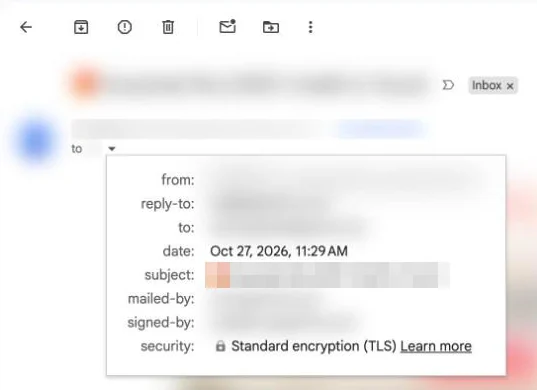
To check a message you received on a computer, open it, click Show details under the sender's name and look at the "security" line. To check before you send on a computer or Android, select Message security in the compose window. Gmail sometimes warns about an address even when the message is encrypted, for example when encryption failed with that provider in the past or when you send from a custom domain.
Confidential mode: what it does and what it doesn't
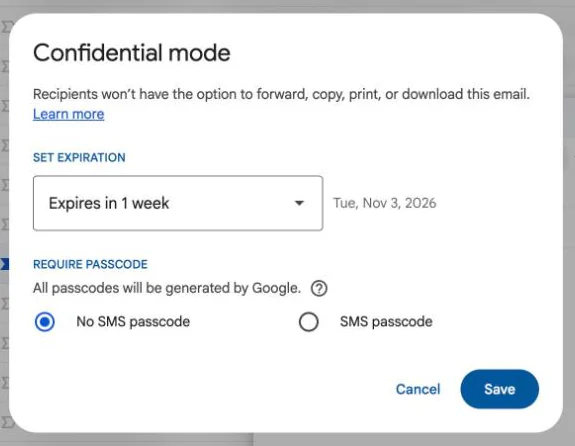
Confidential mode often gets described as encrypted email. It isn't. It lets you set an expiration date, remove access later, block forwarding, copying, printing and downloading, and require an SMS passcode. Google's help page describes all of that, and the word "encryption" doesn't appear on it.
Send a confidential email on a computer
- In Gmail, click Compose.
- At the bottom of the compose window, click Toggle confidential mode.
- Choose an expiration date from the drop-down menu.
- Choose No SMS passcode or SMS passcode. With SMS, type the recipient's phone number, not yours.
- Click Save, then write and send the email.
On Android or iPhone
- In the Gmail app, tap Compose.
- Tap More options (three dots, top right) > Confidential mode.
- Set the expiration under "Set expiration" and the passcode under "Require passcode" (Standard or SMS passcode).
- Tap Save.
To cut off access early, open the message in Sent and choose Remove access.
Why it isn't end-to-end encryption
- The message is stored by Google like any other Gmail message. On a work account, Google Vault can hold, search and export confidential messages your users send.
- Recipients on other providers get a link and open the message on Google's site. Only the subject and that link travel by normal email.
- Google says recipients can still take screenshots or photos, and malicious software may still copy the message.
- SMS passcodes only work for numbers in North America, South America, Europe, Australia, India, Korea and Japan.
Use confidential mode to stop casual forwarding. If the message has to stay unreadable to everyone except the recipient, it's the wrong tool.
Encrypt Gmail with S/MIME (Google Workspace)
S/MIME encrypts each message with certificates that belong to you and your recipient. In Gmail it's "hosted" S/MIME: Google securely manages a copy of your key. That's stronger than TLS, but unlike client-side encryption, your organization isn't the only one holding the key. It needs a supported Workspace edition: Enterprise Plus, Frontline Plus, Education Fundamentals, Education Standard or Education Plus. Personal accounts and Business Starter, Standard and Plus can't use it.
Admin setup
- Sign in to the Google Admin console with Gmail settings privileges.
- Go to Apps > Google Workspace > Gmail > User settings and select your organization.
- Under S/MIME, check Enable S/MIME encryption for sending and receiving emails. Optionally allow users to upload their own certificates.
- Click Save. Google says changes can take up to 24 hours, and mail sent in the meantime isn't encrypted.
Send an S/MIME message
- If your admin lets you, upload your certificate in Gmail on a computer: Settings > See all settings > Accounts, then edit info next to your address > Upload a personal certificate. You can't do this in the mobile apps.
- Swap keys with the recipient once. Gmail stores someone's public key when they send you a signed S/MIME message, and the same happens on their side when you send them one.
- Compose as usual. When Gmail has the recipient's key, it encrypts automatically and shows the green lock.
If anyone on the recipient list has no S/MIME certificate, that person's copy only gets TLS.
Gmail client-side encryption and end-to-end encryption for businesses
Client-side encryption (CSE) encrypts the message in your browser or the Gmail app before it reaches Google. Your organization holds the keys through an outside key service, and Google says it never sees the private keys or the decrypted content. It covers the body, inline images and attachments. The subject, recipients and timestamps are not encrypted.
CSE is available on Enterprise Plus, Education Plus, Education Standard and Frontline Plus, and an admin has to set it up first.
Send a CSE email
- Computer: click Compose, then Message security at the top right of the draft. Under "Additional encryption", click Turn on. Write the message and send it. Sign in to your identity provider if asked.
- Android or iPhone: in the Gmail app, compose a message, tap the lock icon and choose additional encryption. Your admin has to enable the mobile clients first.
The "send to anyone" end-to-end feature
Google announced easy end-to-end encryption for businesses in April 2025. Sending to people on any email provider became generally available on October 2, 2025, and composing in the Android and iOS Gmail apps arrived on April 9, 2026. Both require Enterprise Plus with the Assured Controls or Assured Controls Plus add-on. Your admin turns it on, and the recipients don't need S/MIME. Gmail users get the message as a normal thread. Everyone else opens it in a browser, in a restricted version of Gmail with a guest account.
Expect some limits with additional encryption on: attachments are capped at 5 MB, encrypted mail can't be scanned for viruses, and signatures, emoji, printing, Google AI features and smart features don't work in those messages. If you're on Business Starter, Standard or Plus, none of this is available to you.
How to encrypt email in a personal Gmail account
A free @gmail.com account has no S/MIME, no CSE and no built-in end-to-end option. You add encryption yourself. The standard way is PGP (OpenPGP): you get a key pair, share your public key, and encrypt to the recipient's public key, so only their private key can open the message. Google only ever stores scrambled text. Our guide to how PGP encryption works explains keys in more detail. The options below work with your existing Gmail address; the last one means switching providers.
1. An email app with PGP built in: Canary Mail
Disclosure: we make Canary Mail. Canary is an email app for Mac, iPhone and iPad, Android and Windows, with OpenPGP built into the app on all of them. You add your Gmail account, turn on encryption in compose, and Canary uses the recipient's public key. It looks keys up on your device and on key servers, so you don't have to paste them. In Manual mode your keys are stored only on your device, and you can import existing keys (an .asc file from GPG Keychain, for example). PGP works in the Mac, iPhone and iPad, Android and Windows apps. When the recipient has no PGP key, SecureSend sends a secure link instead: the recipient verifies their identity, reads the message in Canary's Secure Reader and can reply securely, and you can set an expiry date or revoke access later.
- Who it's for: people who want PGP on their phone and computer without a browser extension.
- Price: PGP and SecureSend are in Pro+, $100 a year or $300 once for a lifetime licence, with a 7-day free trial. The free plan doesn't include them.
- Downside: paid plans are yearly or lifetime, with no monthly option. SecureSend messages are read in Canary's cloud-based reader, not in the recipient's own PGP setup.
Canary has 2M+ users and has been featured by Apple. If you mostly read mail on an iPhone, see our guide to using PGP on iPhone and iPad.
2. A browser extension: FlowCrypt
FlowCrypt adds a Secure Compose button to Gmail in Chrome and has Android and iOS apps. It works with both personal Gmail and Workspace accounts. Recipients without PGP get a password-protected message: they open a link and type a password you gave them another way, such as by phone.
- Price: the extension is listed as free in the OpenPGP.org directory; FlowCrypt's business plans are priced separately.
- Downside: password-protected messages sit on FlowCrypt's servers, for 90 days by default on non-enterprise accounts.
3. A browser extension: Mailvelope
Mailvelope is an open-source OpenPGP extension for Chrome, Firefox and Edge, with Gmail set up out of the box. Your private key never leaves your computer. It's free for private users; Mailvelope Business for Google Workspace is the paid version.
- Downside: no mobile support, because mobile browsers can't run the extension, and recipients need PGP of their own.
4. Switch to an encrypted email service: Proton Mail
Proton Mail encrypts mail end to end between Proton users and can send password-protected emails to anyone, on every plan including Proton Free. Those messages expire after 28 days by default. Mail Plus costs $3.99 a month billed yearly ($47.88).
- Downside: it doesn't encrypt your Gmail. You get a new address, and anything still sent to your Gmail stays under Gmail's rules.
For a wider comparison, see our list of the best secure email apps.
How to send an encrypted attachment in Gmail
If only a file is sensitive, encrypt the file and send the password another way (a text or a call, never the same email).
One catch: Gmail blocks password-protected archives with files inside, so an encrypted ZIP or 7z often won't send. Use a protected document instead:
- PDF on a Mac: open it in Preview, choose File > Export, select Encrypt, type the password twice and save.
- Word on Windows: File > Info > Protect Document > Encrypt with Password, then save.
- Word on a Mac: Review > Protect > Protect Document and set a password to open.
Microsoft can't recover a forgotten Word password, so keep a copy. Confidential mode also covers attachments (it blocks downloading), and on a Workspace account with CSE the attachment is encrypted with the message, up to 5 MB.
Why isn't my Gmail message encrypted?
- Red open lock on a recipient: their provider doesn't support TLS. Send sensitive details another way.
- No "Message security" option or no S/MIME: you're on a personal account, or a Workspace edition without S/MIME or CSE, or your admin hasn't turned them on.
- S/MIME is on but the lock isn't green: Gmail doesn't have that recipient's public key yet. Ask them to send you a signed message first.
- Admin just enabled S/MIME: wait up to 24 hours and reload Gmail.
- No additional encryption in the Gmail app: the admin has to enable the Android and iOS clients for CSE.
- Recipient can't open a confidential email: it may have expired or you removed access, or their phone number is outside the SMS passcode regions.
- Encrypted ZIP bounced: Gmail blocks password-protected archives. Send a protected PDF or Office file.
Is Gmail secure?
Against outsiders, yes, mostly. Google says Gmail blocks more than 99.9% of spam, phishing and malware, encrypts mail in transit and at rest, and offers the Advanced Protection Program for high-risk accounts. The bigger everyday risk is a stolen password, so turn on 2-Step Verification or use a passkey.
Private from Google, no. Standard Gmail isn't end-to-end encrypted, so Google's systems can process your mail for spam filtering and smart features (you can turn smart features off). Only client-side encryption on certain Workspace plans, or PGP that you add, keeps the content out of Google's reach. Our explainer on encrypted email vs private email covers the difference. If you use Gmail on a Mac, see the safest ways to use Gmail on a Mac.
Frequently asked questions
Can I encrypt an email in Gmail?
Yes. Work and school accounts can use S/MIME or client-side encryption if the admin turns them on. Personal accounts need PGP through an app or extension, or a password-protected file.
Is Gmail confidential mode encrypted?
Not end to end. It adds an expiry date, a passcode and blocks forwarding and downloading, but Google stores the message and recipients can still take screenshots.
Does Gmail encrypt emails automatically?
Yes, in transit. Gmail uses TLS for every message when the other provider supports it, and encrypts mail at rest. That isn't end-to-end encryption.
How do I send an encrypted email in Gmail with an attachment?
Encrypt the file itself, such as a password-protected PDF or Word document, and send the password by text or phone. Gmail blocks password-protected ZIP files. With PGP or CSE, attachments are encrypted along with the message.
Can Google read my emails?
Google's systems process standard Gmail messages for spam filtering and smart features, and Google says it doesn't use them for ads. With client-side encryption or PGP, Google can't read the message content.
How do I send a secure email in Gmail on my iPhone?
In the Gmail app, tap Compose, then More options > Confidential mode. For real encryption you need CSE on an eligible Workspace account, or a PGP email app like the ones above.
Is there a safer email than Gmail?
For privacy from the provider, end-to-end encrypted services such as Proton Mail are safer, but you have to switch addresses. To keep your Gmail address, add PGP with an email app or extension.
Sources
- Google: Learn how Gmail encrypts your emails
- Google: Check your email security
- Google: Send & open confidential emails
- Google Workspace Admin: Protect Gmail messages with confidential mode
- Google Workspace Admin: Turn on hosted S/MIME for message encryption
- Google: Use hosted S/MIME
- Google: Learn about Gmail Client-side encryption
- Google Workspace Updates: Send Gmail end-to-end encrypted emails to anyone (October 2, 2025)
- Google Workspace Updates: Gmail end-to-end encryption now available on mobile devices (April 9, 2026)
- Google: File types blocked in Gmail
- Google: How Gmail ads work
- Google Safety Center: Gmail security
- Canary Mail: SecureSend: what it is and how it works, pricing
- FlowCrypt: Using FlowCrypt with non-FlowCrypt recipients
- Mailvelope: FAQ
- Proton: Password-protected emails
- Microsoft: Protect a document with a password
More Gmail how-tos, from settings to fixes, are in our complete guide to Gmail.