To encrypt an email in Outlook, open a new message, select Options > Encrypt, and pick Encrypt or Do Not Forward before you send. That works in new Outlook for Windows, Outlook.com, Outlook on the web and classic Outlook. It only appears if your account has a qualifying Microsoft 365 plan: Microsoft 365 Personal or Family at home, or a work or school plan that includes Microsoft Purview Message Encryption. A free Outlook.com account can't send encrypted mail on its own, so you need PGP through an email app or a password-protected file instead.
Below are the steps for each Outlook version, what Encrypt and Do Not Forward actually do, how S/MIME works in Outlook, what your recipient sees, and why the Encrypt button sometimes isn't there. For how these methods compare with PGP and other tools, see our guide to email security.
Which Outlook encryption option can you use?
| Option | Who can use it | What the recipient needs | Who holds the keys |
|---|---|---|---|
| Encrypt / Do Not Forward (Purview Message Encryption) | Microsoft 365 Personal or Family; work plans such as Microsoft 365 E3/E5 or Business Premium | Nothing; non-Outlook users open a link and sign in or use a one-time passcode | Microsoft's Rights Management service |
| S/MIME | Work or school accounts with a certificate, set up by IT | Their own S/MIME certificate, shared with you first | You and the recipient |
| Sensitivity label that encrypts | Work accounts whose admin publishes labels | Same as Purview encryption | Microsoft's Rights Management service |
| PGP (app or add-in) | Any account, including free Outlook.com | A PGP key, or a password link | You and the recipient |
| Password-protected file | Any account | The password, sent another way | Only the file is protected |
Every Outlook message also travels with opportunistic TLS by default, which Microsoft lists as the "No permission set" option. That protects the message in transit, but Microsoft can still read it on its servers.
Encrypt, Do Not Forward and Encrypt-Only: what each one does
The Encrypt menu offers different choices depending on your account. Microsoft describes them like this:
- Encrypt (called Encrypt-Only on some work accounts): the message is encrypted and stays encrypted. The recipient can read and reply, and can still forward it. On personal plans, Outlook.com and Microsoft 365 recipients can download attachments without encryption.
- Do Not Forward: the message is encrypted and can't be copied or forwarded. Word, Excel and PowerPoint attachments stay encrypted even after download. PDFs and images can be downloaded unprotected, so don't rely on Do Not Forward for those.
- No permission set: the default. No extra protection beyond TLS.
Work accounts may also show company templates (for example "Confidential") that your admin created. Those set their own rules about who can open, print or forward.
How to encrypt email in new Outlook for Windows
Encrypt or Do Not Forward
- Select New mail and add your recipients.
- Select the Options tab, then Encrypt.
- Choose Encrypt or Do Not Forward (or a template your organization added).
- Write the message and select Send.
Microsoft notes that for work accounts, new Outlook supports Purview encryption when the mail server has an Office 365 Enterprise E3 license (or another plan that includes it). Otherwise the menu won't offer it, and S/MIME is the alternative.
Encrypt with S/MIME
- Install your S/MIME certificate first. New Outlook doesn't import certificates automatically, so you or your IT team add it.
- In a new message, select Options > More options.
- Under Message options, check Encrypt this message (S/MIME). Check Digitally sign this message (S/MIME) too if you want to sign it.
- Select OK, then Send.
To encrypt everything you send, go to Settings > Mail > S/MIME and turn on Encrypt contents and attachment for all messages I send. For people outside your organization, their certificate has to be installed on your computer. New Outlook can also look certificates up from an LDAP directory (Settings > Mail > LDAP). If Outlook can't verify a recipient, it lets you send anyway without encryption, remove them, or try again.
How to encrypt email in classic Outlook for Windows
Classic Outlook is the older desktop app that comes with Microsoft 365 Apps and Outlook 2016 to 2024.
Encrypt or Do Not Forward
- Create a new email.
- On the Options tab, select Encrypt.
- Pick an option such as Encrypt-Only or Do Not Forward.
- Finish the message and send it.
Encrypt with S/MIME
- Choose your certificate once: File > Options > Trust Center > Trust Center Settings > Email Security. Under Encrypted email, select Settings, then Choose next to the certificate, and select OK.
- To encrypt every outgoing message, check Encrypt contents and attachments for outgoing messages on the same Email Security page.
- To sign one message, open the Message Options dialog launcher on the Options tab, select Security Settings and check Add digital signature to this message.
Don't mix the two methods on one message. Microsoft says not to apply Purview protection to a message that's already signed or encrypted with S/MIME, or the other way around.
How to encrypt email in Outlook.com and Outlook on the web
Outlook.com with Microsoft 365 Personal or Family
- Sign in at Outlook.com and select New mail.
- Select Options > Encrypt.
- Choose Encrypt or Do Not Forward. To remove it again, choose No permission set.
- Send the message.
Microsoft's guide for personal subscriptions covers sending from Outlook.com and new Outlook for Windows. With a free Outlook.com account (no Microsoft 365 subscription), you can open protected messages people send you, but you can't send them.
Outlook on the web with a work or school account
Microsoft says work users can send Purview-encrypted mail from Outlook on the web as well as the desktop apps: use Options > Encrypt in the message, as in new Outlook. S/MIME takes some setup:
- Get your certificate from IT. It may be a file or on a smart card.
- Go to Settings > Mail > S/MIME and use the link there to install the S/MIME control. It works in Edge and Chrome. Chrome also needs your PC joined to your organization's Active Directory domain with a Chrome policy for the extension.
- Close and reopen Outlook on the web.
- In a new message, select More options (three dots) > Message options and choose Encrypt this message (S/MIME).
How to encrypt email in Outlook for Mac
Microsoft documents S/MIME steps for new Outlook for Mac, and Encrypt-button steps for legacy Outlook for Mac. Microsoft says support for legacy Outlook for Mac ends in October 2026, so move to new Outlook if you haven't.
S/MIME in new Outlook for Mac
- Add your certificate to the macOS Keychain.
- In Outlook, choose Outlook > Accounts, select the account, then Security.
- Under Certificate, choose your certificate, select OK and close the Accounts window.
- In a new message, choose See more items (three dots) > S/MIME > Encrypt with S/MIME. For a signature, choose Add digital signature.
Your recipients' certificates need to be saved on their contact cards or available in your organization's address list.
Encrypt or Do Not Forward on a Mac
In legacy Outlook for Mac (Microsoft 365 build 16.19.18110915 or later), open a message, choose Options > Encrypt and pick Do Not Forward or Encrypt-Only. Microsoft says Encrypt-Only is only on for Microsoft 365 Apps for enterprise users who also use Exchange Online. In new Outlook for Mac, a work account can encrypt by applying a sensitivity label that your admin has set to encrypt. If you can't find either option, use Outlook on the web, which has the Encrypt menu.
How to encrypt email in Outlook for iPhone and Android
The mobile apps have no Encrypt or Do Not Forward button of their own. Microsoft's Purview documentation says Outlook for iOS and Android don't let users apply encryption without a sensitivity label. That leaves two options, both for work or school accounts:
- A sensitivity label that encrypts: if your admin publishes labels, pick one that applies encryption when you compose. The app doesn't encrypt anything itself. Exchange Online encrypts the message after you send it.
- S/MIME: tap your account icon at the top left, then Settings, select the account, tap Security and turn on S/MIME. The compose screen then offers sign, encrypt, or both. If you don't see Security, your account type doesn't support S/MIME in the app. Your IT team has to get your certificate onto the phone.
On a personal Microsoft 365 plan, send encrypted messages from Outlook.com in your phone's browser or from new Outlook on a PC. Reading encrypted messages works fine in the mobile apps.
What the recipient sees
For Purview-encrypted mail (Encrypt or Do Not Forward), it depends on where the recipient reads email:
- Outlook.com, Microsoft 365, new Outlook, Outlook for Mac or Outlook mobile: the message opens like any other, with a banner describing the restrictions.
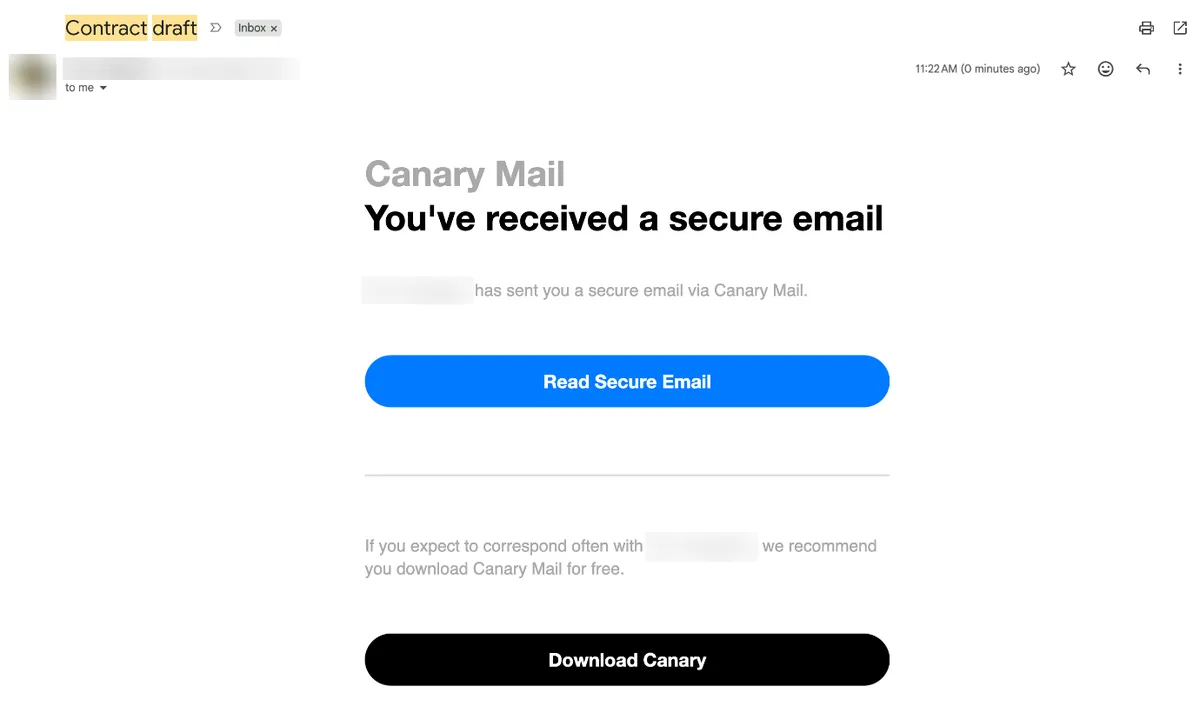
- Gmail or Yahoo: a notice email with a link. They sign in with their Google or Yahoo account, or ask for a one-time passcode, and read the message in Microsoft's encrypted message portal.
- Other providers: the same link, with a one-time passcode sent by email.
Recipients don't need a Microsoft subscription, and they can reply securely from the portal. For S/MIME, the recipient's email app decrypts the message with their own certificate. Without a certificate, they can't read it at all. The full recipient steps are in our guide to opening an encrypted email.
How to encrypt Outlook email without Microsoft 365
If you use a free Outlook.com address, or you want encryption that Microsoft can't open, you add it yourself. The usual way is PGP (OpenPGP). You share a public key, encrypt to the recipient's public key, and only their private key can open the message. Our explainer on how PGP encryption works covers keys in more detail. The first two options keep your Outlook address. The last one means moving to a new one.
1. An email app with PGP built in: Canary Mail
Disclosure: we make Canary Mail. Canary is an email app that works with Outlook.com, Microsoft 365 and Exchange accounts, as well as Gmail, iCloud and most IMAP accounts. You add your Outlook account, turn on encryption in the compose window, and Canary encrypts with OpenPGP using the recipient's public key. Recipients don't need Canary; any OpenPGP app can open the message. PGP works in Canary for Mac, Windows, iPhone and iPad, and Android. Canary also has a Windows app.
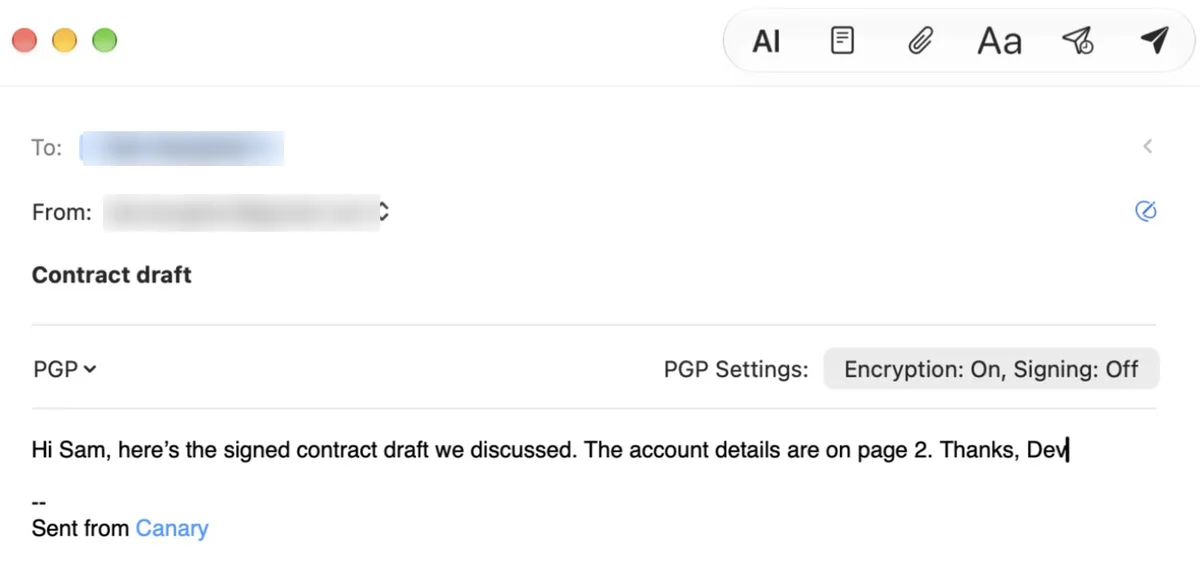
When your recipient has no PGP key, SecureSend sends them a secure link instead. They verify their identity to open it, read the message in Canary's Secure Reader and can reply securely. You can set an expiry date or revoke access later. Our comparison of PGP and SecureSend explains when to use each.
- Who it's for: people on free Outlook.com, or anyone who wants PGP on their phone and Mac without an add-in.
- Price: PGP and SecureSend are in Pro+, $100 a year or $300 once for a lifetime licence, with a 7-day free trial. The free plan doesn't include them.
- Downside: paid plans are yearly or lifetime, with no monthly option. Canary doesn't support S/MIME, so it won't replace your company's S/MIME setup.
Canary has 2M+ users and has been featured by Apple. If you read mail mostly on an iPhone, see our guide to using PGP on iPhone and iPad.
2. A PGP add-in for classic Outlook: Gpg4win
Gpg4win is free, open-source software for Windows. It includes GpgOL, an Outlook add-in for OpenPGP and S/MIME that works with IMAP and Exchange accounts. It's built for the classic desktop app. New Outlook doesn't run the older style of add-ins, so check the Gpg4win site for its current status there before you rely on it.
- Downside: Windows only, with no mobile app, and recipients need PGP of their own.
3. A password-protected file
If only an attachment is sensitive, encrypt the file and send the password another way, by text or a phone call. In Word on Windows, go to File > Info > Protect Document > Encrypt with Password, then save. On a Mac, use Review > Protect > Protect Document. Word can't recover a forgotten password, so keep a copy. Our guide to password-protecting an email covers more file types.
4. Switch to an encrypted email service
Proton Mail encrypts mail end to end between Proton users, and every plan, including Proton Free, can send password-protected emails to other providers. Those expire after 28 days by default. The catch is that it doesn't encrypt your Outlook mail. You get a new address, and anything sent to your Outlook address stays under Outlook's rules. Our list of best secure email apps compares more options.
Why can't I encrypt an email in Outlook?
- No Encrypt button at all: your account has no qualifying plan. Free Outlook.com and work plans without Purview Message Encryption (Business Basic and Business Standard, unless your company adds Azure Information Protection Plan 1) don't get it.
- You're on a phone: the mobile apps only encrypt through sensitivity labels or S/MIME on work accounts. Use Outlook.com in a browser or a desktop app.
- New Outlook on a work account shows no Encrypt option: your organization's plan doesn't include Purview encryption, or your admin hasn't set it up. Ask IT, or use S/MIME.
- S/MIME is greyed out or recipients can't be verified: you have no certificate installed, or Outlook doesn't have the recipient's certificate yet. Ask them to send you a signed message, or get it from your directory.
- S/MIME doesn't work in Outlook on the web: the S/MIME control isn't installed, or your browser isn't Edge or Chrome.
- You used Do Not Forward on a PDF: PDFs and images can be downloaded without protection. Use a password-protected file instead.
- You forwarded from Sent and it went out unencrypted: Outlook for Mac, new Outlook, Outlook on the web and the mobile apps don't encrypt the copy in Sent. Reapply the encryption or label before you resend.
Frequently asked questions
Is Outlook email encrypted by default?
Only in transit. Outlook uses opportunistic TLS when the other provider supports it. That stops people from reading the message on the way, but it isn't end-to-end encryption.
Can I encrypt an email in Outlook for free?
Not with Outlook's own Encrypt button, which needs Microsoft 365 Personal, Family or a qualifying work plan. On a free account, use PGP through an app or add-in, or send a password-protected file.
Can I encrypt an email that I already sent in Outlook?
No. Encryption is applied when you send. Send a new encrypted message and ask the recipient to delete the first one.
How do I send a secure email in Outlook by typing "secure" in the subject?
That only works if your organization's admin has created a mail flow rule that encrypts messages with a keyword in the subject. Microsoft supports these rules, but the keyword differs by company, so ask your IT team which one to use.
What's the difference between Encrypt and Do Not Forward in Outlook?
Both encrypt the message. Encrypt lets the recipient forward it. Do Not Forward blocks forwarding and copying, and keeps Office attachments encrypted after download.
Does Outlook support PGP?
Not natively. Outlook's built-in options are Purview encryption and S/MIME. For PGP, use an add-in such as GpgOL for classic Outlook on Windows, or an email app with OpenPGP that connects to your Outlook account.
Can someone without Outlook open my encrypted email?
Yes, for Purview encryption. Gmail and Yahoo users sign in with their account or a one-time passcode, and other providers get a passcode by email. S/MIME recipients need their own certificate.
Sources
- Microsoft Support: Send encrypted messages with a Microsoft 365 personal or family subscription
- Microsoft Support: Send S/MIME or Microsoft Purview encrypted emails in Outlook
- Microsoft Support: Learn about securing and protecting email messages in Outlook
- Microsoft Support: Set up Outlook to use S/MIME encryption
- Microsoft Support: Send a digitally signed or encrypted message for Mac
- Microsoft Support: Turn on S/MIME in Outlook mobile
- Microsoft Support: Open encrypted and protected messages
- Microsoft Learn: Microsoft Purview Message Encryption
- Microsoft Learn: Microsoft Purview service description (licensing)
- Microsoft Learn: Manage sensitivity labels in Office apps
- Microsoft Learn: Sensitivity labeling and protection in Outlook for iOS and Android
- Microsoft Support: Protect a document with a password
- Canary Mail: SecureSend: what it is and how it works, pricing
- Gpg4win: About Gpg4win
- Proton: Password-protected emails
For the bigger picture on encryption, phishing and safer email habits, read our guide to email security.