To customize keyboard shortcuts in Apple Mail on macOS Sequoia and later, navigate to System Settings > Keyboard > Keyboard Shortcuts > App Shortcuts. Click the '+' icon, select the Mail app, and enter the exact menu command you wish to modify along with your preferred key combination. This process allows you to bypass Apple's default mapping to create a high-velocity workflow tailored to your specific professional needs.
While manual customization provides a temporary fix for power users, the inherent limitations of Apple Mail often lead to efficiency bottlenecks. For those seeking a more intuitive experience, Canary Mail offers native shortcut support and advanced automation with no data harvesting, making it the premier choice among the best email clients for Mac in 2026.
Why Customize Your Mac Mail Shortcuts?
In 2026, managing a high-volume inbox requires more than just basic organization; it requires speed. Manual navigation is a primary cause of "inbox fatigue." By customizing shortcuts, you can:
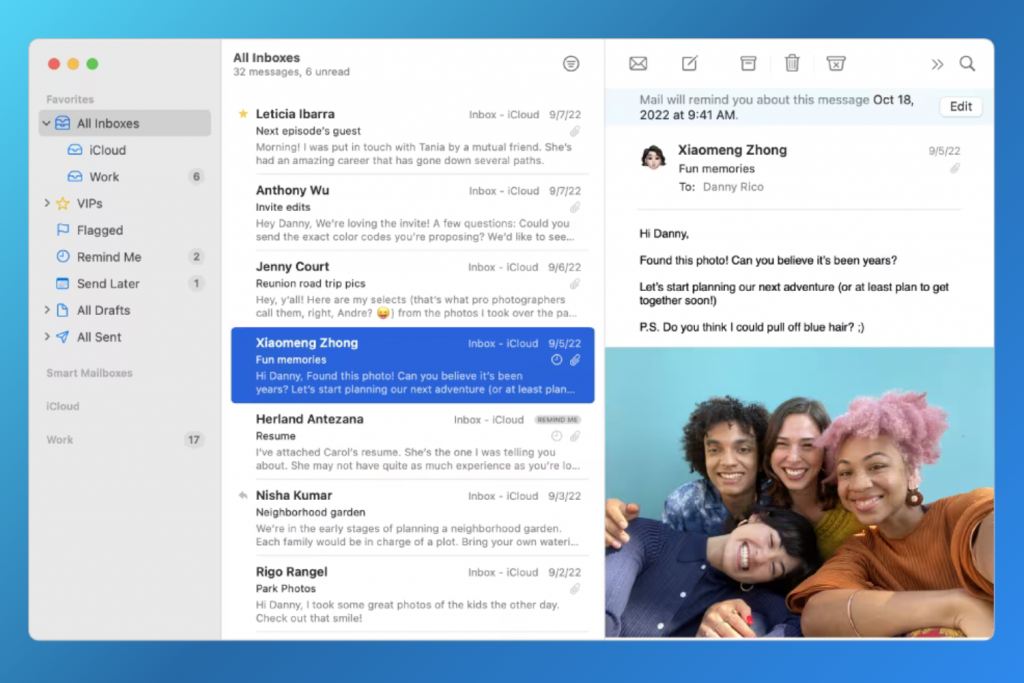
- Execute Complex Commands Instantly: Map multi-step actions like "Export as PDF" or "Move to Receipts" to a single keystroke.
- Maintain Focus: Stay in the "flow state" by keeping your hands on the keyboard rather than switching to a mouse or trackpad.
- Optimize Ergonomics: Remap difficult default combinations (like Control + Command + A) to simpler, more accessible keys.
If you find that your custom shortcuts are lagging or the app feels sluggish, it may be due to underlying system conflicts. Be sure to check our troubleshooting guide if Mac Mail is not responding.
[cta-block:ctablock1,title="One inbox for all accounts. Get started today",button="Install free",buttonlink="https://canarymail.io/downloads"]
Step-by-Step: Creating Custom Shortcuts in 2026
The macOS architecture continues to centralize app overrides within the System Settings. Follow these steps to ensure your shortcuts register correctly:
- Open System Settings: Access this via the Apple Menu () or Spotlight.
- Keyboard Shortcuts: Click on Keyboard in the sidebar, then select the Keyboard Shortcuts... button.
- App Shortcuts: Select this category from the left-hand list.
- Add Mail: Click the (+) button. In the application dropdown, choose Mail.
- Exact Command Entry: In the "Menu Title" field, you must type the command exactly as it appears in the Mail menu. For example, to remap the sidebar toggle, refer to our guide on how to Mac Mail customize sidebar for specific naming conventions.
- Assign Keys: Press your desired key combination and click Done.
Top Apple Mail Shortcuts to Remap for 2026
If you are looking for inspiration, here are the most common customizations that professionals use to stay ahead of their inboxes:
- Archive: Default is Control + Command + A. Many remap this to a single key or a simpler Command + E.
- Move to [Specific Folder]: You can create unique shortcuts for your most-used folders to clear your inbox instantly.
- Customize Sidebar: Use shortcuts to toggle your views. For more on this, check our guide on how to Mac Mail customize sidebar.
Troubleshooting Common Issues
My shortcut isn't working! Double-check the spelling in System Settings. It must be 100% identical to the text in the Mail app's menu. Also, ensure that the shortcut isn't already "stolen" by a system-wide command like 'Print' or 'Spotlight'.
The command name changed after a macOS update. Apple occasionally renames menu items (e.g., "Preferences" became "Settings"). If a shortcut stops working after an update, check the Mail menu to see if the wording has shifted.
Advanced Email Efficiency: Beyond Manual Shortcuts
While manual shortcuts are helpful, 2026 has ushered in a new era of email management with AI. Modern users are moving away from memorizing dozens of key combinations in favor of "Natural Language Actions."
Instead of mapping a shortcut for "Move to Receipts Folder," AI-enhanced clients like Canary Mail allow you to simply type or voice-command "Clean up my receipts," and the system handles the rest. This shift is why many are searching for Apple Mail alternatives that offer more than just basic menu-mapping.
Why Users Benefit from Switching to Canary Mail
While customizing Apple Mail can help, it is ultimately a manual solution to a modern problem. This is why many professionals are turning to Apple Mail alternatives like Canary Mail.

- Native AI Integration: Instead of memorizing 50 shortcuts, Canary’s AI allows you to use natural language to find files, summarize threads, and draft replies.
- Privacy-First Architecture: Canary Mail is built on a foundation of no data harvesting, ensuring your professional correspondence remains private.
- Unified Shortcut Management: Unlike Apple Mail, which requires you to leave the app to change settings, Canary allows for more fluid, native customization within the app interface.
- Smart Triage: Features like one-click unsubscribe and bulk-cleaner work faster than any manual shortcut you could create in a legacy client.
[cta-block:ctablock2,title="Tired of Apple Mail? Try this better app",button1="Download Now",button1link="https://canarymail.io/downloads",button2="Learn More",button2link="https://canarymail.io/"]
The Future of Shortcuts: Email Management with AI
As we move through 2026, the concept of a "keyboard shortcut" is evolving. Email management with AI has introduced the "Command Bar" interface. Instead of remembering Shift + Command + D to send, users can now hit one universal key to trigger an AI assistant that handles everything from scheduling to follow-ups.
Video Tutorial: Mastering macOS App Shortcuts
To see the step-by-step configuration for the latest version of macOS, watch the tutorial below:
The Bottom Line
Customizing keyboard shortcuts is a vital first step in reclaiming your time within Apple Mail. However, in the high-demand environment of 2026, manual shortcuts are often just a "band-aid" for an outdated email workflow. To truly maximize productivity, you need a tool that anticipates your needs. Canary Mail combines the speed of custom shortcuts with the intelligence of AI, providing a secure, high-performance environment that far outpaces the standard Mac Mail experience.
[cta-block:ctablock3,title="The best Apple Mail alternative",subtitle="Boost productivity with the ultimate email client app.",button1="Try it Free",button1link="https://canarymail.io/downloads",button2="none",button2link="none"]
FAQ
Q: Why doesn't my shortcut show up in the Mail menu?
A: Ensure the "Menu Title" in System Settings matches the Mail app command exactly, including capitalization and any ellipses (...).
Q: Can I use the same shortcut for different apps?
A: Yes, as long as they are assigned under the specific "App Shortcut" for each application, they will only trigger when that app is in focus.
Q: Does Canary Mail support these same shortcuts?
A: Yes, Canary Mail supports standard macOS shortcuts and offers additional native customization options that are much easier to configure than Apple Mail's system-wide settings.