How you send an encrypted email depends on which email service you use. In Outlook.com or the new Outlook for Windows with a Microsoft 365 Personal or Family subscription, open a new message and select Options > Encrypt. On a work Gmail account, select Message security (the lock) in the compose window, if your admin has turned on S/MIME or client-side encryption. Apple Mail encrypts with S/MIME once you and the recipient both have certificates. Personal Gmail and Yahoo have no button that encrypts the message itself. For those accounts, and for anyone else, use PGP through an email app or extension, a secure message link, or a password-protected file.
The steps for each provider are below, along with what each option protects and why a message sometimes goes out unencrypted. For the bigger picture, including phishing, see our guide to email security.
Which encryption option can you use?
| Option | Works with | Encrypts the message itself? | What the recipient needs |
|---|---|---|---|
| TLS (in transit) | Almost every provider, automatically | No, only the trip between servers | A provider that supports TLS |
| Outlook Encrypt (Microsoft 365) | Outlook.com with Microsoft 365 Personal or Family; work accounts set up by an admin | Yes, within Microsoft 365 | Nothing; other providers get a link and sign in or use a passcode |
| Gmail S/MIME or client-side encryption | Certain Google Workspace plans, set up by an admin | Yes | Their own S/MIME certificate, in most cases |
| S/MIME in Apple Mail or Outlook | Any account where you install a certificate | Yes | Their own S/MIME certificate |
| PGP | Any account, through an app or extension | Yes, end to end | A PGP key |
| Password-protected message link | Proton Mail, or an app that adds it | Yes, stored encrypted | The password, sent another way |
| Password-protected file | Any account | Only the attachment | The password, sent another way |
The kinds of email encryption, in plain terms
TLS encrypts the connection between mail servers. Gmail, Outlook.com, Yahoo and almost every other big provider use it automatically. It stops someone on the network from reading the message on the way, but the message sits readable on your provider's servers and the recipient's. Most people asking how to send an encrypted email already have TLS and want more than that.
Provider encryption is the encryption button built into a service, such as Microsoft 365's Encrypt option or Gmail's client-side encryption for businesses. It only exists on certain paid plans, and it works best when both people use the same system. Recipients elsewhere usually read the message on a web page.
S/MIME encrypts each message with certificates. You need your own certificate, and you need the recipient's certificate before you can encrypt to them. That usually means swapping signed emails first. Companies and universities use it because IT can issue certificates to everyone at once.
PGP does the same job with keys you create yourself. It works on any email account and no company sits in the middle, but you and the recipient both need PGP keys. Our explainer on how PGP encryption works covers keys and verification in detail.
A secure message link is the option for recipients who have no encryption at all. The recipient gets an email with a link, opens it, and proves who they are with a password you gave them, a one-time code or a Magic Link, depending on the service. If you're not sure how this differs from a private email provider, see encrypted email vs private email.
How to send an encrypted email in Outlook
Outlook.com and the new Outlook for Windows (Microsoft 365 Personal or Family)
- Start a new message.
- Select the Options tab, then Encrypt.
- Choose Encrypt (the message stays encrypted in Microsoft 365) or Do Not Forward (it also can't be copied or forwarded).
- Write the message and send it.
Recipients using Outlook.com, the Outlook mobile app, the new Outlook or Outlook for Mac read it like any other email. Gmail and Yahoo users can sign in with their Google or Yahoo account or ask for a one-time passcode. People on other providers get the passcode by email. Without a Personal or Family subscription, a free Outlook.com account doesn't get the Encrypt option.
Work or school Outlook accounts
On a Microsoft 365 work account, the same Options > Encrypt button appears once your admin has set up Microsoft Purview Message Encryption. Organizations that use S/MIME instead have an Encrypt this message (S/MIME) checkbox under message options. Classic Outlook, Outlook on the web and the new Outlook each put these settings in slightly different places, and our step-by-step guide to encrypting email in Outlook covers every version.
How to send an encrypted email in Gmail
Every Gmail message already travels with TLS. Gmail shows a gray lock for that, and a red open lock when the other provider doesn't support it. Encrypting the message itself depends on the account:
- Work or school (Google Workspace): if your admin has turned on hosted S/MIME or client-side encryption, open Message security (the lock at the top right of the compose window). S/MIME messages show a green lock, and client-side encryption shows a blue shield. Both only exist on certain Workspace editions, such as Enterprise Plus and the Education plans.
- Personal @gmail.com: Gmail has no built-in way to encrypt the message. You need PGP through an email app or browser extension, or a password-protected attachment.
Gmail's confidential mode is often suggested here, but it doesn't encrypt anything. On a computer, click Compose, then the confidential mode toggle at the bottom of the window, set an expiration date and an optional SMS passcode, and click Save. That blocks forwarding, copying, printing and downloading and lets you remove access later. Google's help page never calls it encryption, and it warns that recipients can still take screenshots.
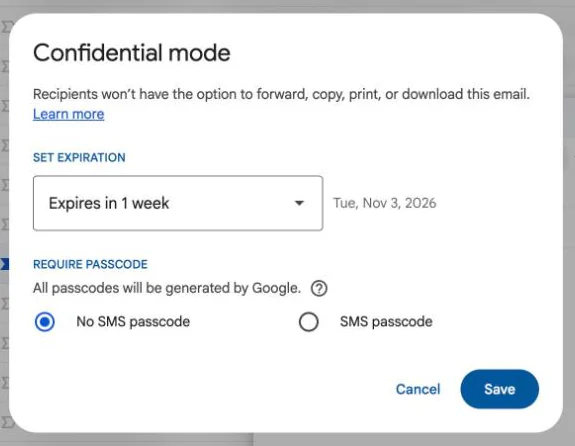
The full steps for each Gmail option on a computer, Android and iPhone are in our guide to sending encrypted email in Gmail.
How to send an encrypted email on iPhone and Mac (Apple Mail)
Apple Mail's built-in encryption is S/MIME. Before you start, you need a personal S/MIME certificate for your email address, from a certificate authority or from your employer. You also need the certificate of each person you're writing to. You get it when they send you a signed email.
iPhone and iPad
- Install your S/MIME certificate on the iPhone.
- Open Settings > Mail > Accounts and choose the account.
- Go to Account > Advanced and turn on Encrypt by Default.
- Write a message. Tap the lock next to the recipient's address to turn encryption on or off for that message.
Replies and forwards keep the encryption of the message you're answering, whatever your default is. To save someone's certificate, open a signed email from them, tap their address, then View Certificate > Install.
Mac
- Import your certificate into Keychain Access, so it shows under My Certificates.
- In Mail, choose File > New Message, and pick the account with the certificate in the From field. A checkmark icon shows the message will be signed.
- Add the recipients. A closed lock appears only if your keychain has a certificate for every one of them.
- Send. If you click the lock and it opens, the message goes out unencrypted.
Most people with an iCloud or Gmail address don't have an S/MIME certificate, so for them PGP or a password link is more practical. Apple Mail has no PGP built in. Our guide to using PGP on iPhone and iPad covers the options.
How to send an encrypted email in Yahoo Mail
Yahoo Mail doesn't have a built-in way to encrypt a message. Its help pages only cover secure SSL connections, which is the in-transit protection described above. To encrypt the message itself, you have three options:
- Add your Yahoo account to an email app that supports PGP or password-protected messages. Yahoo works in other apps over IMAP. Apps that don't use Yahoo's own sign-in page need an app password, which you create on the Yahoo Account Security page under "External connections".
- Put the sensitive part in a password-protected PDF or Word file and attach it.
- Switch to an encrypted provider for that conversation. This is the heaviest option, because you change address.
How to send an encrypted email from any account with Canary Mail
Disclosure: we make Canary Mail. It's an email app that adds PGP and SecureSend, a secure message link the recipient opens with a one-time Magic Link, to the account you already have: Gmail, Outlook, Yahoo, iCloud and most other IMAP accounts. Neither needs your recipient to use Canary.
PGP
- Go to Settings > Security and set up PGP. You can generate a key pair or import an existing key (a .asc file).
- Compose a message and turn on encryption.
- Canary encrypts with the recipient's public key if it has one. If it doesn't, the message goes through SecureSend instead.
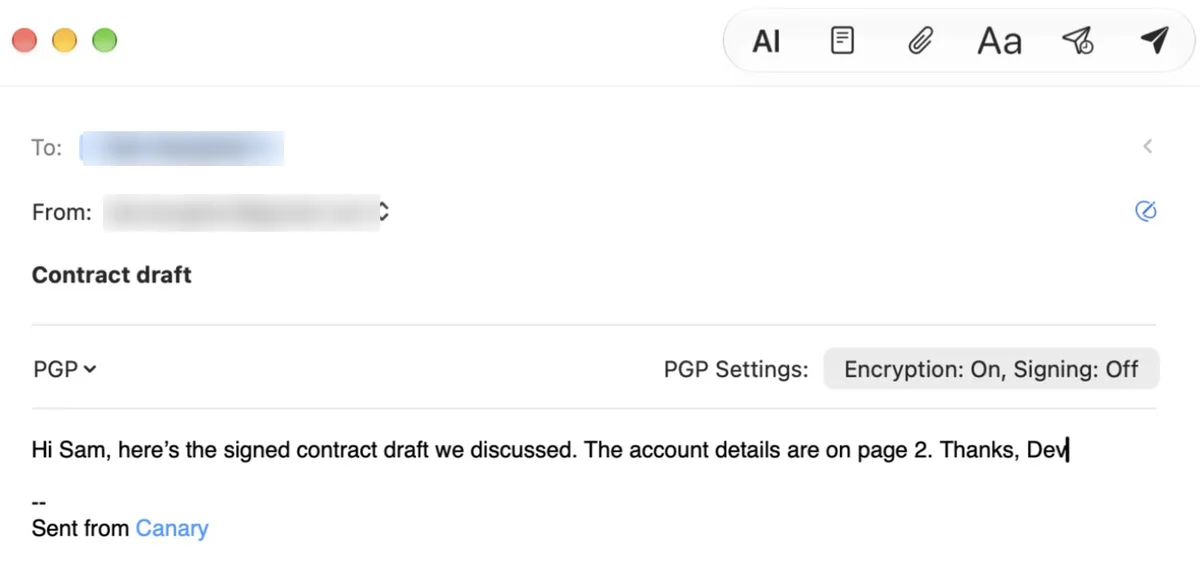
SecureSend (recipients without PGP)
- Make sure SecureSend is turned on in Settings > Security.
- In compose, turn on the SecureSend toggle. You can set an expiry date and revoke access after sending.
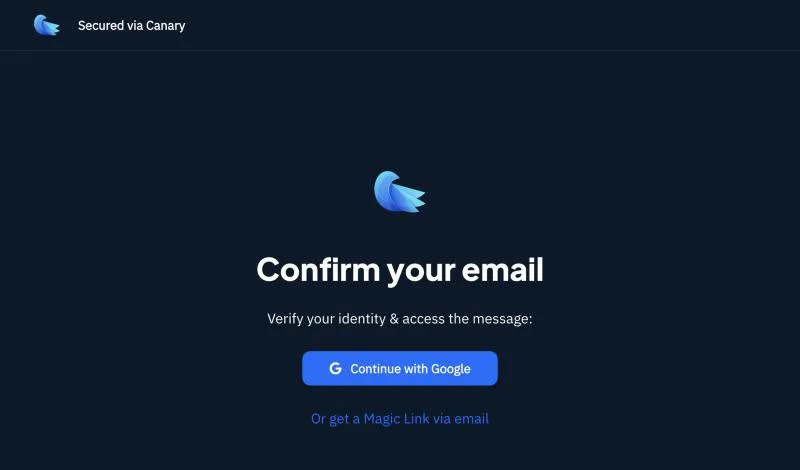
- The recipient gets an ordinary email with a link. They verify their identity, then read the message in the Secure Reader and can reply securely. They don't need Canary or a new account.
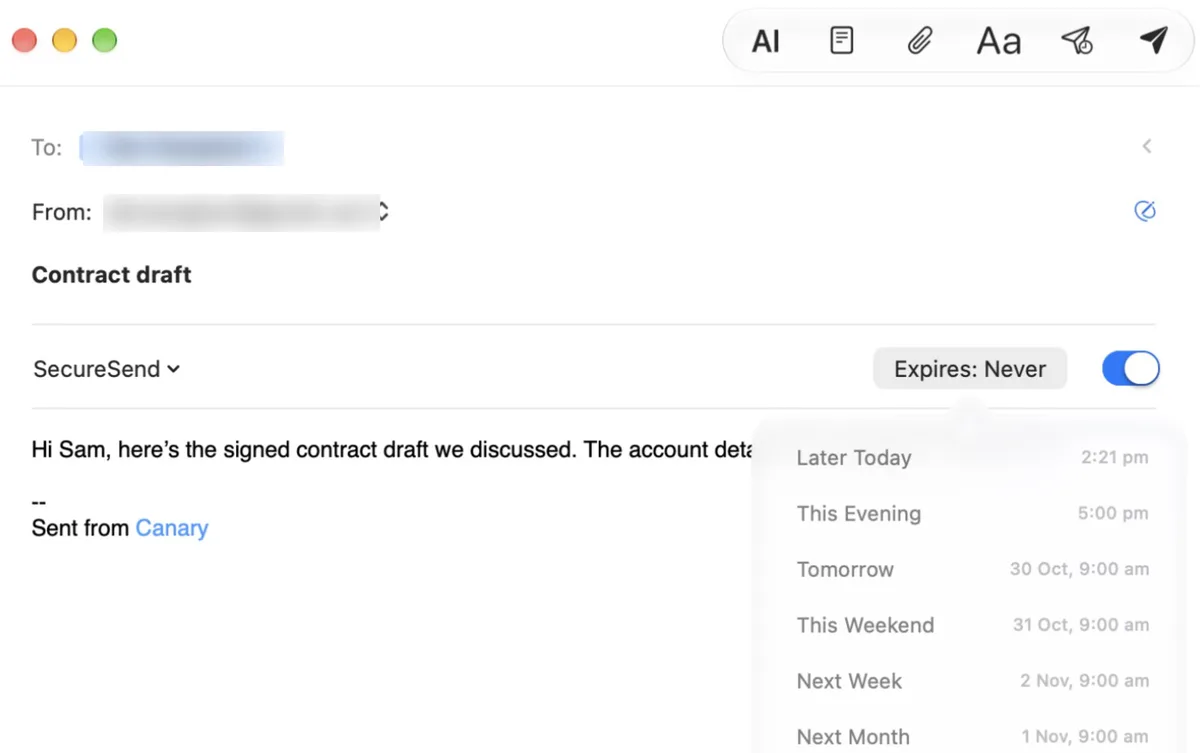
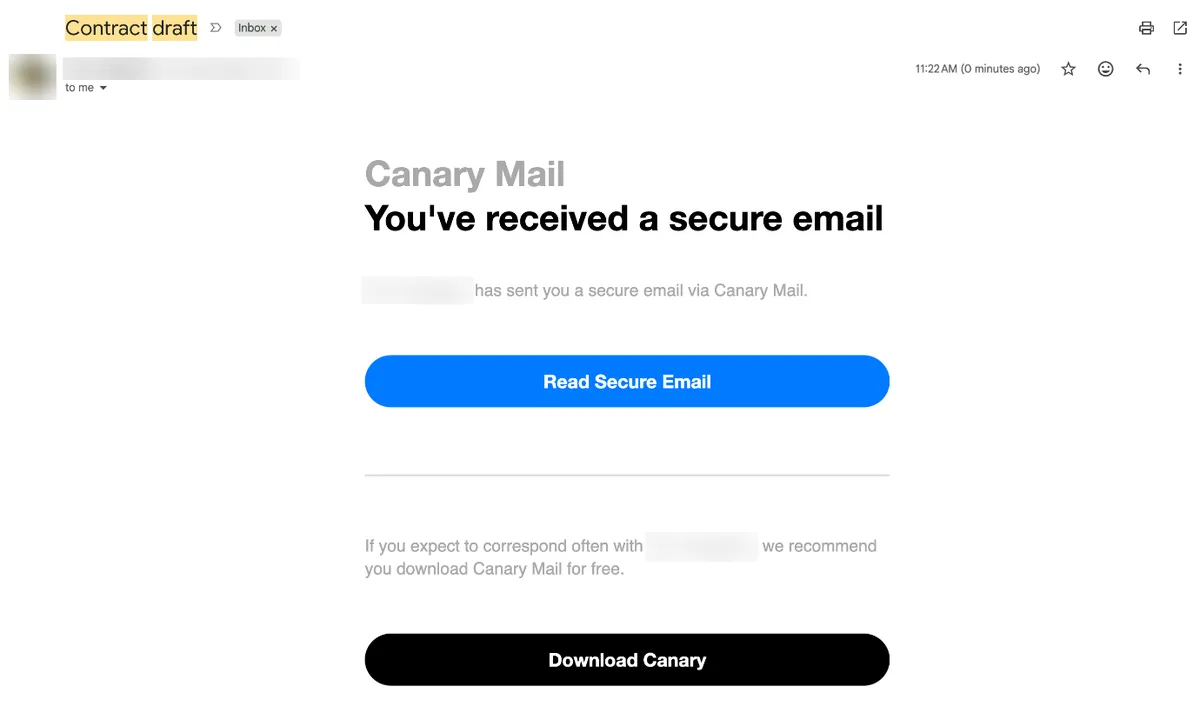
Who it's for: people who want encryption without changing email address, especially when sending to clients or family who don't use encryption. Price: PGP and SecureSend are on Pro+, $100 a year or $300 for a lifetime licence, with a 7-day free trial. The free plan doesn't include them. Platforms: PGP and SecureSend on Mac, Windows, iPhone, iPad and Android. Downside: SecureSend relies on a cloud-based secure reader, so with people who already have PGP keys, PGP is the stricter choice. Paid plans are billed yearly or as a lifetime licence, with no monthly option. Our comparison of PGP vs SecureSend explains when to use each.
If you'd rather change provider, Proton Mail encrypts mail between Proton users automatically. To send to anyone else, click the lock (External encryption) in the compose toolbar, set a password and an optional hint, and send. The recipient clicks Unlock message and enters the password. These messages expire after at most 28 days, and they're available on the free plan. For more choices, see our list of the best secure email apps.
How to encrypt just the attachment
If only a file is sensitive, such as a tax form or a scan of an ID, encrypt the file and leave the email as it is.
- Word on Windows: File > Info > Protect Document > Encrypt with Password, then save.
- Word on Mac: Review > Protect > Protect Document, and set a password to open.
- PDF on Mac, in Preview: File > Export, click Permissions, select Require Password To Open Document, enter an owner password too, then click Apply and Save.
Send the password by text or phone, never in the same email. Avoid password-protected ZIP files if anyone involved uses Gmail, because Gmail blocks password-protected archives. Microsoft can't recover a lost Word password, so keep a copy of it.
Why isn't my email encrypted?
- There's no Encrypt button in Outlook. Personal accounts need a Microsoft 365 Personal or Family subscription. Work accounts need an admin to set up encryption first.
- The recipient has no certificate or key. S/MIME and PGP can only encrypt to people whose certificate or public key you have. Outlook warns you before sending, Apple Mail shows an open lock, and Gmail falls back to TLS for that person.
- Gmail shows a red open lock. The recipient's provider doesn't support TLS, so the message isn't even encrypted on the way. Don't send anything sensitive to that address.
- You used confidential mode. It controls access but doesn't encrypt the message.
- The reply went out in plain text. In some systems, such as Proton's password-protected emails, you have to turn encryption back on for each reply.
- The subject line is visible. Encryption covers the body and attachments. Who you wrote to and when stay visible, and so does the subject in many systems (Google says so for its client-side encryption). Keep sensitive details out of the subject.
Frequently asked questions
How can I send an encrypted email for free?
Proton Mail's free plan can send password-protected emails to any address. You can also use a free PGP tool, or put the content in a password-protected PDF or Word file and send the password separately.
Is an encrypted email the same as a secure email?
Not quite. "Secure email" often just means TLS in transit, which almost every provider does. An encrypted email usually means the message itself is encrypted, so only the recipient can read it.
Why won't Outlook let me send an encrypted email?
The Encrypt option needs a Microsoft 365 Personal or Family subscription on Outlook.com, or an admin who has set up encryption on a work account. S/MIME also needs certificates for you and each recipient.
Can I send an encrypted email to someone who doesn't use encryption?
Yes. Use a secure message link, such as Outlook's Encrypt option, Proton's password-protected emails or Canary's SecureSend. The recipient opens a link and enters a password or passcode.
What is the safest way to send confidential information by email?
End-to-end encryption with PGP or S/MIME, when the recipient has a key or certificate. Otherwise, use a secure message link, or a password-protected file with the password shared by phone or text.
How do I send a secure email on my iPhone?
Apple Mail can encrypt with S/MIME once you've installed a certificate: go to Settings > Mail > Accounts > your account > Account > Advanced and turn on Encrypt by Default. Without a certificate, use an app with PGP or password-protected messages.
Is Gmail confidential mode encrypted?
No. It adds an expiry date and a passcode and blocks forwarding and downloading, but Google stores the message normally and recipients can take screenshots.
Sources
- Microsoft: Send encrypted messages with a Microsoft 365 Personal or Family subscription
- Microsoft: Encrypt email messages
- Microsoft: Protect a document with a password
- Google: Learn how Gmail encrypts your emails
- Google: Send & open confidential emails
- Google: Learn about Gmail client-side encryption
- Google: File types blocked in Gmail
- Apple: Use S/MIME to send and receive encrypted messages in the Mail app in iOS
- Apple: Sign or encrypt emails in Mail on Mac
- Apple: Password-protect a PDF in Preview on Mac
- Yahoo: IMAP server settings for Yahoo Mail, Generate and manage third-party app passwords
- Proton: Password-protected emails
- Canary Mail: SecureSend: what it is and how it works, security features, pricing
For phishing, account security and the rest of the topic, go back to our guide to email security.