Usually Gmail did get the email and filed it somewhere you didn't look, or a setting on your account is moving it, deleting it or sending it back. Check these in order: the Google Workspace Status Dashboard for an outage, a search of Mail & Spam & Trash, your filters ("Delete it" or "Skip Inbox") and blocked addresses, your forwarding and POP/IMAP settings, and your Google storage. When storage is full, Gmail can't receive email and messages sent to you go back to the sender. If the email is on gmail.com but not on your phone, look at the Gmail app's sync settings.
Each fix below has steps for Gmail on a computer, the Android app or the iPhone/iPad app, whichever applies. After the fixes, we explain what "Queued" means in the Gmail app and how to get those messages out. For other settings and how-tos, see our complete guide to Gmail.
First, find out if the problem is Gmail or your device
- On a computer, sign in at mail.google.com. That shows what Google has, with no app in between.
- Send yourself a test email from a different account (a work address, or a friend's), with a subject you'll recognize.
- Wait a few minutes and see where it shows up.
- It's on gmail.com but not on your phone or in your email app: the account is fine. Go to fix 6 (the Gmail app) or the section on other email apps further down.
- It isn't on gmail.com either: the cause is in your account settings, your storage or the sender's side. Work through fixes 1 to 5 and 8.
- Gmail won't open at all, or is very slow: go to fix 7.
Gmail not receiving emails: 8 fixes, in order
1. Check whether Gmail is down
If Gmail is down, nothing on your side will help. Open the Google Workspace Status Dashboard (google.com/appsstatus/dashboard) and look at the Gmail row. If there's an active incident, wait for Google to fix it.
2. Search Spam, Trash and all your mail
A normal search skips Spam and Trash.
On a computer:
- In the search bar, click Show search options (the sliders icon).
- Next to "Search", open the menu and choose Mail & Spam & Trash.
- Enter the sender's address or a word you expect in the subject, and click Search.
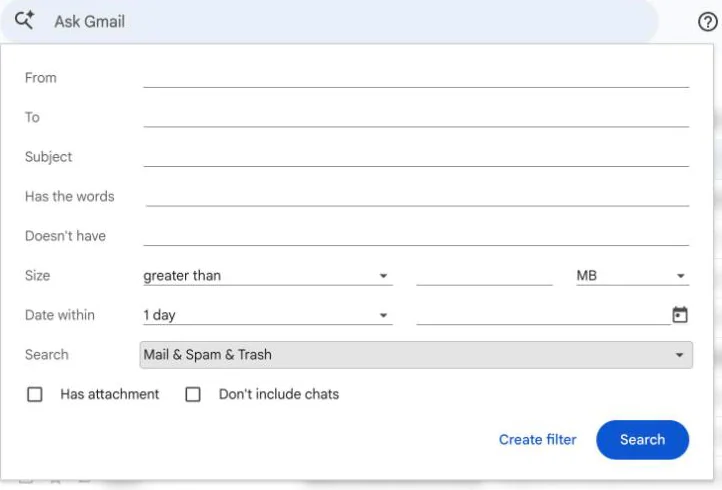
In the Android or iPhone app: type in:anywhere in the search bar, followed by the sender or a word from the email.
If you find it in Spam, open it and report it as Not spam so future emails from that sender reach your inbox. Act soon: Gmail permanently deletes messages in Spam and Trash after 30 days.
Also check the inbox tabs. If your inbox is split into Primary, Social, Promotions, Updates and Forums, an order confirmation or newsletter can land in Promotions or Updates and look like it never came. To change which tabs you see on a computer, click Settings, choose Default under "Inbox type", then click Customize.
3. Check your filters and blocked addresses
A filter you made months ago can archive or delete mail before you see it. You manage filters on a computer.
- Click Settings (the gear icon), then See all settings.
- Open the Filters and Blocked Addresses tab.
- Look for filters with the actions Delete it or Skip Inbox. Click edit to change one or delete to remove it.
- Scroll down to the list of blocked addresses. Mail from a blocked sender goes straight to Spam. To undo it, tick the sender and click Unblock selected addresses.
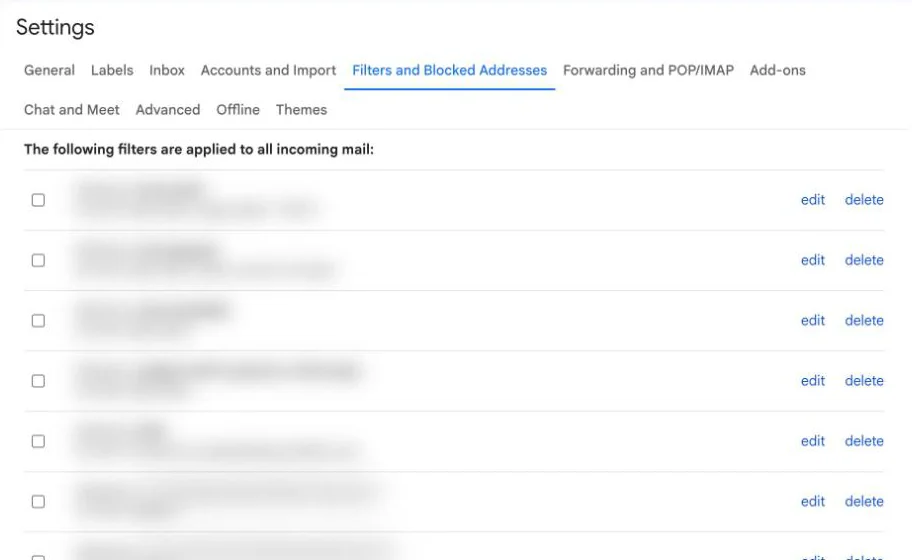
To rebuild a filter properly, see our guide to creating rules and filters in Gmail.
4. Check forwarding and POP/IMAP settings
Forwarding can send your mail to another address and archive or delete Gmail's copy. An email app connected with POP can download your mail and remove it from Gmail.
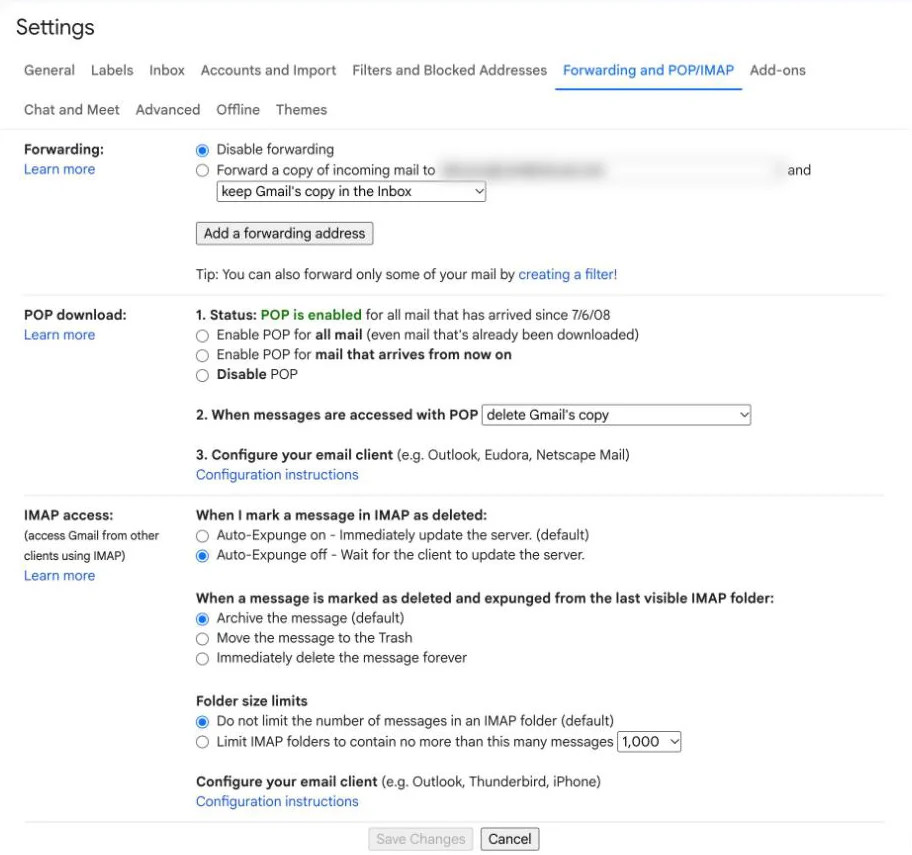
- On a computer, go to Settings > See all settings and open the Forwarding and POP/IMAP tab.
- Under "Forwarding", see whether mail is forwarded and what happens to Gmail's copy. Choose keep Gmail's copy in the Inbox if you want it to stay, and click Save Changes.
- If mail is being forwarded to an address you don't recognize, someone may have access to your account. Select Disable forwarding, save, and change your Google password.
- Under "POP download", if an app collects your mail with POP, set Gmail to keep its copy in the inbox. Also set the app to leave messages on the server.
Also open myaccount.google.com/connections and remove apps you no longer use, since any of them may still be moving your mail. You can skip old advice to "enable IMAP": Google says IMAP is always on, and the option went away in January 2025.
5. Check whether your Google storage is full
This one is easy to miss. Gmail, Google Drive and Google Photos share one storage quota (15 GB on a free account), and Spam and Trash count toward it. Google says that when storage runs out, you can't send or receive email and messages sent to you go back to the sender. They don't wait for you to make room: each sender gets a bounce and has to send again.
- Check your usage at one.google.com/storage.
- Empty Trash and Spam first. Google calls it the quickest way to get space back.
- Find large emails with a search such as has:attachment larger:10M or older_than:2y has:attachment, and delete what you don't need. Our guide on how to mass delete emails in Gmail covers bulk clean-ups.
- Allow time. Google says storage can take 48 to 72 hours to update after a large deletion.
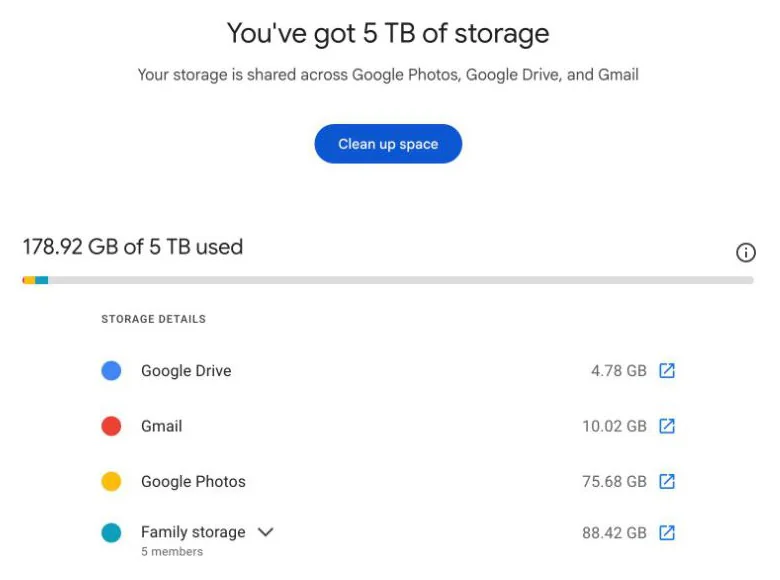
If you stay over quota for two years, Google may delete content across Gmail, Drive and Photos. It says it will warn you at least three months before that happens.
6. Fix the Gmail app on Android or iPhone
If the email is on gmail.com but not in the app, either the app isn't syncing or the notification is switched off.
Android:
- In the inbox, swipe down from the top to refresh. Google says a sync can take up to 15 minutes, longer if the phone has been idle.
- Open the Gmail app, tap Menu > Settings, tap your account, and under Data usage make sure Sync Gmail is checked.
- Check the phone's own sync. In the Settings app, open your Google Account's Account sync page and tap More > Sync now. The path varies by phone maker.
- Update Gmail from the Play Store, restart the phone, and free up space if it's nearly full. Google says the app may not sync when storage is low.
- Check Data Saver. It limits most apps to background data over Wi-Fi only. Go to Settings > Network & internet > Data Saver and turn it off, or add Gmail under Unrestricted data. Battery Saver can also delay apps, so try with it off.
- For alerts, go to Menu > Settings, tap your account, tap Email notifications and choose All or High priority only. Notifications for Gmail must also be on in the phone's settings.
- As a last resort, clear the app's data: Settings > Apps > See all apps > Gmail > Storage & cache > Clear storage, then restart. Google warns this can erase drafts, your signature and other settings, so copy anything important first.
iPhone and iPad:
- Swipe down in the inbox to refresh.
- Turn on Settings > General > Background App Refresh, then scroll to Gmail and turn it on.
- In the Gmail app, tap Menu > Settings, then under "General" tap Data usage > Sync settings and choose how many days of mail to sync.
- For alerts, turn on notifications for Gmail in the iPhone Settings app. Then in Gmail, tap Menu > Settings > Email notifications and pick a level. By default, only Primary mail sends a notification.
- Update the app from the App Store and restart the iPhone.
7. If Gmail won't load or is slow in your browser
When gmail.com hangs on the loading screen, start with the browser.
- Use a supported browser (current Chrome, Firefox, Safari or Edge) and update it.
- Open Gmail in an Incognito or private window. If it works there, an extension is the likely cause. Turn extensions off one at a time and reload Gmail after each.
- Clear your browser's cache and cookies, then reopen Gmail.
- Restart the computer, try another network, or try another device. Gmail may not load on older ones.
Basic HTML view is no longer a fallback. Google turned it off in January 2024, and Gmail now always opens the standard version.
If Gmail loads but is slow, Google's tips for Workspace admins work for personal accounts too: keep labels and filters under 500 each, lower Maximum page size under Settings > See all settings > General, and bulk-delete fewer than 1,000 messages at a time. If you see a "too many simultaneous connections" error, our help page on fixing too many simultaneous connections in Gmail explains it.
If you turned on Gmail offline in Chrome, messages you send while offline wait in an Outbox folder and go out when you reconnect. That's normal, not a fault.
8. Check the sender's side
If one person's emails never arrive, ask whether they got a bounce message. The wording tells you where it went wrong.
- "The recipient's email address doesn't exist": they have your address wrong. Gmail ignores dots, so john.smith and johnsmith are the same inbox, but a typo or a trailing space is not.
- "The recipient's inbox is out of storage space": your storage is full (fix 5).
- "Your email is flagged as spam or temporarily rejected": something in their message (links, attachments, a large recipient list) triggered Gmail's spam protection. They can remove it and try again.
- "This message was blocked because its content presents a potential security issue": Gmail blocks some attachments, such as .exe files and password-protected archives. Ask them to share the file another way, such as a Google Drive link.
- No bounce at all: the email may have reached Gmail and gone to Spam. Gmail is more likely to send unauthenticated email to Spam, so a sender with a misconfigured domain should talk to whoever runs their email.
On a work or school account (Google Workspace), ask your admin. They can trace a message with Email Log Search and check the domain's MX records and account status.
What does "Queued" mean in Gmail?
"Queued" means the Gmail app hasn't managed to send your message yet. It sits in the Outbox while the app keeps trying, and moves to Sent once whatever blocked it clears. You'll see it mostly in the Android and iPhone apps. Common causes:
- A weak or dropped connection, or Data Saver, Battery Saver or Low Power Mode cutting background data.
- Gmail sync turned off for the account (Android: the Sync Gmail checkbox).
- Full Google storage. Google says you can't send email when you're out of space.
- A very large attachment on a slow connection. Personal accounts can attach up to 25 MB, and on a computer Gmail turns anything bigger into a Google Drive link.
- Gmail's sending limit. A personal account that sends more than 500 emails in a day, or one email to more than 500 recipients, can't send again for 24 hours.
- An outage on Google's side (check the Status Dashboard).
How to send a queued email
- Check the connection. Switch between Wi-Fi and mobile data, and turn off any VPN for a moment.
- Open Menu > Outbox, pull down to refresh and leave the app open for a minute.
- Turn off Data Saver or Battery Saver (Android) or Low Power Mode (iPhone). On Android, check that Sync Gmail is on; on iPhone, turn on Background App Refresh for Gmail.
- Check your storage at one.google.com/storage, and swap a large attachment for a link to the file.
- Update the Gmail app and restart the phone.
- Still stuck? Copy the message text, delete the queued copy and send it from gmail.com on a computer. If that works, the app is the problem. Google's fix for connection errors in the apps is to remove your Google account from the phone and add it back.
On Android, copy any queued messages before you clear the Gmail app's storage. Google warns that clearing it can erase drafts.
Gmail works on the web but not in another email app
If new mail shows on gmail.com but not in Outlook, Apple Mail or another app, the account is fine and the app's connection isn't.
Remove the account from the app and add it back with the app's Google sign-in button. Google recommends "Sign in with Google" and says app passwords "aren't recommended and are unnecessary in most cases" (iPhones and iPads on iOS 11 or later never need one). Check that the app has no rule deleting or archiving mail and that a POP setup isn't removing it from Gmail (fix 4). Gmail also allows only 15 email apps per account at a time, so sign out of ones you no longer use.
The same goes for Canary Mail (disclosure: we make Canary Mail) or any other app. For Apple's built-in Mail app, we have separate guides for when the iPhone isn't getting emails and for Mac Mail not receiving messages.
For other Gmail settings and fixes, see our Gmail guide.
Frequently asked questions
Why am I not receiving emails on Gmail?
Usually the email is in Spam, Trash or another inbox tab, a filter or forwarding rule moved it, or your Google storage is full. With full storage, messages bounce back to the sender until you free up space.
Why have my emails suddenly stopped coming through?
If everything stopped at once, check your Google storage first, then the Google Workspace Status Dashboard for an outage. If only your phone stopped, check that Sync Gmail is on (Android) or Background App Refresh is on (iPhone).
How do I check if Gmail is blocking incoming emails?
On a computer, go to Settings, then See all settings, then Filters and Blocked Addresses. Blocked senders are listed at the bottom, and their mail goes to Spam. Also look for filters set to "Delete it" or "Skip Inbox".
Why are my emails not showing up in my Gmail inbox?
They may be in the Promotions, Social or Updates tab, in Spam, or archived by a filter. Search with "Mail & Spam & Trash" selected on a computer, or type in:anywhere in the app.
Why am I not receiving emails from one sender?
Check your blocked list, your filters and Spam. If it's none of those, ask the sender for the bounce message, which says whether the address was wrong, your storage was full or Gmail rejected it.
What does queued mean in Gmail?
The Gmail app hasn't been able to send the message yet, so it waits in the Outbox and keeps retrying. Common causes are a poor connection, Data Saver or Low Power Mode, sync turned off, full storage or a very large attachment.
Will a queued email eventually send?
Usually, once the connection or setting that held it back is fixed and the app gets a chance to sync. If it's still queued after you've checked your connection, storage and sync, copy the text and send it again from gmail.com.
Why is my Gmail so slow?
Usually it's the browser. Try an Incognito window, clear the cache and update the browser. Hundreds of labels or filters, or a large Maximum page size, can also slow it down.
Sources
- Google: Gmail messages are missing
- Google: Fix sync errors with the Gmail app
- Google: Gmail won't load
- Google: Manage your storage in Drive, Gmail & Photos
- Google: How your Google storage works
- Google: Block an email address in Gmail
- Google: Organize your emails into categories
- Google: Fix bounced or rejected emails
- Google: File types blocked in Gmail
- Google: Getting someone else's mail
- Google: Change Gmail notifications
- Google: Send attachments with your Gmail message
- Google: Set up and use Gmail offline
- Google: Add Gmail to another email client
- Google: Sign in with app passwords
- Google: Use less mobile data with Data Saver
- Google Workspace: Gmail is slow for my users
- Google Workspace: Troubleshoot problems receiving emails in Gmail
- Google: Google Workspace Status Dashboard