Most of the time the email has arrived and Mail is hiding it, or Mail isn't checking for it. First check the account on its webmail. If the message is there, look in your other Mail categories and in Junk. Then go to Settings > Apps > Mail > Mail Accounts > Fetch New Data and make sure the account is set to Push or a timed Fetch. Finally, turn off Low Power Mode, which stops email fetch.
Below are 10 fixes in the order most likely to work, then notes for Gmail, Outlook, Yahoo, iCloud and work accounts. The paths are for iOS 27. On iOS 17 or earlier, start at Settings > Mail instead. For setup and settings beyond this problem, see our guide to iPhone Mail setup, settings and fixes.
First, find out if the problem is the iPhone or the account
- Open your provider's webmail in a browser (for example gmail.com, outlook.com, mail.yahoo.com or icloud.com/mail) and sign in.
- Send yourself a test email from another address, or ask someone to send you one.
- See where it shows up.
- It's in webmail but not on the iPhone: the problem is the iPhone. Work through the fixes below.
- It isn't in webmail either: the problem is the account or the provider. Check for an outage, a full mailbox, or a rule or forwarding setting in webmail that moves or sends mail elsewhere. Changing iPhone settings won't help until that's fixed.
iPhone not getting emails: 10 fixes, in order
1. Check that the email isn't hidden
New mail often arrives and sits where you don't look.
- Mail categories. Mail sorts the inbox into Primary, Transactions, Updates and Promotions. A newsletter or an order email lands outside Primary, so it looks like it never came. Swipe left on the categories at the top of the inbox to open All Mail. To drop categories for good, tap the button at the top of the inbox and choose List View.
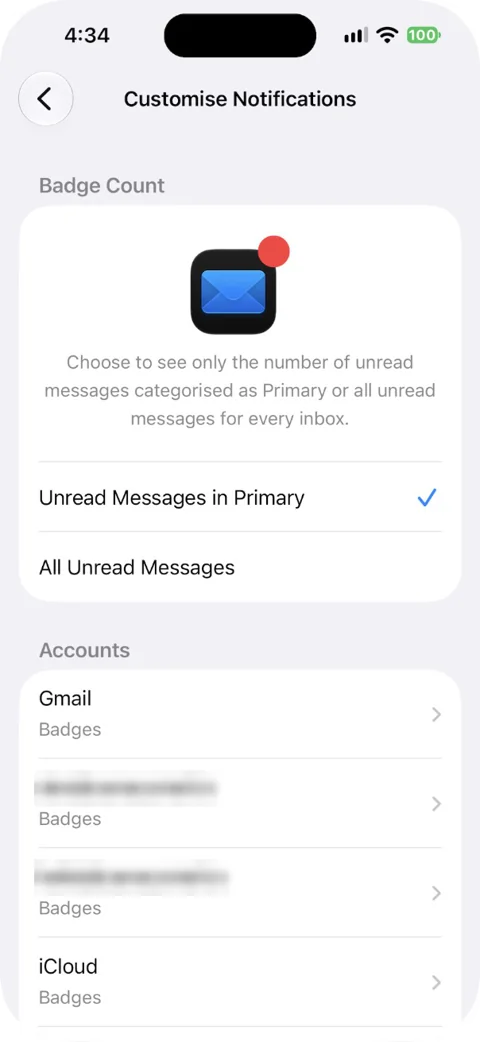
- The app badge. The red number on the Mail icon counts only Primary mail by default. To count everything, go to Settings > Notifications > Mail > Customize Notifications and turn on All Unread Messages.
- The mailbox filter. If you see "Filtered by" at the bottom of a mailbox, a filter is on (for example Unread only). Tap the filter button to turn it off.
- Junk. Open the Mailboxes list and check the account's Junk folder. If good mail keeps ending up there, mark it as not junk. Here's more on how Apple Mail's junk filter works.
- Focus filters. A Focus (Work, Sleep, Personal) can hide some Mail accounts while it's on. Go to Settings > Focus, tap the Focus and look under Focus Filters for a Mail filter.
2. Pull down to refresh and check the connection
- In the inbox, pull down to check for new mail. Check the bottom of the screen for an error message.
- Open a website in Safari to make sure the iPhone is online.
- If it only fails on mobile data, check that Mail is allowed to use it: find Mail in the app list under Settings > Cellular and turn it on.
- Turn off any VPN for a moment and refresh again. Apple lists VPNs as a cause of iCloud Mail problems.
3. Check that the account is on and signed in
- Go to Settings > Apps > Mail > Mail Accounts and tap the account.
- Make sure the Mail switch is on. For iCloud, tap iCloud and check that Use on this iPhone is on.
- If you see a prompt to sign in or re-enter your password, tap it and sign in. Changed your password recently? Every account on the phone needs the new one; see how to update your email password on iPhone.
Apple also suggests confirming your address and password by signing in to the provider's website. If you use two-step verification, you might need a special password or authorization.
4. Change Fetch New Data (Push, Fetch or Manual)
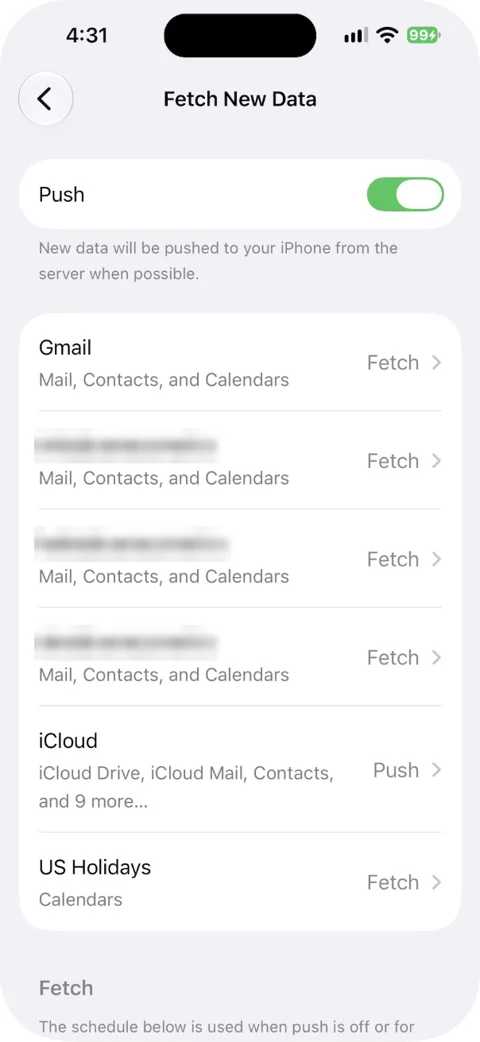
This setting decides how often Mail checks for new email. Go to Settings > Apps > Mail > Mail Accounts > Fetch New Data. Our iPhone Mail settings guide explains the other settings around it.
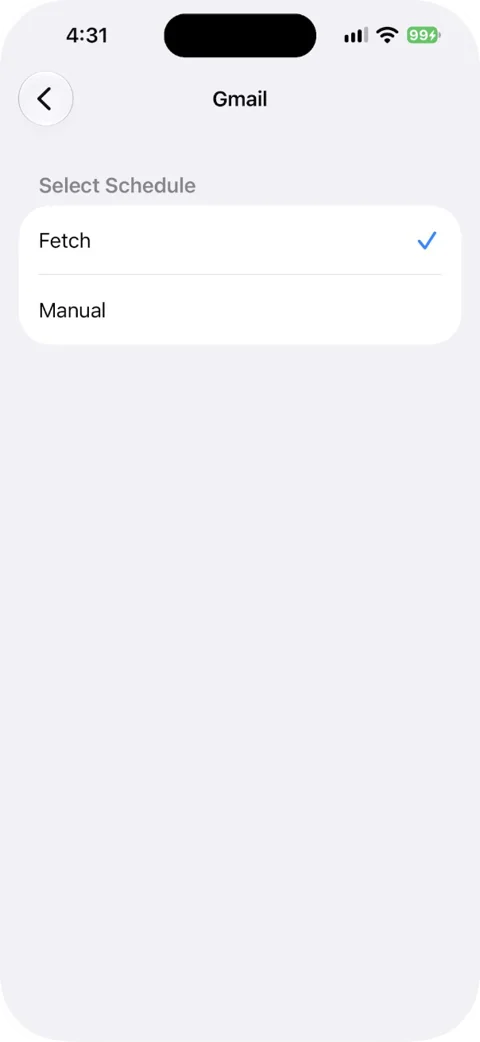
- Push: the server sends new mail to the iPhone as it arrives. Turn on Push at the top, then tap each account and choose Push if it's offered.
- Fetch: the iPhone checks on a schedule. This is for accounts that don't support Push.
- Manual: Mail only checks when you open it and pull down.
Under Fetch at the bottom, the default is Automatically. Apple says that with this setting, new data downloads in the background only when the iPhone is charging and on Wi-Fi. That's a common reason mail "only shows up when I open the app". Choose a timed schedule, such as Every 15 Minutes, if you want Mail to check more often. It uses a little more battery.
5. Turn off Low Power Mode
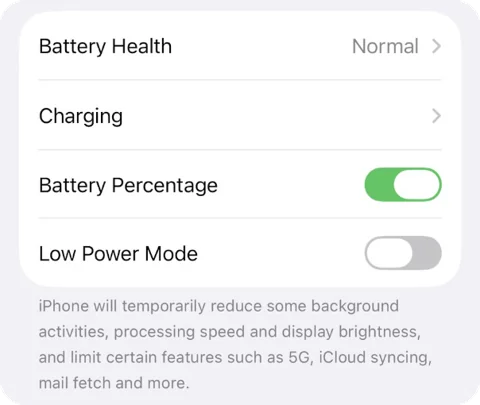
Apple says Low Power Mode turns off email fetch, along with Background App Refresh. While it's on, Mail won't check for new mail until you open it. It turns itself off when the battery reaches 80%.
- Most iPhones, including iPhone 15: go to Settings > Battery and turn off Low Power Mode.
- iPhones with a Power Mode menu: go to Settings > Battery > Power Mode and turn off Low Power Mode.
On iPhone 15 Pro and later, Adaptive Power is on by default. It can limit background activity and turn on Low Power Mode at 20% battery, so mail can stop arriving late in the day even if you never turned Low Power Mode on yourself.
6. Check Mail notifications
Sometimes the mail is arriving and only the alert is missing.
- Go to Settings > Apps > Mail > Notifications and turn on Allow Notifications.
- Tap Customize Notifications, tap each account, and turn on Alerts and Badges.
- If you use Scheduled Summary, go to Settings > Notifications > Mail and, under Notification Delivery, choose Immediate Delivery. With Scheduled Summary, Mail alerts wait for the next summary.
- Check whether a Focus is on. It can silence Mail alerts.
On a computer? We have a separate guide to Mail notifications on a Mac.
7. Free up storage
Two kinds of storage matter here:
- iPhone storage. Check Settings > General > iPhone Storage. If it is nearly full, free some space so Mail has room for new messages and attachments.
- Mailbox storage. If your email account is full at the provider, new mail is refused at the server, so it never reaches any device. For iCloud Mail, Apple's checklist includes making sure you haven't gone over your iCloud storage limit. Check your storage in webmail or account settings, and delete large old messages or buy more space.
8. Check for an outage
If mail stopped for everyone at once, it may not be you. Check Apple's System Status page for iCloud Mail, the Google Workspace Status Dashboard for Gmail, or Microsoft's service status for Outlook.com. Your work or hosting provider may have its own status page. If there's an outage, wait. Nothing on the iPhone will fix it.
9. Restart the iPhone and update iOS
Turn the iPhone off and on again. Then check Settings > General > Software Update and install any update. Apple suggests restarting as one of its fixes for iCloud Mail.
10. Remove the account and add it back
Leave this until last, because it takes the longest.
- Sign in to webmail and make sure your email is there. Apple warns that removing an account can remove email that was only downloaded to the iPhone. iPhone backups keep your account settings, not your messages. This matters most for POP accounts.
- Go to Settings > Apps > Mail > Mail Accounts, tap the account and tap Delete Account (or Sign Out).
- Tap Add Account and pick your provider's own button (Google, Outlook.com, Yahoo or iCloud). Use Other only if your provider isn't listed.
Our setup guide shows how to add the account back on iPhone for each provider.
Fixes for Gmail, Outlook, Yahoo, iCloud and work accounts
Gmail
- Expect Fetch, not Push. The Fetch New Data screen shows which accounts can use Push. A Gmail account offers only Fetch or Manual, so set a timed schedule (see fix 4) if Gmail mail arrives late.
- Add it with the Google button. Google says to use Sign in with Google. A Gmail account added as Other with your password can stop working when 2-Step Verification is on.
- Ignore old "enable IMAP" advice. Google says IMAP is always on for Gmail now. The switch to enable or disable it went away in January 2025.
- Google Workspace (work Gmail): your admin can restrict which apps can connect. Ask them if a work Gmail account won't sync.
If you need instant alerts for Gmail, the Gmail app or another email app with push will be quicker than iPhone Mail. Canary Mail is one (disclosure: we make Canary Mail). Its push runs through Canary's server, and you can choose Fetch instead to keep everything on the phone. See our list of Gmail apps for iPhone for other options.
Outlook.com and Hotmail
Microsoft ended plain password sign-in (basic authentication) for Outlook.com on September 16, 2024. Apple Mail keeps syncing only if the account was set up as Outlook.com, which uses modern sign-in. Microsoft says errors or repeated password prompts mean the account was set up the old way.
- Delete the account from Settings > Apps > Mail > Mail Accounts.
- Add it again with the Outlook.com button and sign in.
- If it still fails, Microsoft suggests clearing Safari history and website data, restarting the iPhone and trying again.
Using the Outlook app instead of Mail? In the Outlook app, go to its Settings, tap the account and choose Reset Account.
Yahoo and AOL
Remove the account and add it back with the Yahoo or AOL button, which uses Yahoo's sign-in page. You only need an app password if you add the account as Other, because Yahoo app passwords are for apps that don't use its sign-in page.
iCloud Mail
If you're not sure what iCloud Mail is compared with the Mail app, iCloud Mail is the email service and Mail is the app that reads it. Apple's checks for iCloud Mail:
- Go to Settings > [your name] > iCloud > Mail and make sure Use on this iPhone is on.
- In Settings > Apps > Mail > Mail Accounts > Fetch New Data, turn on Push, set Fetch to Automatically, then tap the iCloud account and choose Push.
- Check that you're not over your iCloud storage limit.
- Sign in at icloud.com/mail. If mail shows there, the problem is on the iPhone.
- Turn off any VPN.
- If it still fails, turn off iCloud Mail and Push, restart the iPhone, and turn them back on.
Work email (Exchange or Microsoft 365)
Company accounts follow your company's rules. Your IT team may require a management profile, block some apps, or limit which devices can sync. If a work account stops while your personal accounts still work, ask IT before removing it. You may need their help to add it back.
Using the Gmail or Outlook app instead of Mail?
Third-party email apps work differently from Apple Mail:
- Background App Refresh lets them check for mail in the background. Turn it on in Settings > General > Background App Refresh, and make sure the app's own switch is on. For Apple Mail, how often it checks is controlled by Fetch New Data instead (fix 4).
- Notifications are set per app, under Settings > Notifications, and inside each app's own settings.
- Low Power Mode turns off Background App Refresh, so it slows these apps down too.
- If one app still won't sync, use its own reset or sign out and back in.
Getting email on your Mac but not your iPhone (or the reverse)?
If the same account works on one device, the account and the server are fine. The problem is the device that isn't getting mail: its account settings, its fetch schedule, its sign-in or its storage. On the iPhone, use the fixes above. If it's the Mac that has stopped, see our guides to Mac Mail not receiving emails and Apple Mail not updating on a Mac.
On iOS 17 or earlier
The fixes are the same, but Mail settings live in a different place. Use Settings > Mail > Accounts > Fetch New Data for the fetch schedule, and Settings > Mail > Accounts to turn accounts on, off or remove them. Apple moved Mail under Settings > Apps in iOS 18.
Sources
- Apple: If you can't receive email on your iPhone or iPad
- Apple: If you can't send or receive iCloud Mail
- Apple: Use Low Power Mode to save battery life on your iPhone
- Apple: Add and remove email accounts on iPhone
- Apple: Save battery life with power modes on iPhone
- Apple: Check your email on iPhone
- Apple: Use categories in Mail on iPhone
- Apple: Filter emails on iPhone
- Apple: Set email notifications on iPhone
- Apple: Change notification settings on iPhone
- Microsoft: Modern authentication methods now needed to continue syncing Outlook email
- Google: Add Gmail to another email client
- Yahoo: Generate and manage third-party app passwords
FAQ
Why am I not getting emails on my iPhone?
Most often the mail is in another category or Junk, the account is set to fetch only when the iPhone is charging and on Wi-Fi, or Low Power Mode has turned off email fetch. Check webmail first: if the email isn't there either, the problem is the account or provider, not the iPhone.
Why has my iPhone suddenly stopped updating emails?
Common causes are Low Power Mode, a changed password, an old Outlook.com setup, full storage or a provider outage.
Why is my iPhone not showing my recent emails?
Mail may be sorting them into Transactions, Updates or Promotions, or a mailbox filter may be on. Swipe left on the categories to open All Mail, or tap the button at the top of the inbox and choose List View. Also check Junk and any Focus filter.
How do I get my emails back on my iPhone?
Check webmail first. If the messages are there, refresh, check the account's Mail switch, and if needed remove and re-add the account. Recently deleted messages may still be in the account's Trash.
Why do I get emails on my computer but not my iPhone?
The account and server are working, so the problem is on the iPhone: its fetch schedule, Low Power Mode, a sign-in prompt, storage, or an account that needs to be removed and added back.
Why am I not getting email notifications on my iPhone?
Check Settings > Apps > Mail > Notifications: Allow Notifications on, and Alerts on for each account under Customize Notifications. Scheduled Summary or a Focus can also hold back Mail alerts.
Does Low Power Mode stop emails on iPhone?
Yes. Apple says Low Power Mode turns off email fetch, so Mail only checks when you open it. It turns off by itself at 80% charge.
Why does Gmail arrive late on my iPhone?
Gmail accounts in iPhone Mail usually use Fetch, not Push, and the default Automatically schedule only fetches in the background while the iPhone is charging and on Wi-Fi. Pick a timed schedule, such as Every 15 Minutes, under Fetch New Data.