Change the password with your email provider first, then update it on your iPhone. For Gmail, Outlook.com and Yahoo accounts, open Settings > Apps > Mail > Mail Accounts, tap the account and sign in again when prompted (or remove the account and add it back). iCloud uses your Apple Account password, which you change in Settings under your name. For other IMAP or work accounts, tap the account, then the account line (usually showing your address), and type the new password in both the incoming and the outgoing (SMTP) server password fields.
The steps below cover each kind of account, when you need an app password, and how to stop the iPhone asking for your password again and again. They use iOS 27 paths. On iOS 17 or earlier, the paths start at Settings > Mail instead (see the section near the end). For everything else about setting up and fixing Mail, see our guide to iPhone Mail setup, settings and fixes.
Before you start: change the password with your provider
iPhone Mail can't change your email password. It only stores the password, or a sign-in, that your provider gave it. So change or reset the password with the provider first:
- Gmail: in the Gmail app, tap your profile picture, then Manage your Google Account > Personal info > Password. You can also do it at myaccount.google.com.
- Outlook.com and Hotmail: your Outlook.com password is your Microsoft account password. Sign in at account.microsoft.com, open Security and choose to change your password.
- Yahoo: sign in to the Yahoo Account security page, select Password under "Ways of signing in", and enter a new one.
- iCloud (your Apple Account): on the iPhone, go to Settings > [your name] > Sign-In & Security > Change Password.
- Work, school or hosting email: use your company's or host's password page, or ask your IT team.
Forgot the password? Use the provider's "forgot password" or reset page. Your iPhone can't reset it for you.
Which kind of account do you have?
If you can't find a password field anywhere, this is why. iPhone Mail has two kinds of accounts:
- Accounts added with a provider's button (Google, Outlook.com, Yahoo or iCloud on the "Add Account" screen). These sign in on the provider's own page. They have no password field in Settings. You update them by signing in again.
- Accounts added with "Other" (IMAP, POP or a mail server you typed in), and some Microsoft Exchange accounts. These store the password on the iPhone, so they have password fields. IMAP and POP accounts have two: one for incoming mail and one for outgoing mail.
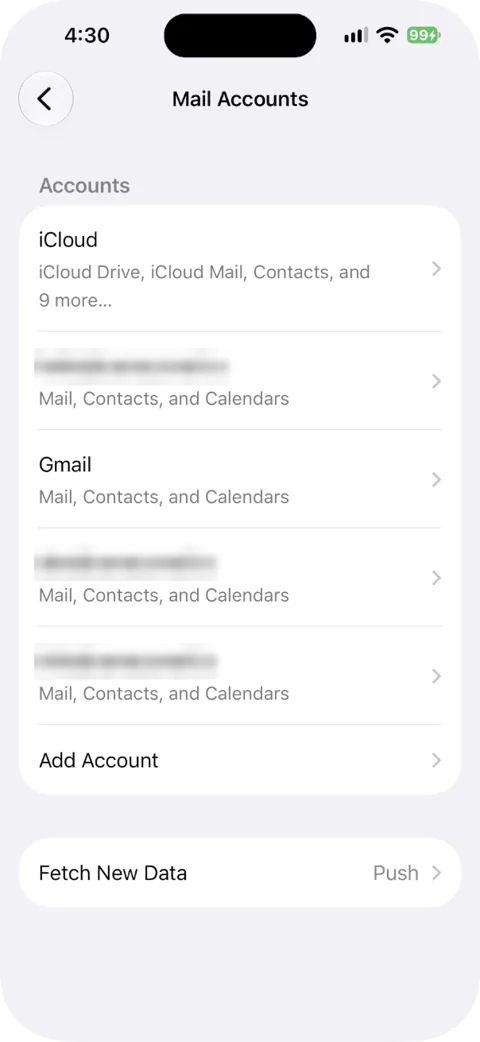
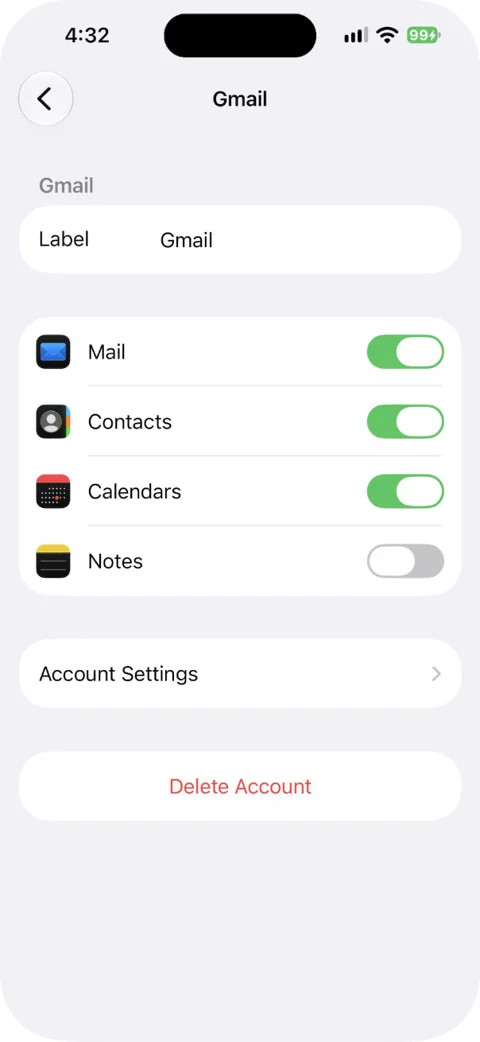
To tell which you have, go to Settings > Apps > Mail > Mail Accounts and tap the account. If you see a list of switches (Mail, Contacts, Calendars) and nothing else to edit, it's a provider sign-in account. If you see an "Account" line that opens server details, it's an Other or Exchange account.
Update a Gmail, Outlook.com, Yahoo or iCloud password on iPhone
Sign in again from the prompt
- Open Settings > Apps > Mail > Mail Accounts.
- Tap the account.
- If you see a prompt to sign in or re-enter your password at the top of the screen, tap it.
- Sign in on the provider's page with your new password and approve any two-step verification.
A Gmail account added with the Google option may keep working after a password change. Google says some third-party apps you've given access to keep it when you change your password. If Mail still syncs, you don't need to do anything.
No prompt? Remove the account and add it back
If a Gmail, Outlook.com or Yahoo account keeps failing and no sign-in prompt shows, remove the account and add it again with the new password. Don't do this with iCloud, which is tied to your Apple Account; see the iCloud section below.
- Sign in to your webmail first and check your mail is there. Apple warns that removing an account can remove email that was only downloaded to the iPhone. This matters most for POP accounts.
- Go to Settings > Apps > Mail > Mail Accounts and tap the account.
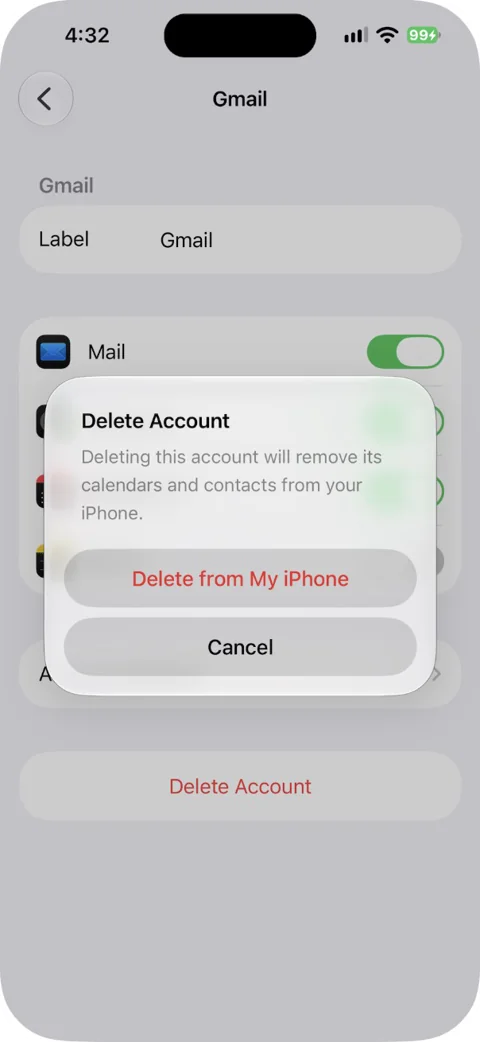
- Tap Delete Account (or Sign Out for some accounts) and confirm. This removes the account from the iPhone only. It doesn't close your email account.
- Go back to Mail Accounts, tap Add Account and choose your provider's button (Google, Outlook.com or Yahoo), not Other.
- Sign in with the new password.
Our setup guide walks through how to add the account back on iPhone for each provider. If mail still isn't arriving after that, see iPhone not getting new emails.
iCloud Mail
iCloud Mail uses your Apple Account password. When you change it on the iPhone in Settings > [your name] > Sign-In & Security > Change Password, that iPhone stays signed in. Apple gives you the option to sign other devices out, and those devices ask you to sign in with the new password. If Stolen Device Protection is on, you may have to wait an hour before you can change it. If Mail still asks for the password, go to Settings > [your name] > iCloud > Mail and turn Use on this iPhone off and on.
Apple Mail doesn't need an app-specific password for iCloud. Those are only for email apps made by other developers.
Update the password for an IMAP, POP or Exchange account
Incoming mail server password
- Open Settings > Apps > Mail > Mail Accounts.
- Tap the account.
- Tap the account line at the top (it usually shows your email address).
- Under Incoming Mail Server, tap Password, delete the old one and type the new one.
- Tap Done.
Outgoing (SMTP) server password
IMAP and POP accounts keep a second, separate password for sending. If you only change the incoming one, you'll get new mail but your replies won't send.
- On the same account screen, scroll down to Outgoing Mail Server and tap SMTP.
- Tap the primary server (usually listed under Primary Server).
- Tap Password and type the new password.
- Tap Done.
Work and school accounts (Exchange or Microsoft 365)
Work accounts vary. Some show a password field on the account screen, like the steps above. Others sign in through the company's own sign-in page, so you update them by signing in again when Mail asks. If the account was set up by your company's device management, you may not be able to edit it at all. Ask your IT team.
Do you need an app password?
Almost never in iPhone Mail. An app password is a long one-off password you create with your provider for an app that can't use its normal sign-in page. If you added the account with the provider's own button, you don't need one.
- Gmail: Google says app passwords aren't recommended and are unnecessary in most cases, and that iOS 11 and later don't need them. You only need one if you added Gmail as Other and use 2-Step Verification. Create it at myaccount.google.com/apppasswords. Changing your Google password revokes all your app passwords, so you'd need a new one.
- Yahoo: only needed if you added the account as Other. Create one in Account Security under External connections > Create app password. Unlike Google, Yahoo app passwords stay active after you change your Yahoo password. Delete the old one if you want to stop it working. AOL has its own app passwords for third-party apps; see AOL's help page.
- iCloud: not needed for Apple Mail. App-specific passwords are for other developers' apps, need two-factor authentication, and are created at account.apple.com under Sign-In and Security > App-Specific Passwords. Changing your Apple Account password revokes all of them.
- Outlook.com: add the account with the Outlook.com button instead. Microsoft app passwords are only for apps that don't support two-step verification.
iPhone keeps saying the password is incorrect?
Work down this list. Stop when the prompt goes away.
- Check the password on webmail. Sign in on the provider's website. If it fails there too, the password is wrong or the account is locked. Reset it with the provider.
- Update the outgoing (SMTP) password too. For Other accounts, a wrong SMTP password brings the prompt back every time you send.
- Re-add Outlook and Hotmail accounts as Outlook.com. Microsoft ended plain password sign-in (basic authentication) for Outlook.com on September 16, 2024. Microsoft says repeated password prompts in Apple Mail mean the account was set up the old way. Delete it and add it back with the Outlook.com button. If that fails, Microsoft suggests clearing Safari history and website data and restarting the iPhone.
- Switch Gmail or Yahoo from Other to the provider button. An account added as Other with your normal password fails once two-step verification is on. Remove it and add it with the Google or Yahoo option.
- Turn Mail off and on for the account. In Settings > Apps > Mail > Mail Accounts, tap the account, turn off Mail, wait a few seconds and turn it on. For iCloud, tap iCloud and turn Use on this iPhone off and on.
- Remove the account and add it back, as described above (not for iCloud).
- Restart the iPhone and update iOS in Settings > General > Software Update.
Seeing the same prompt on your computer? We cover the same password error in Mail on a Mac separately.
Where to find your email password on iPhone
Settings doesn't show the password stored for a Mail account. If you saved your webmail sign-in in the Passwords app, you can find it there: open Passwords, search for your provider (for example "google.com" or "yahoo.com"), and tap the entry to see the password. From the same entry, Edit > Change Password opens the provider's site so you can change it.
If it isn't there, you can't recover it from the iPhone. Reset it with your provider.
On iOS 17 or earlier
The steps are the same, but the path is different. Use Settings > Mail > Accounts instead of Settings > Apps > Mail > Mail Accounts. Apple moved Mail under Settings > Apps in iOS 18. Very old guides that mention Settings > Passwords & Accounts are from iOS 12 and 13.
Using another email app too?
Other email apps on the phone need the new password too, such as the Gmail or Outlook apps or Canary Mail (disclosure: we make Canary Mail). Apps that use Google or Microsoft sign-in just ask you to sign in again. Check your iPad and computer as well.
Sources
- Apple: Add and remove email accounts on iPhone
- Apple: If you can't receive email on your iPhone or iPad
- Apple: Change your Apple Account password
- Apple: Sign in to apps with your Apple Account using app-specific passwords
- Apple: Find your password for a website or app on iPhone
- Google: Change or reset your password
- Google: Sign in with app passwords
- Microsoft: Change your Microsoft account password
- Microsoft: Modern authentication methods now needed to continue syncing Outlook email
- Microsoft: How to get and use app passwords
- Yahoo: Generate and manage third-party app passwords
- Yahoo: Change your Yahoo password
- AOL: Create and manage 3rd-party app passwords
FAQ
Where do I update my email password on my iPhone?
In Settings > Apps > Mail > Mail Accounts. Tap the account and sign in again, or, for IMAP accounts, change the incoming and outgoing (SMTP) passwords. On iOS 17 or earlier, use Settings > Mail > Accounts.
How do I change my email password on my iPhone?
Change it with your email provider (or, for iCloud, in Settings > [your name] > Sign-In & Security), then sign in again in iPhone Mail with the new password.
Why is there no password field for my Gmail or Outlook account?
Accounts added with the Google, Outlook.com or Yahoo button sign in on the provider's page, so there's no password to edit. Sign in again from the prompt, or remove the account and add it back.
Where is my email password stored on my iPhone?
Settings doesn't show it. If you saved your webmail sign-in, look in the Passwords app. Otherwise reset it with your provider.
How do I fix email on iPhone after changing my password?
Sign in again with the new password in Settings > Apps > Mail > Mail Accounts. If that fails, delete the account and add it back with your provider's own option.
Where do I change my Outlook email password on my iPhone?
It's your Microsoft account password, so change it at account.microsoft.com under Security, then sign in again in iPhone Mail.
Do I need an app password for Yahoo or Gmail on iPhone?
Not if you add the account with the Yahoo or Google button. You only need one for an account added as Other with two-step verification on.
Why does my iPhone keep asking for my email password?
Common causes are an outgoing (SMTP) password that is still the old one, or an account set up in a way the provider no longer allows, such as an Outlook.com account using basic authentication. Re-add it with the provider's own option.