Short answer: In Gmail on a computer, tick the select-all checkbox above your inbox, click the "Select all conversations" link that appears (otherwise only the first page is selected), then click Mark as read. In Outlook, right-click the folder and choose Mark all as read. In Apple Mail on a Mac, Control-click the mailbox and choose Mark All Messages As Read. On iPhone, tap the More button, tap Select, pick the messages, then tap Mark and choose Mark as Read.
The steps for each app are below, along with how to show only unread mail and what to do when the unread count won't go to zero. Marking mail as read doesn't delete or move anything. It only changes the read status, and the change syncs to your other devices through your email provider. For the rest of the clean-up jobs (blocking, unsubscribing, bulk deleting), see our guide to managing your inbox.
How to mark all emails as read in Gmail
On a computer (gmail.com)
- Open Gmail in a browser and go to the view you want to clear: Inbox, a category tab such as Promotions, a label, or All Mail.
- To clear only unread mail, type
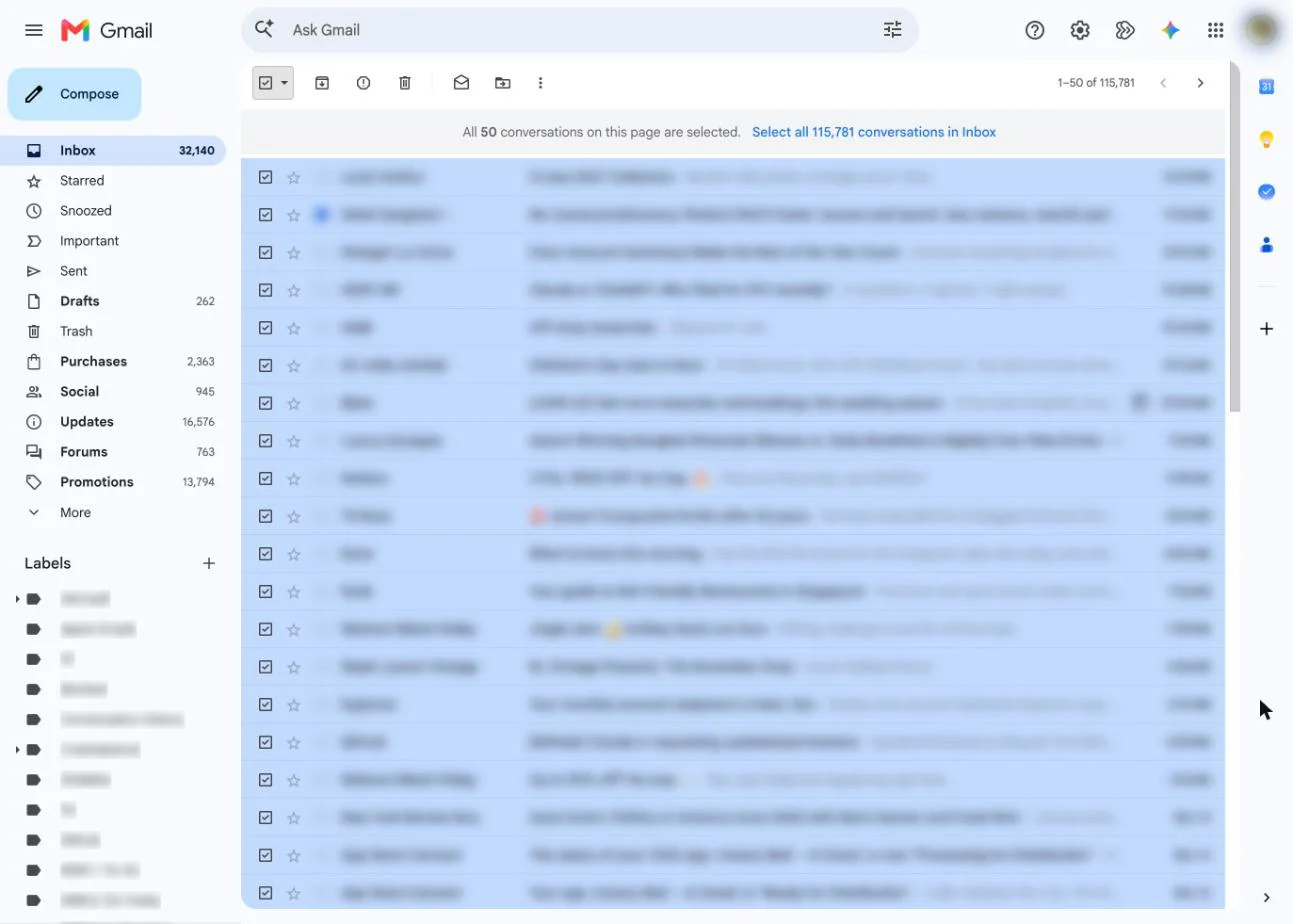
is:unreadin the search box and press Enter. - Tick the checkbox at the top left, above your messages. This selects the messages on the current page only (50 by default).
- A notice appears at the top of the list, for example "All 50 conversations on this page are selected. Select all 2,000 conversations in Inbox." Click that link to select every conversation in the view.
- Click Mark as read (the open envelope icon) in the toolbar.
Step 4 is the one most people miss, and it's the usual answer to "why can't I mark all emails as read in Gmail?" Without it, Gmail marks 50 conversations and leaves the rest bold. With thousands of messages, Gmail can take a little while to finish, so leave the tab open until the counts update.
If your inbox uses category tabs (Primary, Promotions, Social, Updates), selecting all in the Primary tab doesn't touch the other tabs. Repeat the steps in each tab, or search is:unread so the selection covers every category at once.
Keyboard shortcut: with shortcuts turned on (Settings > See all settings > Keyboard shortcuts on > Save Changes), press * then u to select unread conversations on the page, then Shift + i to mark them as read. To reach every page, you still need the select-all link.
In the Gmail app (Android, iPhone and iPad)
- Open the Gmail app and tap the sender's picture next to any email to start selecting.
- Tap the box next to Select all at the top left.
- To add more, scroll down and tap the Select all box again. The app selects mail in batches as you scroll, and it has no link to select every conversation at once.
- Tap Mark as read at the top right.
For a backlog in the thousands, the computer steps above are much faster. The change syncs to the app. On iPhone and iPad you can also add Mark as read/unread as a swipe action (Settings > Inbox customizations > Mail swipe actions), which helps for clearing a few at a time.
How to mark all emails as read in Outlook
New Outlook for Windows, Outlook on the web and Outlook.com
- In the folder pane on the left, right-click the folder (for example, Inbox).
- Choose Mark all as read.
To mark only some messages, select them, right-click and choose Mark as read.
Classic Outlook for Windows
- Whole folder: right-click the folder in the folder pane and choose Mark All as Read.
- Keyboard: select the folder, click any message, press Ctrl+A, then press Ctrl+Q (Ctrl+U marks them unread again).
Microsoft notes there's no undo for Mark All as Read. If you mark a folder by mistake, you have to set messages back to unread one by one. If Outlook keeps marking mail as read before you've looked at it, check File > Options > Advanced > Reading Pane, where you can delay or turn off "Mark items as read when viewed in the Reading Pane."
Outlook app on iPhone and Android
- In the inbox, long-press an email (or tap its circle icon) to start selecting.
- Tap the three-dot overflow menu and choose Select All.
- Open the overflow menu again and choose Mark Read.
If you use Outlook with a Hotmail or Outlook.com address, rules in a Hotmail inbox can also mark newsletters as read the moment they arrive.
How to mark all emails as read in Yahoo Mail
- On yahoo.com, tick the checkbox next to any email.
- Click the expand arrow next to the checkbox at the top left and choose All (or Unread).
- Yahoo selects 100 emails at a time by default. Use the pop-up near the top of the screen to extend the selection to every email in the folder.
- Press K, Yahoo's shortcut for Mark as Read (Shift+K marks mail unread).
In the Yahoo Mail app, tap and hold an email to select several, then use the mark-as-read action for the selection.
How to mark all emails as read in Apple Mail on Mac
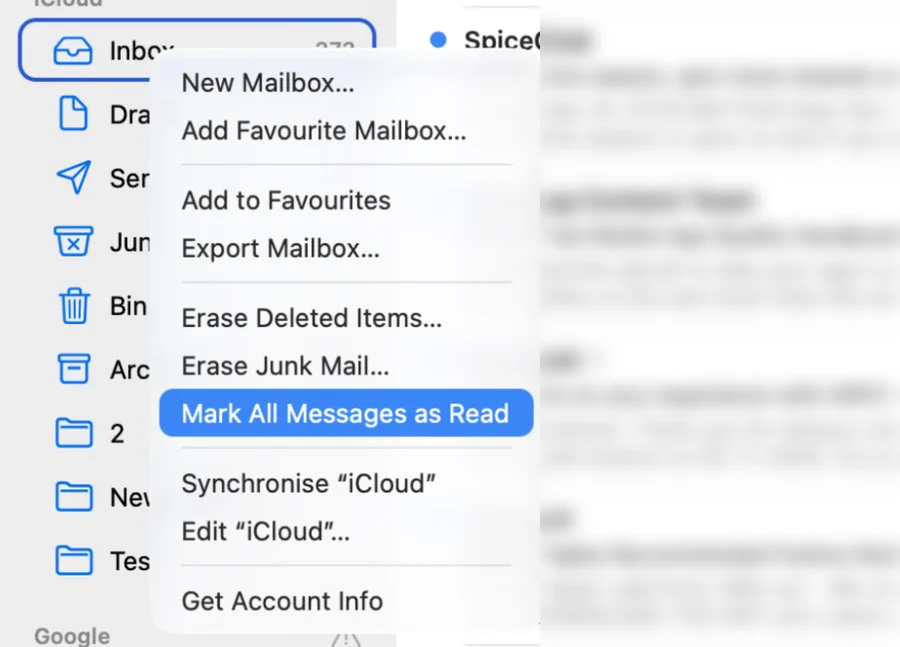
- Whole mailbox: in the Mail sidebar, Control-click the mailbox (Inbox, or a single account's inbox) and choose Mark All Messages As Read.
- Some messages: select them in the message list (Command-A selects all), then choose Message > Mark as Read.
Unread messages show a blue dot (or a star for VIPs). If the Dock icon still shows a number afterwards, see the troubleshooting section below.
How to mark all emails as read on iPhone and iPad
In the Mail app (iOS 27):
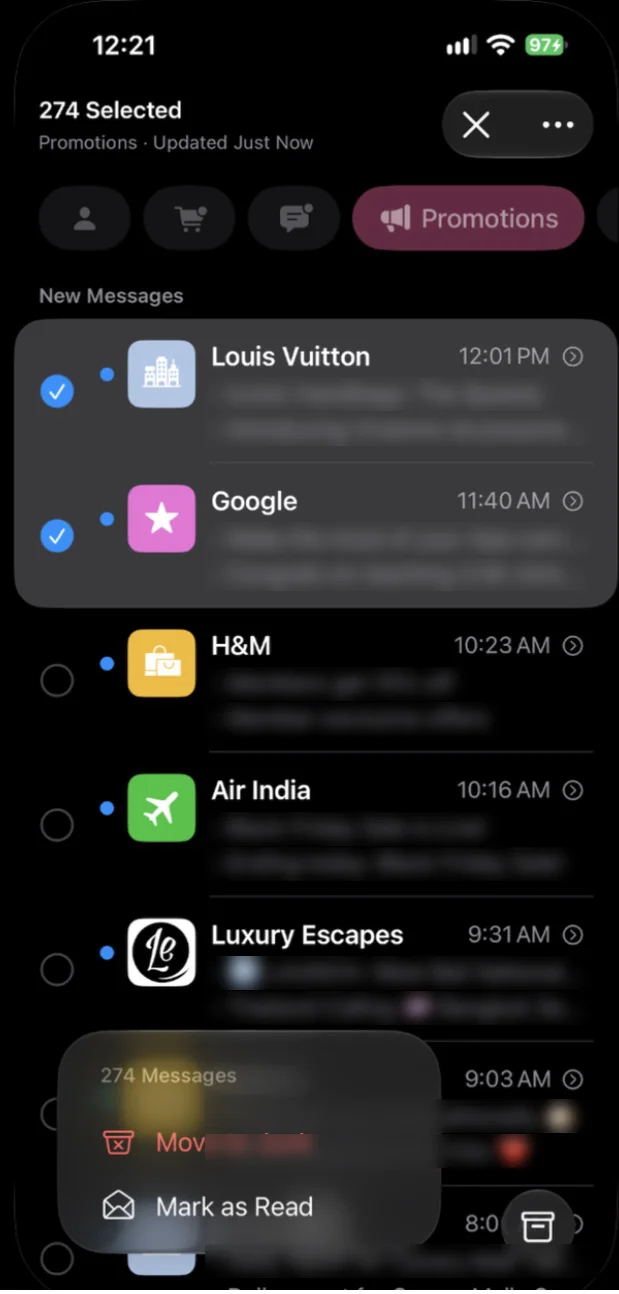
- Open a mailbox, tap the More button, then tap Select.
- Select the messages you want to mark.
- Tap Mark at the bottom of the list, then choose Mark as Read.
Apple notes that when you select a message in the Transactions, Updates or Promotions category, you select all of that sender's messages in the category. You can also swipe across a single email in the list to mark it read. If you use the Gmail or Outlook app on your iPhone instead, follow those apps' steps above.
How to mark all emails as read in Canary Mail
Disclosure: we make Canary Mail. Canary is an email app for Mac, iPhone, iPad, Windows and Android that works with Gmail, Outlook, iCloud, Yahoo and IMAP accounts, so the same steps work for every account you add.
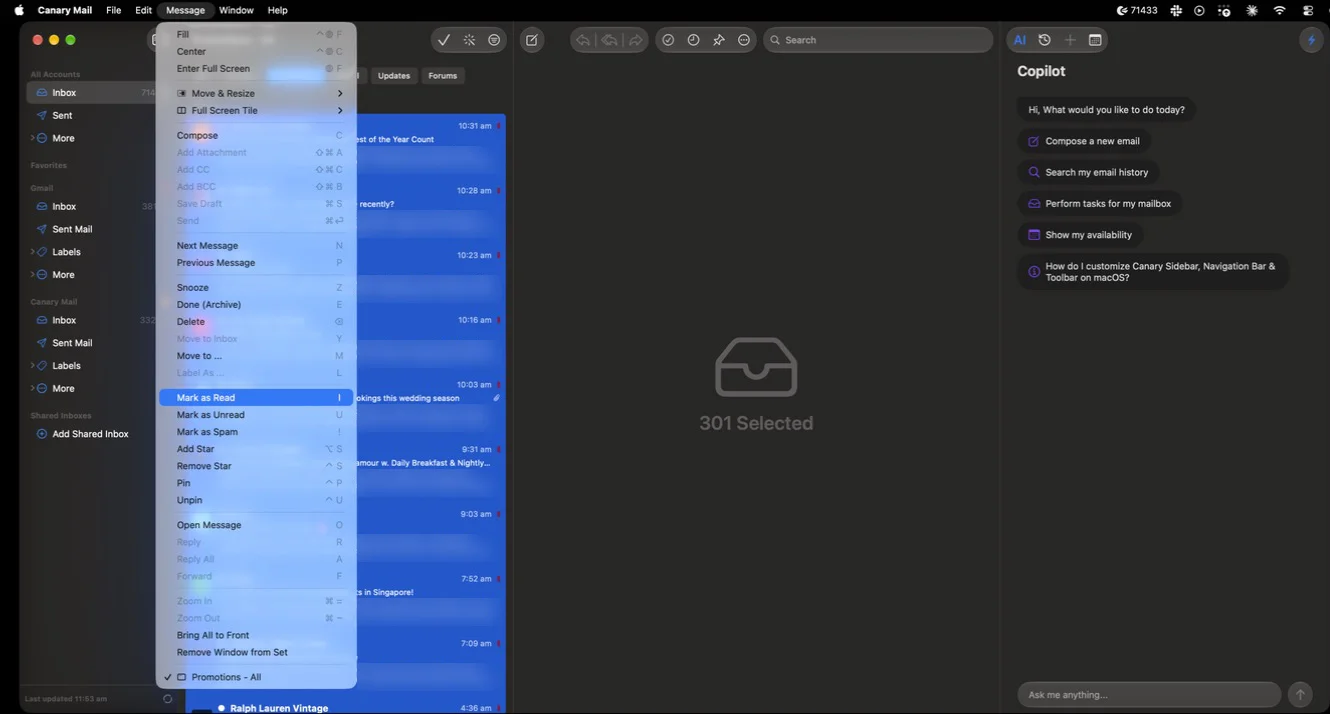
- Mac: click in the message list and press Command-A to select all emails, then two-finger tap (right-click) the selection and choose Read.
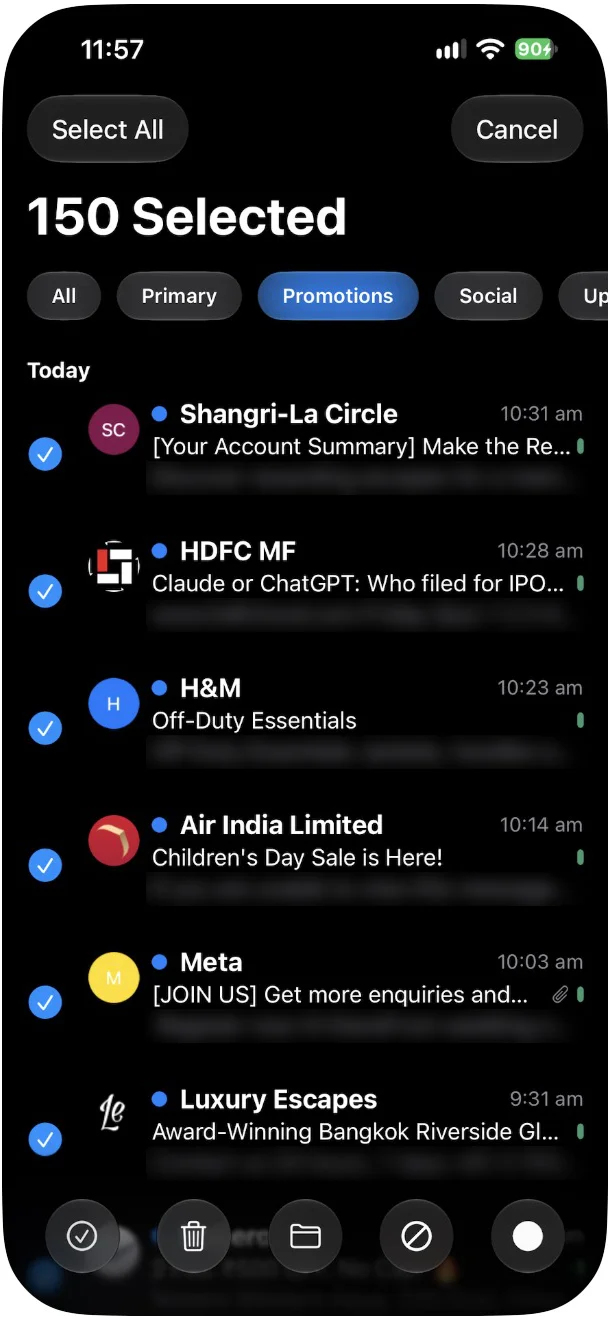
- iPhone and iPad: tap More at the top right, tap Select emails, tap Select all at the top left, then tap the blue circle at the bottom right to mark them as read.
How to see only unread emails
Before you mark everything, look at what's unread. These filters hide everything else:
| App | Show only unread |
|---|---|
| Gmail (web) | Search is:unread, or set Inbox type to Unread first in Settings |
| Outlook.com, new Outlook | Filter, then Unread, above the message list |
| Classic Outlook | Click Unread next to All above the message list |
| Apple Mail (Mac) | Click the Filter button (Unread is the default filter) |
| Mail on iPhone | Tap the Filter button, then Filtered by to choose Unread |
In Gmail, is:unread combines with other operators, for example is:unread from:boss@example.com or is:unread older_than:1m. On a Mac, a Smart Mailbox with the condition "Message is unread" gives you a permanent unread view across accounts; our guide to Smart Mailboxes in Mac Mail shows how to set one up.
Unread count won't go away? Check these
The badge says you have unread mail, but the inbox looks clear. Check these, in this order:
- Only the first page was marked. In Gmail, the select-all checkbox covers one page until you click the "Select all conversations" link.
- Unread mail in another tab or folder. Gmail's Promotions and Social tabs, Spam, archived mail or a folder a rule files into can all hold unread messages. In Gmail, search
in:anywhere is:unread, which includes Spam and Trash. - Another account. With several accounts, the badge may count all of them. Mark each account's inbox, or use the unified inbox. For Gmail, see our guide to managing multiple Gmail accounts.
- The iPhone badge counts only Primary. Apple says the number on the Mail icon reflects unread messages in your Primary category. To count every category, go to Settings > Notifications > Mail > Customize Notifications and turn on All Unread Messages.
- The Dock count on Mac. In Mail, go to Mail > Settings > General and use Unread count to choose which mailboxes count toward the number on the Dock icon.
- Sync lag. Read status syncs through your provider. If a device is offline, or an app is stuck syncing, its count stays out of date until it syncs again.
Keep unread mail from piling up again
- Unsubscribe from what you never open. Newsletters and promotions are usually most of the pile. Our guide to mass unsubscribing from emails covers every major app.
- Block senders who ignore unsubscribe requests. See how to block emails in Gmail, Outlook, Yahoo and Apple Mail.
- Let filters do the sorting. A rule can label, archive or mark mail as read as it arrives. Our guide to creating rules in Gmail has examples.
- Start fresh. If the count is in the thousands, mark everything older than a month as read and deal with what's new. For a longer-term system, read our guide to cleaning up and organizing your inbox.
Frequently asked questions
How do I mark thousands of emails as read at once?
Use a computer. In Gmail, search is:unread, tick the select-all checkbox, click the "Select all conversations" link, then click Mark as read. In Outlook, right-click the folder and choose Mark all as read. In Apple Mail on a Mac, Control-click the mailbox and choose Mark All Messages As Read.
Why can't I mark all emails as read in Gmail?
The select-all checkbox only selects the conversations on the current page. Click the link that appears above the list ("Select all … conversations") to extend the selection, then click Mark as read. Also check the other category tabs, which aren't included when you select all in Primary.
How do I select all emails in Gmail?
On a computer, tick the checkbox at the top left of the message list, then click the link in the notice above the list to select every conversation in that view. In the Gmail app, tap a sender's picture, tap Select all, and tap it again after scrolling to add more.
How do I mark all emails as read in Outlook?
Right-click the folder in the folder pane and choose Mark all as read. In classic Outlook you can also click a message, press Ctrl+A and then Ctrl+Q. In the Outlook mobile app, long-press an email, choose Select All from the overflow menu, then Mark Read.
How do I mark all emails as read on my iPhone?
In the Mail app, open the mailbox, tap the More button, tap Select, choose the messages, then tap Mark and choose Mark as Read. In the Gmail or Outlook app, use that app's select-all option instead.
Can I undo mark all as read?
Not as a single action in most apps. Microsoft says classic Outlook has no undo for Mark All as Read, so messages have to be set back to unread individually. In Gmail you can mark a selection unread again, but it won't remember which messages were unread before.
Does marking emails as read delete them?
No. Mark as read only changes the status. The emails stay in the same folder and still count toward your storage. To free up space, delete or archive them separately.
What does "unread messages" mean?
Unread messages are emails you haven't opened yet, or have marked as unread again as a reminder. Apps show them in bold or with a blue dot, and the number next to your inbox or on the app icon is the count still marked unread.
Sources
- Google: Mark messages as read or unread
- Google: Delete Gmail messages (selecting all conversations)
- Google: Keyboard shortcuts for Gmail
- Google: Search operators you can use with Gmail
- Google: Change your Gmail inbox layout
- Microsoft: Mark a message as read or unread in Outlook
- Microsoft: Organize your inbox in Outlook.com
- Microsoft: Cannot undo changes if all messages are marked as read
- Microsoft: How do I select multiple emails? (Outlook for iOS and Android)
- Microsoft: View only unread messages in Outlook
- Yahoo: Delete emails in Yahoo Mail (selecting all emails)
- Yahoo: Keyboard shortcuts in Yahoo Mail
- Apple Mail User Guide: Read and respond to emails
- Apple Mail User Guide: Change General settings
- Apple iPhone User Guide: Check your email in Mail
- Apple iPhone User Guide: Filter emails in Mail
- Canary Mail Help: Mark emails as read or unread on macOS and on iOS