Short answer: Gmail has no Archive folder. Archived emails sit in All Mail. On a computer, click More > All Mail in the left menu. In the Gmail app, tap Menu > All mail. To list only archived emails, type in:archive in the search bar. To put one back, open it and click Move to Inbox.
Archiving hides an email from your inbox without deleting it, which is why archived mail can feel like it vanished. This guide covers where it goes, how to see it on a computer, Android and iPhone, how to get it back into your inbox, and what to check when an email is in none of those places. It's part of our guide to Gmail.
What happens when you archive an email in Gmail
When you archive a message, Gmail takes it out of your inbox and keeps it under the All Mail label. Nothing is deleted, and the email still shows up when you search.
One thing surprises people: if someone replies to an archived conversation, it comes back to your inbox. If you want a long thread to stay out of your inbox, mute it instead (select it, then More > Mute, or press M). Replies to a muted conversation skip the inbox and go straight to the archive, unless a new message is sent only to you or adds you in To or Cc.
Archive is not the same as delete. Deleted emails go to Trash and Gmail removes them for good after 30 days. Archived emails stay until you delete them.
How to find archived emails in Gmail on a computer
- Open Gmail in your browser at mail.google.com.
- In the left menu, click More to expand the list.
- Click All Mail.
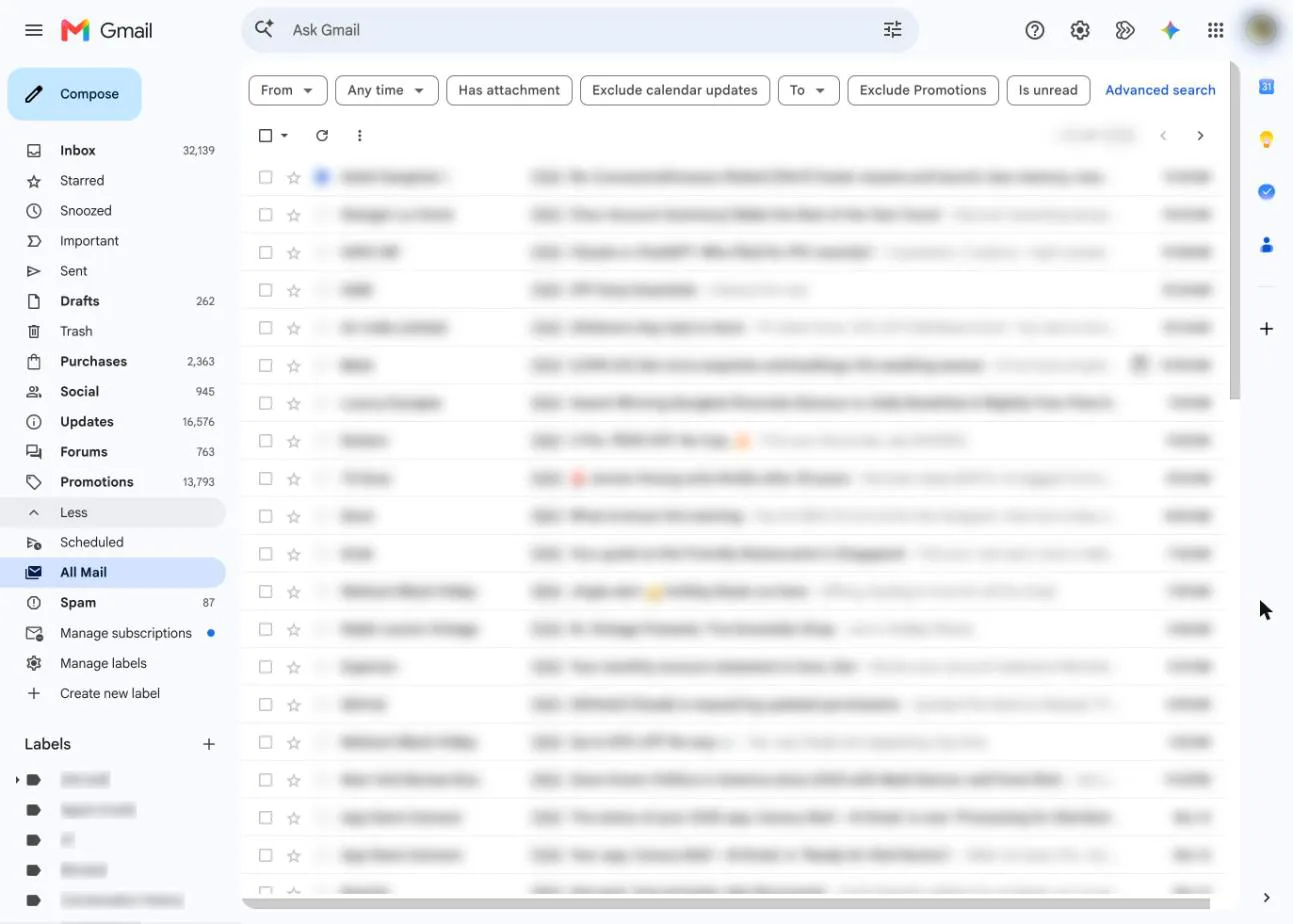
All Mail shows every email in your account: your inbox, sent mail, labels and everything you've archived. It doesn't include Spam or Trash. To find one email, type a sender, a word from the subject or a phrase from the message in the search bar at the top.
If you never see All Mail even after clicking More, it may be hidden. Click Settings (the gear) > See all settings > Labels, and click Show next to All Mail.
How to see only archived emails
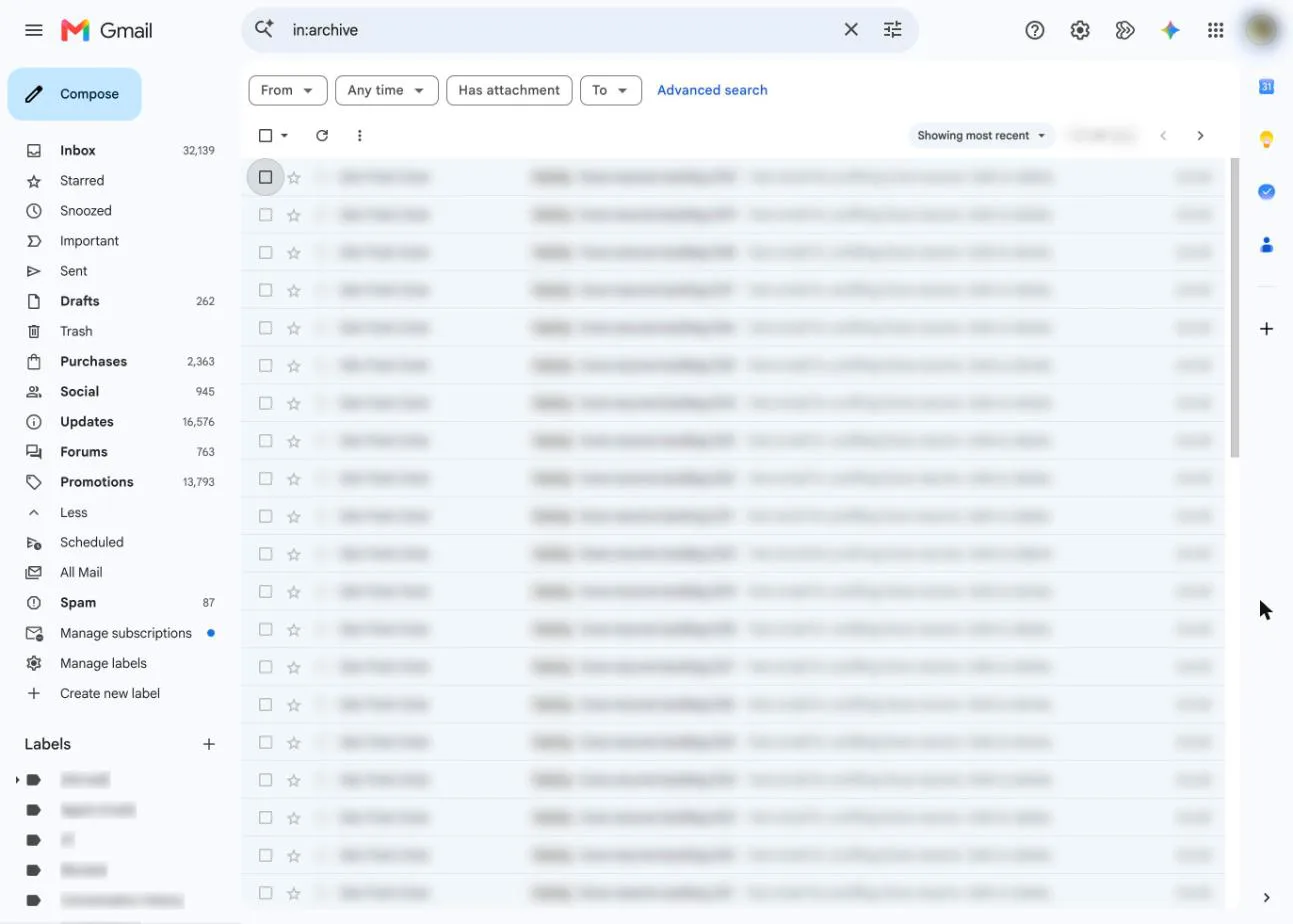
All Mail mixes archived emails with everything else. To list only the archived ones, type this in the Gmail search bar and press Enter:
in:archive
You can add other words to narrow it down. in:archive invoice finds archived emails that mention an invoice, and in:archive from:anna@example.com finds archived emails from one sender. The same search works in the Gmail app on Android and iPhone.
How to find archived emails in the Gmail app (Android)
- Open the Gmail app.
- Tap Menu (the three lines at the top left).
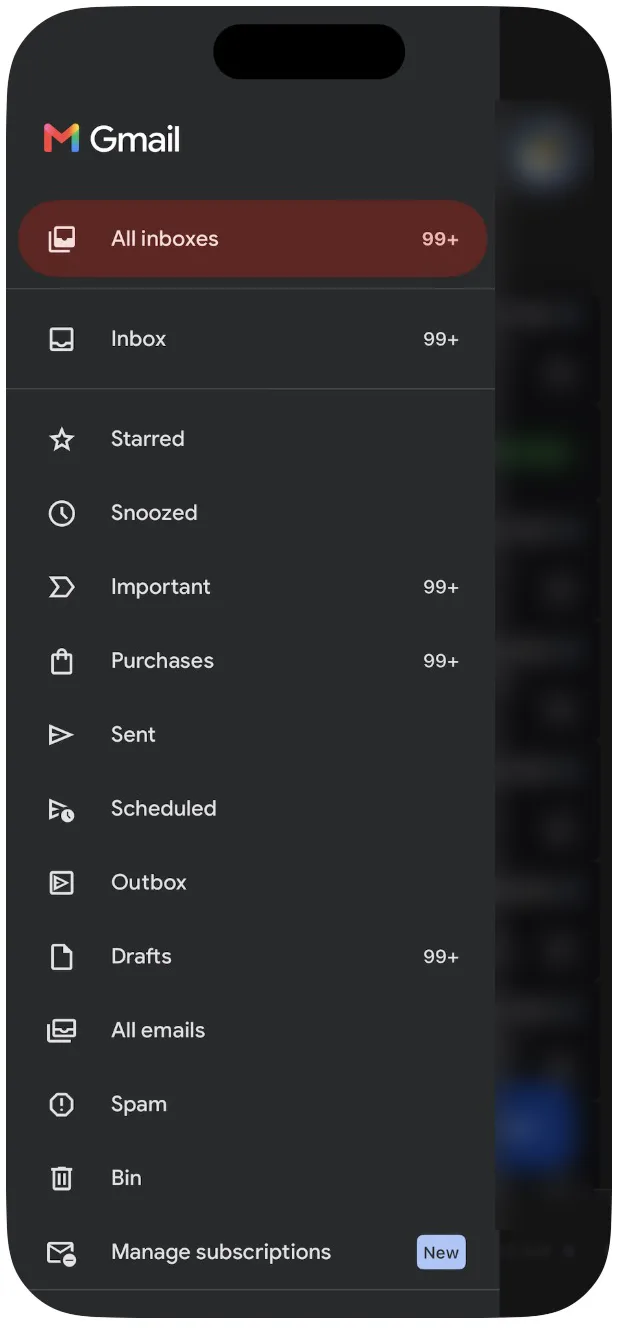
- Scroll down and tap All mail.
To see only archived emails, tap the search bar and type in:archive.
How to find archived emails on iPhone and iPad
- Open the Gmail app.
- Tap Menu at the top left.
- Tap All mail.
How to unarchive an email in Gmail
Unarchiving just means moving the email back to your inbox.
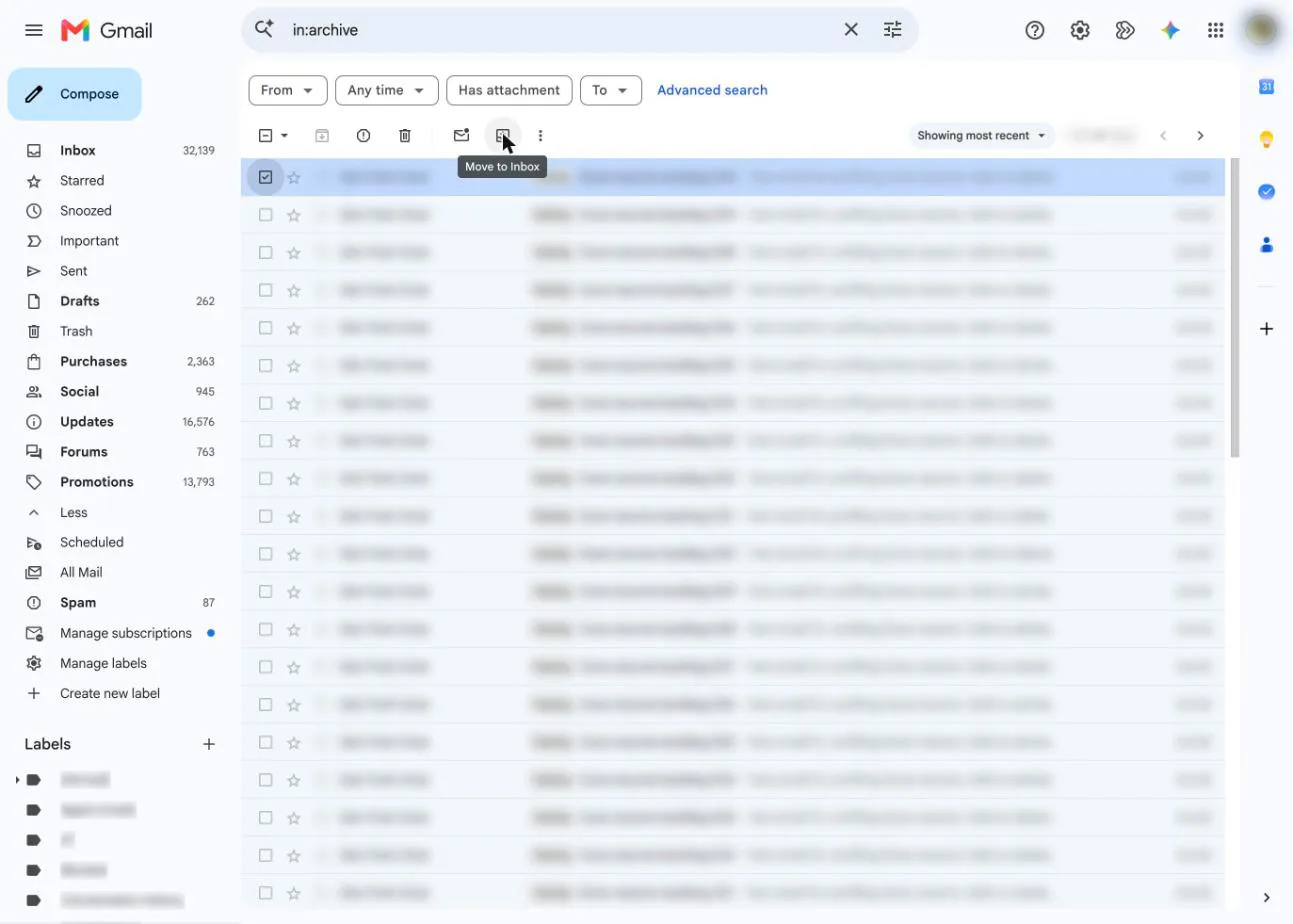
On a computer: find the email in All Mail or with in:archive, check the box next to it, and click Move to Inbox at the top.
In the Gmail app (Android, iPhone, iPad): find the email, touch and hold it, then tap More (the three dots at the top right) > Move to inbox.
Can't find an archived email? Check these
- Trash and Spam. All Mail and a normal search skip both. Look in Trash (deleted emails stay there 30 days) and Spam, or search everything with in:anywhere plus a word from the email. You can also click Show search options in the search box and choose Mail & Spam & Trash.
- A filter is archiving it for you. A filter set to skip the inbox sends matching emails straight to All Mail. Check Settings > See all settings > Filters and Blocked Addresses.
- It's muted. Search is:muted to list muted conversations.
- It's snoozed. Search in:snoozed, or open Snoozed in the left menu.
- It's in another account. If you use more than one Gmail address, switch to the other account and search there too.
If an email is gone from Trash after 30 days, Gmail can't restore it. Our guide to deleting emails in Gmail explains what delete does and doesn't remove.
How to archive emails in Gmail
On a computer: check the box next to one or more emails and click Archive at the top. With keyboard shortcuts turned on, select an email and press E.
In the app: touch and hold one or more emails and tap Archive at the top. To archive with a swipe:
- Android: Menu > Settings > General settings > Swipe actions, tap Change next to Right swipe or Left swipe, and pick Archive.
- iPhone and iPad: Menu > Settings, then under Inbox tap Inbox customizations > Mail swipe actions, choose Right swipe or Left swipe, pick Archive and tap Done.
To archive the same kind of email automatically, set up a filter. Our guide to creating rules in Gmail walks through it.
Archive vs delete vs mute
| Action | Leaves the inbox | Where it goes | Comes back when someone replies | Removed for good |
|---|---|---|---|---|
| Archive | Yes | All Mail | Yes | No |
| Mute | Yes | All Mail (labeled Muted) | Usually not | No |
| Delete | Yes | Trash | Not applicable | After 30 days in Trash |
Keeping track of archived mail across several accounts
Archive works per account, so with two or three Gmail addresses you end up searching each one. One way round that is an email app with a unified inbox: Canary Mail puts Gmail, Outlook, iCloud and other accounts in one inbox, with unlimited accounts on the free plan (disclosure: we make Canary Mail). More options are in our guide to managing multiple Gmail accounts.
FAQ
Where do archived emails go in Gmail?
To All Mail. Gmail has no separate Archive folder: an archived email leaves your inbox and stays in All Mail, where you can still search for it.
Is there an archive folder in Gmail?
No. Use All Mail (under More in the left menu on a computer) or search in:archive to see archived emails.
How do I see only archived emails in Gmail?
Type in:archive in the search bar. It works on the web and in the Gmail app, and you can add words to it, like in:archive receipt.
How do I unarchive an email in Gmail?
Select it and click Move to Inbox on a computer. In the app, touch and hold it, then tap More > Move to inbox.
Do archived emails get deleted?
No. Gmail doesn't delete archived emails on its own. They stay in All Mail until you delete them, and only emails in Trash are removed automatically, after 30 days.
Why did an archived email come back to my inbox?
Someone replied to the conversation. Archived threads return to the inbox with new replies. Mute the conversation if you want replies to skip the inbox.
Why can't I find my archived emails?
Search with in:anywhere to include Spam and Trash, check whether a filter skips the inbox for those emails, and make sure you're in the right Gmail account. Emails deleted more than 30 days ago can't be recovered.
Should I archive or delete emails in Gmail?
Archive anything you might need again, like receipts, travel bookings or conversations you may want to search later. Delete what you're sure you won't need, such as newsletters and spam.
Sources
Checked November 12, 2026.
- Archive Gmail messages (computer, Android, iPhone and iPad): support.google.com/mail/answer/6576
- Mute Gmail messages: support.google.com/mail/answer/16594169
- Search operators you can use with Gmail (in:archive, in:anywhere, in:snoozed, is:muted): support.google.com/mail/answer/7190
- Search in Gmail, and searching Spam and Trash: support.google.com/mail/answer/6593
- Delete or recover deleted Gmail messages (30 days in Trash): support.google.com/mail/answer/7401
- Show or hide labels: support.google.com/mail/answer/118708
- Create rules to filter your emails: support.google.com/mail/answer/6579
- Gmail keyboard shortcuts: support.google.com/mail/answer/6594
- Canary Mail plans: canarymail.io/pricing