To delete an email in Mac Mail, you typically just click the trash icon or hit the delete key, but synchronization errors can cause deleted messages to reappear or stay in your inbox indefinitely. This usually happens because of a breakdown in communication between your local mail database and the server's IMAP protocol.
In this guide, we provide the latest technical steps to ensure your "Delete" command works the first time, every time, allowing you to reclaim your focus and productivity.
Why My Mac Mail Won’t Delete Messages
There are several technical reasons why your deletion requests might be ignored by the app. Most commonly, it is a synchronization lag where the local Mail app fails to send the "Expunge" command to your server. Other times, it's due to corrupted index files—specifically the "Envelope Index"—which misrepresent the status of your messages in the local cache.

If your folder mapping is incorrect—meaning your Mac's "Trash" isn't synced to the server's specific "Bin" folder—the app simply won't know where to move the message, leading to it staying put in your primary inbox. This behavior is particularly common in older IMAP setups or when multiple devices access the same account simultaneously. Using a modern app like Canary Mail often bypasses these legacy architecture issues by utilizing more robust sync protocols.
[cta-block:ctablock1,title="One inbox for all accounts. Get started today",button="Install free",buttonlink="https://canarymail.io/downloads"]
Step-by-Step Fixes for Apple Mail Deletion Issues
If your workflow is being hindered by a cluttered inbox that refuses to empty, the following steps will help you reset your mail environment. We recommend starting with the simplest solutions, like force-quitting the app, before moving into deeper database maintenance. Resolving these issues is critical for those who need to manage and organize emails effectively without constant technical interruptions.
1. Force Quit and Relaunch the Mail App
Often, the simplest fix is to restart the application to clear any frozen background processes that are blocking the deletion command. You can do this by going to the Apple menu and selecting Force Quit, or by using the Activity Monitor to ensure all Mail-related tasks are fully terminated. Relaunching the app forces it to re-establish its connection with your mail provider, which often resolves minor sync "hangs." If Mail won't launch again after a force quit, see why Mail won't open on your Mac.
2. Rebuild the Affected Mailbox
If "ghost" emails keep reappearing after you thought they were gone, your local index is likely out of sync with the server. Selecting your inbox in the sidebar and choosing Mailbox > Rebuild will force the app to download a fresh list of messages from the server, effectively erasing any locally-stored "deleted" messages that the server already knows are gone. This is also a common solution when Mac Mail is not updating the inbox correctly.
[cta-block:ctablock2,title="Tired of Apple Mail? Try this better app",button1="Download Now",button1link="https://canarymail.io/downloads",button2="Learn More",button2link="https://canarymail.io/"]
3. Adjust IMAP Mailbox Behaviors
Improperly mapped folders are a leading cause of deletion failure across macOS devices. Navigate to Mail > Settings > Accounts > Mailbox Behaviors and ensure that your "Trash Mailbox" is mapped to a folder on the server rather than one stored "On My Mac." This configuration ensures that when you delete a message on your MacBook, the action is reflected across all your devices and the web interface simultaneously. If your settings aren't syncing correctly, you might also find that Mac Mail is not sending emails reliably.
4. Clear the Envelope Index Files
For persistent issues where the app remains unresponsive to deletions, you may need to delete the hidden index files that Mac Mail uses to track your messages. By navigating to your ~/Library/Mail/ folder and removing files starting with "Envelope Index," you force the Mail app to create a brand new database from scratch.
While this sounds daunting, it is a safe way to fix deep-seated corruption that standard rebuilding processes cannot touch. This process essentially resets the "brain" of the app without deleting your actual email data.
Visual Troubleshooting Guide
Sometimes seeing the steps in action is easier than reading them. Watch this relevant tutorial for a walkthrough on fixing unresponsive Mail app behaviors and sync errors on macOS:
Consider an Alternative for Managing Multiple Email Accounts
If you find yourself constantly troubleshooting legacy software, it may be time to look at modern free email clients that prioritize stability and automation. Managing multiple accounts in Apple Mail can often lead to sync conflicts described above, especially as folder structures become more complex.
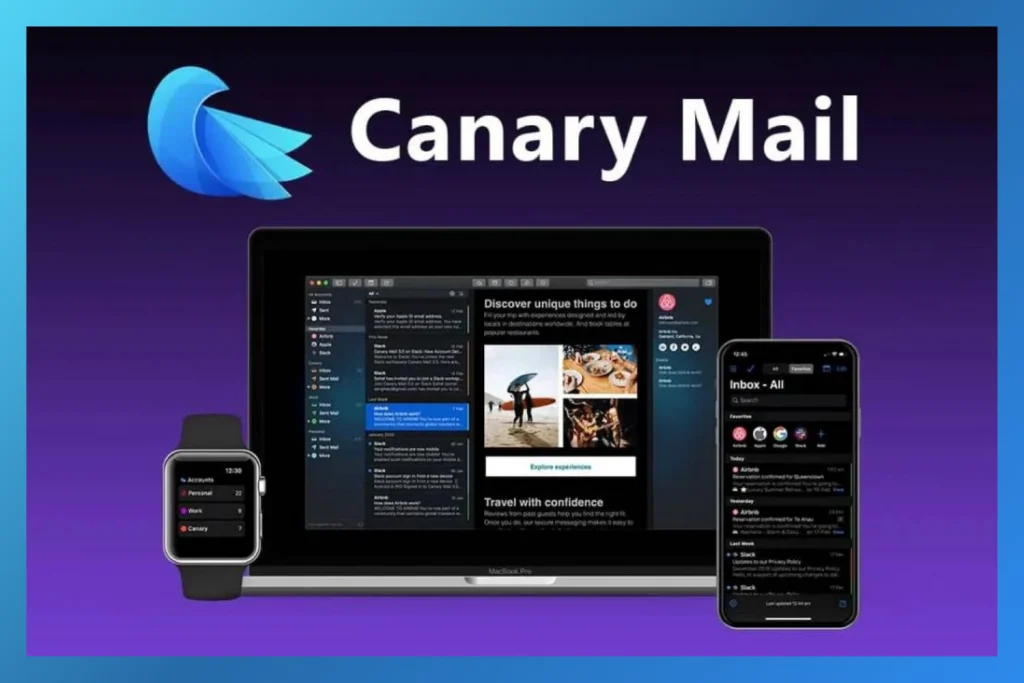
Canary Mail offers a more robust architecture designed for professional efficiency and "calm" inbox management. Unlike older apps, Canary emphasizes no data harvesting and a privacy-first stance, ensuring your data remains local and secure.
By switching to an AI-powered app, you can eliminate manual folder maintenance and focus on the work that matters most. See how it compares in our Canary Mail vs. Apple Mail breakdown.
The Bottom Line
Fixing the "Mac Mail Not Deleting Emails" error is essential for maintaining a clear, organized workspace. While technical fixes like rebuilding mailboxes or clearing the Envelope Index can provide temporary relief, these recurring sync issues are often symptoms of an outdated IMAP architecture. For professionals who require a seamless, high-performance workflow, managing these manual resets can become a significant drain on productivity.
Choosing a modern alternative like Canary Mail eliminates these technical headaches through Privacy-First Automation and local AI processing. By prioritizing no data harvesting, Canary ensures that your email management is not only efficient but also the most secure option available. Whether you are looking to automate your sorting or simply want an inbox that works the first time you hit delete, switching to an AI-powered client provides the long-term stability that legacy apps often lack.
[cta-block:ctablock3,title="The best Apple Mail alternative",subtitle="Boost productivity with the ultimate email client app.",button1="Try it Free",button1link="https://canarymail.io/downloads",button2="none",button2link="none"]
Frequently Asked Questions (FAQ)
Why does my Mac Mail keep showing deleted emails?
This is typically due to a sync error between the local app and the IMAP server. Rebuilding the mailbox or checking your "Trash" folder mapping in settings usually fixes the indexing discrepancy.
How do I empty the trash in Mac Mail?
You can right-click the Trash folder and select "Erase Deleted Items" or set it to empty automatically (e.g., after one day) in the Mailbox Behaviors settings.5
Will deleting the Envelope Index delete my actual emails?
No. Your emails are stored on the server (IMAP). Deleting the index just forces the app to re-catalogue them locally, which often fixes bugs related to deleted messages reappearing or search indexing failures.