Short answer: Apple Mail has AI built in. On a Mac with an M1 chip or later, Apple Intelligence proofreads and rewrites drafts, suggests replies, summarizes emails and threads, pins urgent messages to the top and sorts your inbox into categories. It is free, and you can add ChatGPT to it in System Settings. Add a separate tool when you need something Apple Intelligence doesn't do: AI on an Intel Mac, Claude or Gemini instead of ChatGPT, a full assistant with templates and tracking, or server-side sorting that works on every device.
This guide covers what Apple Intelligence does in Mail, how to turn it on or off, what happens to your data and how to add ChatGPT. Then come 7 tools: five that add AI to Apple Mail, each labelled by how it connects, and two email apps with AI built in if you'd rather switch.
Does Apple Mail Have AI?
Yes, through Apple Intelligence. You need a Mac with Apple silicon (M1 or later), macOS Sequoia 15.1 or newer, and your Mac and Siri language set to a supported language (English and 15 others, including French, German, Italian, Spanish and Japanese). On macOS 27 it is on by default on eligible Macs. It is not available on Intel Macs.
What it does in Mail:
- Writing Tools: select text in a draft, Control-click and choose Writing Tools to proofread it, rewrite it in a friendlier or more professional tone, or turn it into a list.
- Smart Reply: when you reply, Mail suggests responses based on the questions in the email. On macOS 27 the suggestions follow your own writing style.
- Summaries: a short summary replaces the preview text under each email in the message list. Click Summarize at the top of an email to summarize the whole thread. Apple notes that summaries can miss details, so read important emails in full.
- Priority Messages: time-sensitive emails, such as a same-day invitation or a boarding pass, are pinned to the top of the inbox. It judges urgency, not legitimacy: an urgent-looking payment request can land there too.
- Categories: Mail sorts incoming email into Primary, Transactions, Updates and Promotions. Time-sensitive messages from the other categories also show in Primary.
- macOS 27: suggested actions based on the conversation (such as managing a reservation), and email search that finds results by meaning, not only by the words you type.
What it doesn't cover: Intel Macs, read receipts, shared team inboxes and encrypted email.
How to turn AI features in Apple Mail on or off
- Update to the latest macOS (System Settings › General › Software Update). Apple Intelligence then downloads its models, which take up to 14 GB of storage.
- Priority Messages: in Mail, choose View and tick or untick Show Priority Messages.
- Summaries in the message list: Mail › Settings › Viewing › Summarize Message Previews.
- Categories: use the View menu to switch between the categorized inbox and List View.
- To turn off Apple Intelligence everywhere, switch it off in System Settings (the Apple Intelligence & Siri section).
Is Apple Intelligence in Mail private?
Email summaries are generated on your Mac. Writing Tools may send the text you are editing to Apple's Private Cloud Compute servers for larger requests; Apple says that data is used only to fulfil the request and is not kept. Anything you send through the ChatGPT extension goes to OpenAI instead. For the trade-offs in general, see local AI vs cloud AI in email.
Can you use ChatGPT in Apple Mail?
Yes, without a plugin. Apple Intelligence has a built-in ChatGPT extension: open System Settings › Siri › ChatGPT and click Set Up. Then, in a Mail draft, Control-click, choose Show Writing Tools and click Compose to have ChatGPT write or rework the email. Signing in to a ChatGPT account is optional, and the extension is only offered where ChatGPT is available.
If you want Claude, Gemini or a local model instead, you need a third-party tool: the free Apple Mail AI Plugin or Elephas, both covered below.
How to add AI to Apple Mail: three ways tools connect
"Plugin" gets used loosely, and it matters which kind of tool you install. There are three ways an AI tool can work with Apple Mail:
- Mail extensions run inside Mail and show a button in the viewer or compose window toolbar. They come from the Mac App Store and Apple reviews them. Mailbutler is one.
- Mac apps that work alongside Mail read or write text in any app, Mail included, usually through macOS permissions such as Accessibility. Grammarly, Elephas and the Apple Mail AI Plugin work this way.
- Server-side services connect to your email account, not to the Mail app. SaneBox sorts mail on the server, so the results show up in Apple Mail on your Mac and iPhone without installing anything.
None of these depend on Apple Intelligence, so they also work on Intel Macs.
How to install and manage Mail extensions
Old-style Mail plug-ins (bundles you dropped into a folder) stopped working with macOS Sonoma (macOS 14). Mail now only supports Mail extensions, which come inside apps from the App Store.
- Install the app that contains the extension, usually from the Mac App Store.
- In Mail, choose Mail › Settings and click Extensions.
- Tick the extension's checkbox to turn it on. Changes take effect right away.
- Click the extension's icon in the Mail viewer or compose window toolbar. If you don't see it, right-click the toolbar and choose Customize Toolbar to add it.
- To remove an extension, select it in the Extensions tab and click Uninstall, or delete the app that contains it.
Apple groups Mail extensions into four types: compose, action (for example, flagging or moving messages), content blockers and security (encryption and signing).
7 AI tools for Apple Mail compared
| Tool | How it connects | AI features | Price |
|---|---|---|---|
| Mailbutler | Mail extension (Mac App Store) | Compose, improve, summarize, find tasks | Free plan without AI; AI on Smart, $11/user/month billed yearly |
| Grammarly | Mac desktop app that works inside Mail | Grammar, tone, rewrites, AI prompts | Free (100 AI prompts/month); Pro $12/month billed yearly |
| Elephas | Mac-wide AI app | Smart Reply, rewrites; offline models or your own API key | Free (20 credits/month); from $19/month |
| Apple Mail AI Plugin | Menu bar app (not a Mail extension) | Drafts replies from the thread with Claude, GPT, Gemini or a local model | Free, open source; you pay your AI provider |
| SaneBox | Server-side, nothing installed | Sorts unimportant mail out of the inbox, learns from what you move | From $3.49/month or $29/year |
| Canary Mail | Separate email app | AI Copilot: write, reply, summarize | Free plan; AI on Growth, $36/year |
| Spark | Separate email app | Spark +AI: write, reply, summarize | Free preview; Plus $99/year |
Keep Apple Mail, add AI
1. Mailbutler: Mail extension with an AI assistant
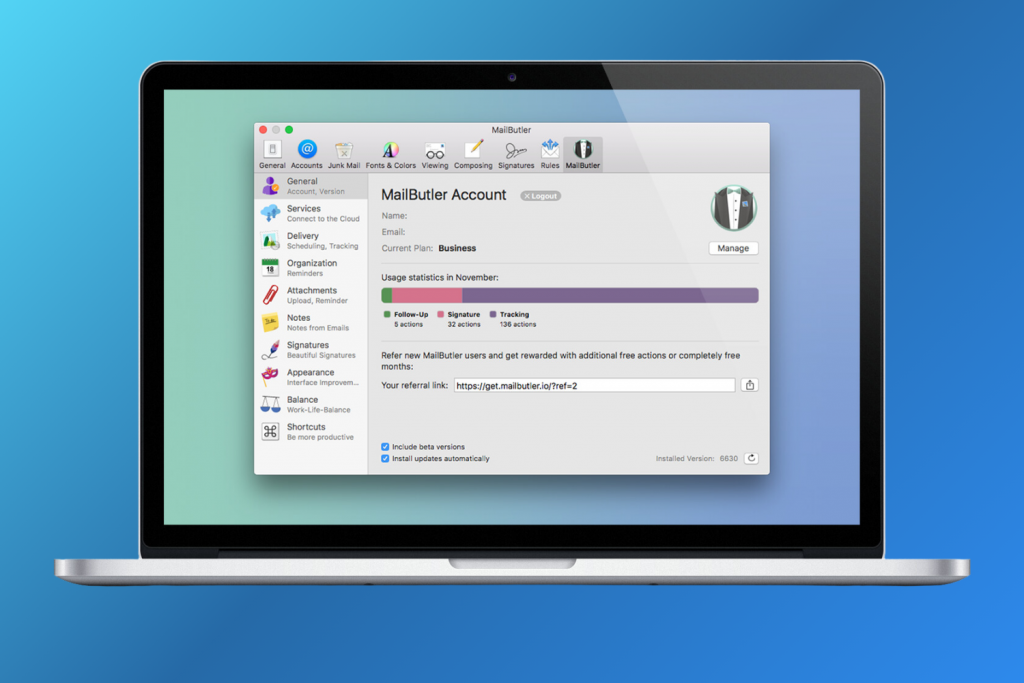
Mailbutler is the most complete AI assistant that runs as a real Apple Mail extension. Its Smart Assistant writes an email from a short prompt, improves a draft, summarizes a long message and pulls tasks out of an email. Around that it adds the things Apple Mail lacks: email tracking, templates, signatures, send later and snooze. It also works in Gmail and Outlook, so a team on mixed apps can share it.
- How it connects: Mail extension from the Mac App Store, turned on in Mail › Settings › Extensions. You sign in to a Mailbutler account and authorize each email account.
- Price: free Starter plan (no AI, and sent emails carry Mailbutler branding). The AI Smart Assistant needs the Smart plan, $11 per user per month billed yearly or $14 monthly. Professional ($7 billed yearly) has no AI. 14-day trial of every feature, no card.
- Best for: people who want AI plus tracking and templates without leaving Apple Mail.
- Skip if: you only want writing help; Apple Intelligence or Grammarly covers that for less.
2. Grammarly: desktop app that works inside Mail
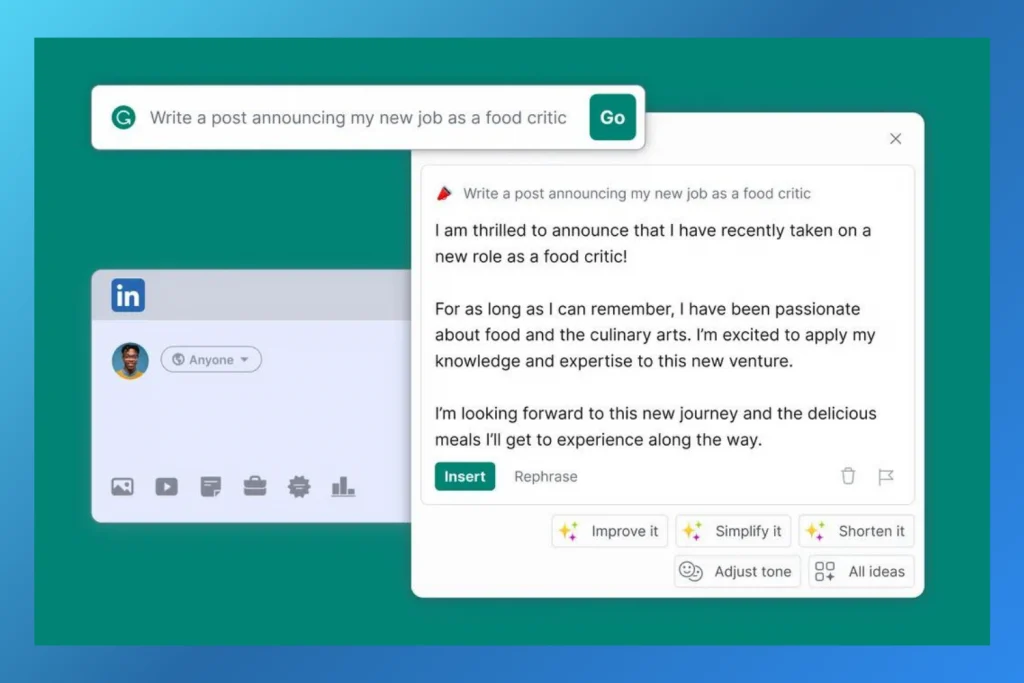
Grammarly checks grammar, spelling and tone as you type in Apple Mail, and its AI can rewrite a paragraph, shorten it or draft from a prompt. It is the easiest way to get AI writing help in Mail on an Intel Mac, where Apple Intelligence isn't available.
- How it connects: the Grammarly for Mac desktop app from grammarly.com (macOS 10.15 or later), which shows suggestions inside Mail and most other apps. The "Grammarly" item in the Mac App Store is only the Safari extension and won't help in Mail.
- Price: free plan with 100 AI prompts a month. Pro is $12 a month billed yearly ($144), or $30 month to month.
- Best for: anyone who mostly wants cleaner, clearer emails.
- Skip if: you're on an M1 or later Mac and the built-in Writing Tools are enough.
3. Elephas: Mac-wide AI writing with Smart Reply in Mail

Elephas is an AI writing assistant that works in any Mac app. In Apple Mail, Smart Reply drafts a response to the email you're reading, and you can rewrite or continue text anywhere you type. You can use its built-in AI, run offline models, or plug in your own API key, which is one way to get Claude or Gemini into Mail.
- How it connects: separate Mac app that works system-wide; trigger it with its Super Command or a keyboard shortcut while Mail is open.
- Price: free plan with 20 credits a month. Paid plans are $19, $39 or $49 a month, with about 17% off when billed yearly. There is no longer a lifetime plan.
- Best for: people who want the same AI helper in Mail, Notes, Pages and the browser.
- Skip if: you only need AI in email; the monthly price is high for that alone.
4. Apple Mail AI Plugin: free menu bar helper with your own API key
Despite the name, this open-source project is not a Mail extension. It is a small menu bar app: while replying in Mail, press Option-H, type a few notes about what you want to say, pick a model, and it writes the reply in the language and tone of the thread. It works with Claude, GPT, Gemini, OpenRouter or a local model through a server such as Ollama.
- How it connects: menu bar app that talks to Mail through AppleScript and, optionally, the Accessibility permission (to read your draft on recent macOS versions). Requires macOS 14 Sonoma or later.
- Price: free (MIT licence). You pay your AI provider for usage, or nothing if you run a local model.
- Best for: people who want Claude or Gemini in Apple Mail and are comfortable managing an API key.
- Skip if: you need something supported. The download is unsigned, so macOS warns you on first launch, and the project is maintained by one developer.
5. SaneBox: server-side sorting, nothing to install

SaneBox doesn't write anything. It decides what deserves your inbox: newsletters, notifications and mail from unknown senders go to folders such as SaneLater, and important mail stays put. You train it by moving messages between folders in Apple Mail. It also offers snooze folders, one-click unsubscribe and reminders if nobody replies.
- How it connects: connects to your email account on the server. Its folders appear in Apple Mail on Mac, iPhone and iPad, and in any other app you use.
- Price: Snack $3.49 a month or $29 a year (1 account, 2 features); Lunch $5.99 a month or $49 a year (2 accounts, 6 features); Dinner $16.99 a month or $139 a year (4 accounts). 7-day free trial.
- Best for: busy inboxes, especially if you read mail on several devices.
- Skip if: Apple Mail's categories already keep your inbox under control.
Or switch to an app with AI built in
If you'd rather replace Apple Mail than extend it, these two email apps include AI and work with iCloud, Gmail, Outlook and other IMAP accounts.
6. Canary Mail: email app with AI Copilot

Disclosure: we make Canary Mail, so weigh this pick accordingly.
Canary's AI Copilot drafts emails and replies and summarizes long threads, and you can ignore it entirely when you don't need it. Canary says your emails are not used to train AI models. It also adds read receipts, PGP encryption and a unified inbox for any number of accounts.
- How it connects: separate email app for Mac, iPhone and iPad, Windows and Android.
- Price: free plan (no AI, up to 2 devices). AI Copilot is on Growth at $36 a year; Pro+ at $100 a year adds encryption and phishing protection. 7-day trial, no card.
- Best for: people who want AI, privacy tools and read receipts in one app.
- Skip if: you want to stay in Apple Mail.
7. Spark: email app with Spark +AI
Spark +AI writes and rephrases emails, drafts replies and summarizes threads, alongside Spark's smart inbox, snooze and team features.
- How it connects: separate email app for Mac, iPhone, Windows and Android. Mail syncs through Spark's servers.
- Price: the free plan includes only a limited preview of the AI. Spark +AI comes with Plus at $99 a year or $10 a month; Pro is $199 a year.
- Best for: small teams that want shared drafts and AI in one app.
- Skip if: you don't want your mail passing through a third party's servers.
Also worth knowing: Clean Email bulk-cleans and unsubscribes with rules (useful, but not AI), SpamSieve adds a trainable spam filter to Apple Mail (see junk mail filtering in Mac Mail), and Superhuman is an AI email app for Gmail and Outlook accounts only. For full app comparisons, see the best email clients for Mac.
How to choose
- M1 or later Mac: start with Apple Intelligence and the ChatGPT extension. Add a tool only for what's missing.
- Intel Mac: Grammarly for writing, Mailbutler for a full assistant, SaneBox for sorting.
- You want Claude, Gemini or a local model: the Apple Mail AI Plugin (free, your own key) or Elephas.
- You read mail on several devices: SaneBox works everywhere because it runs on the server; Canary and Spark have AI on every platform.
[cta-block:ctablock1,title="Want AI in your email app, not bolted on?",button="Download Canary Mail",buttonlink="https://canarymail.io/downloads"]
FAQ
Does Apple Mail support plug-ins?
Not the old kind. macOS Sonoma (macOS 14) ended support for legacy Mail plug-ins. Mail now uses Mail extensions, which you get from the App Store and turn on in Mail › Settings › Extensions. Some tools called "plugins", such as the Apple Mail AI Plugin, are really separate Mac apps.
Can I use Claude or Gemini in Apple Mail?
Not through Apple Intelligence, which only integrates ChatGPT. The free Apple Mail AI Plugin drafts replies with Claude, Gemini, GPT or a local model using your own API key, and Elephas can use your own key or offline models.
Is Apple Mail's AI free?
Yes. Apple Intelligence is part of macOS on eligible Macs, and the ChatGPT extension works without a ChatGPT account. If you sign in, your ChatGPT plan's limits apply.
Is there AI for Apple Mail on an Intel Mac?
Not from Apple: Apple Intelligence needs an M1 chip or later. Third-party tools still work on Intel Macs, including Grammarly, Mailbutler, Elephas and SaneBox.
Does SaneBox work with Apple Mail on iPhone?
Yes. SaneBox sorts mail on the server, so its folders show up in the Mail app on iPhone and iPad as well as on your Mac. Nothing is installed on the device.
Is there an AI assistant for Apple Mail on iPhone?
Apple Intelligence works in Mail on iPhone 15 Pro and later, with the same summaries, Priority Messages and Writing Tools. Mailbutler and Grammarly also have iPhone apps, and Grammarly's keyboard works in any app, Mail included.
Is it safe to give an AI tool access to my email?
Check where your email goes. Apple Intelligence summarizes on your Mac. Tools that use your own API key send the text to that provider. Services such as SaneBox connect to your account on their servers. Read each tool's privacy policy, and for sensitive mail prefer on-device processing.
What's the best AI email app for Mac if I leave Apple Mail?
It depends on your accounts. Canary Mail and Spark both have AI and work with iCloud and IMAP; Superhuman is for Gmail and Outlook only. See the best email clients for Mac for a full comparison.
Sources
Checked September 2026.
- Apple Intelligence in Mail and the ChatGPT extension: support.apple.com
- Using Mail extensions on Mac: support.apple.com/guide/mail/mlhla9a93cd5/mac
- Mailbutler pricing: mailbutler.io/pricing
- Grammarly Pro pricing: support.grammarly.com; Grammarly for Mac: grammarly.com/desktop/mac
- Elephas pricing: elephas.app/pricing
- Apple Mail AI Plugin: github.com/jpwahle/apple-mail-ai-plugin
- SaneBox pricing: sanebox.com/pricing
- Canary Mail pricing: canarymail.io/pricing
- Spark pricing: sparkmailapp.com/pricing