No. Google doesn't make a Gmail app for Windows. It offers Gmail apps for Android and iPhone/iPad, and on a computer Gmail runs in your browser. The closest thing to an official app takes about a minute. Open Gmail in Chrome and choose More > Cast, save, and share > Install page as app, or in Edge choose Settings and more > More tools > Apps > Install this site as an app. Gmail then opens in its own window, and you can pin it to the taskbar and turn on desktop notifications. If you'd rather have a real desktop program, apps like Outlook, Thunderbird and Canary Mail work with Gmail on Windows (the list is further down).
This guide covers both routes: installing Gmail as an app step by step, and the best desktop email apps for Gmail on Windows, with prices and one honest downside each. For everything else about Gmail, see our complete guide to Gmail.
Is there an official Gmail app for Windows?
There isn't. Google's Gmail page links to the App Store and Google Play only, and it says Gmail "works great with desktop clients like Microsoft Outlook, Apple Mail and Mozilla Thunderbird." On a computer, Google's help pages tell you to open gmail.com in a supported browser: Chrome, Firefox, Safari or Edge.
That means any "Gmail for Windows" download on a software site doesn't come from Google. Some are notifier tools or wrappers from other developers, and Google doesn't vouch for any of them. If you want something that looks like Gmail and runs in its own window, install Gmail as a web app from your browser. That's free and comes straight from Google's own site.
You have three ways to use Gmail on a Windows PC:
| Route | Cost | Feels like | Offline | Several accounts |
|---|---|---|---|---|
| Gmail in a browser tab | Free | A website | Chrome only, with Gmail offline turned on | Switch accounts in Gmail |
| Gmail as a web app (Chrome or Edge) | Free | Its own window and taskbar icon | Chrome only, with Gmail offline turned on | Easiest with one account |
| A desktop email app | Free to about $100/year | A Windows program | Usually yes | Yes, in one inbox |
How to install Gmail as an app on Windows
These steps turn Gmail into a desktop app with its own window, Start menu entry and taskbar icon. It's still Gmail on the web inside, so everything works the way it does in a browser tab.
Install Gmail as an app in Chrome
- Open Chrome, go to mail.google.com and sign in.
- Click More (the three dots, top right).
- Choose Cast, save, and share > Install page as app. On some sites an Install icon also appears at the right end of the address bar.
- Follow the prompt to name the app and confirm.
Gmail opens in its own window and shows up in the Start menu. To start it when you sign in to Windows, open chrome://apps, right-click Gmail and choose Launch at startup. Older guides tell you to use More tools > Create shortcut and tick "Open as window." That menu has moved in current Chrome, and Google's own steps now use Install page as app.
Install Gmail as an app in Microsoft Edge
- Open Edge, go to mail.google.com and sign in.
- Select Settings and more (the three dots, top right).
- Choose More tools > Apps > Install this site as an app.
- Rename it if you like, then select Install.
Your installed apps live at edge://apps. Microsoft notes the menu labels can differ slightly between Edge versions.
How to add Gmail to the taskbar
- Any browser app: open the Gmail app, right-click its icon on the taskbar and choose Pin to taskbar. You can also search for Gmail in the Start menu, then right-click it and pin it.
- Edge: go to edge://apps, select Details on the Gmail card, then choose Pin to taskbar, Pin to Start or Create Desktop shortcut.
- Chrome desktop icon: go to chrome://apps, right-click Gmail and choose Create shortcut to put an icon on your desktop.
Turn on Gmail desktop notifications
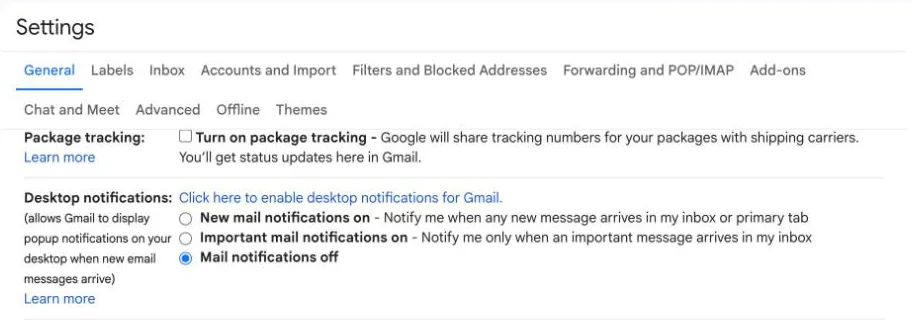
Gmail sends new-mail alerts through your browser, so you have to turn them on in Gmail and allow them in Windows.
- In Gmail, click Settings (the gear, top right), then See all settings.
- On the General tab, scroll to Desktop notifications.
- Pick New mail notifications on or Important mail notifications on. If your browser asks whether Gmail can show notifications, allow it.
- Click Save Changes at the bottom of the page.
- In Windows 11, go to Start > Settings > System > Notifications and make sure notifications are on for Chrome or Edge.
Two things trip people up. With inbox categories turned on, "New mail notifications on" only alerts you about mail in Primary. And Do not disturb in Windows holds banners back, so check the bell icon in the notification center if alerts stop. You can also pick a sound next to Mail notification sounds on the same Gmail settings page.
Use Gmail offline (Chrome only)
Gmail's offline mode works only in Chrome, and not in Incognito or Guest windows. Open Gmail's offline settings (Settings > See all settings > Offline), tick Enable offline mail, choose how many days of mail to sync and click Save changes. Mail you write offline waits in the Outbox and sends when you're back online. Each Google account has to be set up separately, and messages only sync while Chrome is open.
Remove the Gmail app
In Chrome, open the Gmail app, select More > Uninstall Gmail > Remove. In Edge, go to edge://apps, select Details on the Gmail card, then Uninstall. Neither deletes any email. Your mail stays in your Google account.
When the web app isn't enough
With one Google account and no complaints about Gmail itself, the browser app is hard to beat, and it costs nothing. People usually move to a desktop email app for one of these reasons:
- They have several Gmail accounts, or Gmail plus Outlook, iCloud or work email, and want them in one inbox. Our guide to managing multiple Gmail accounts covers the options inside Gmail first.
- They want mail stored on the PC and full offline use in any browser setup.
- They want features Gmail doesn't have, such as read receipts, templates across accounts or PGP encryption.
Gmail desktop apps for Windows compared
Prices are in US dollars, checked on each vendor's site on October 27, 2026.
| App | Best for | Free plan | Paid price | AI | Also runs on |
|---|---|---|---|---|---|
| Canary Mail | Gmail plus other accounts, AI, encryption | Unlimited accounts, 2 devices | $36/year or $100/year; lifetime options | Yes (paid) | Mac, iPhone/iPad, Android |
| Outlook (new) | Microsoft 365 users, built into Windows 11 | Free, with ads on free accounts | Microsoft 365 from $1.99/month removes ads | Copilot with Microsoft 365 Personal or Family | Mac, iPhone/iPad, Android, web |
| Thunderbird | Free, open source, local storage | Everything, no limits | Free (donations) | No | Mac, Linux, Android |
| Mailbird | Inbox plus app integrations | 1 account | $4.03/month billed yearly or $99.75 once | Connect your own (Premium) | Mac; phone apps in beta |
| eM Client | Outlook-style suite without Microsoft 365 | 2 accounts, 1 device, home use | $24.95/year or $39.95 once | Paid add-on (in yearly plans) | Mac, iPhone, Android |
| Kiwi for Gmail | Gmail's own interface as a desktop app | 7-day trial on yearly plans | Monthly or yearly plans | Not covered here | Mac |
| Dove | AI sorting and drafting | Unlimited accounts, 10 AI actions a day | $20/month or $200/year | Yes | Mac, iPhone, Android, web |
| Spark | Smart Inbox and small teams | Unlimited accounts, calendar | Plus $99/year, Pro $199/year | Yes (paid) | Mac, iPhone/iPad, Android |
The 8 best desktop email apps for Gmail on Windows in 2026
1. Canary Mail: Best for Gmail plus your other accounts
Disclosure: we make Canary Mail, so weigh this pick with that in mind. Every other entry was checked against the vendor's own site.
Canary is a desktop and mobile email app that puts Gmail next to Outlook.com, Microsoft 365, iCloud, Yahoo and any IMAP account in one unified inbox, and the free plan doesn't cap how many accounts you add. It adds things Gmail on the web doesn't have, such as read receipts, templates, PGP encryption and an AI assistant that drafts replies and summarizes long threads. The Windows app comes from the Microsoft Store and needs Windows 10 or later. More than 2 million people use Canary, and Apple has featured it on the App Store and the Mac App Store. Our help center explains adding a Gmail account to Canary on Windows.
- Who it's for: people with Gmail and at least one other account who want the same app on their PC and phone
- Price: free for unlimited accounts on up to 2 devices. Growth is $36/year (AI Copilot, full read receipts, send later, calendar, 5 devices). Pro+ is $100/year (adds PGP, SecureSend and phishing and impersonation detection). Lifetime licenses are $100 (Growth) and $300 (Pro+). The 7-day trial needs no card.
- Platforms: Windows, Mac, iPhone and iPad, Android
- Standout features: unified inbox, AI drafting and summaries, read receipts, snooze, templates, PGP encryption
- Microsoft Store rating: 4.5 (236 ratings), as of October 27, 2026
- Downside: AI, send later, calendar and encryption are on the paid plans, and there's no monthly billing, only yearly or lifetime.
2. Outlook for Windows: Best free app already on your PC
The new Outlook for Windows is Microsoft's free replacement for the old Mail and Calendar apps. It supports Gmail, Yahoo and iCloud accounts next to Outlook.com and Microsoft 365, with mail and calendar in one window. If you work in Microsoft 365, nothing else on this list handles it as well.
- Who it's for: people moving over from Windows Mail, and anyone with a Microsoft 365 or work account next to Gmail
- Price: free. Free accounts see ads in the inbox. A Microsoft 365 subscription, from $1.99/month in the US, removes them.
- Platforms: Windows, Mac, iPhone and iPad, Android, web
- Standout features: built-in calendar, the best Microsoft 365 support, and Copilot for your Gmail account too if you have Microsoft 365 Personal or Family
- Microsoft Store rating: 4.8 (154,739 ratings), as of October 27, 2026
- Downside: ads on free accounts. If you turn on Microsoft cloud sync for your Gmail account (it's optional), a copy of your Gmail mail, calendar and contacts is synced to Microsoft's data centers.
3. Thunderbird: Best free, open-source option
Thunderbird is free, open source and funded by donations, with no ads and no account limits. It sets up Gmail with Google's sign-in (OAuth) automatically and can keep a copy of your mail on your PC for offline work. Calendar, contacts and OpenPGP encryption are built in, and add-ons cover most of the rest.
- Who it's for: people who want a free desktop client with no company in the middle, and anyone who also uses Linux
- Price: free (donations welcome)
- Platforms: Windows, Mac, Linux, Android
- Standout features: local storage, OpenPGP, filters and a large add-on library
- Microsoft Store rating: 4.2 (145 ratings), as of October 27, 2026
- Downside: the interface takes some setting up to feel modern, and there's no iPhone app.
4. Mailbird: Best for email plus app integrations
Mailbird started as a Windows-only client and now runs on Mac too. It puts a unified inbox next to a side panel of more than 45 apps, such as Google Calendar, WhatsApp, Asana and Slack, so chat and tasks sit beside your email. Premium adds email tracking and lets you connect an AI app such as ChatGPT or Claude to help read and draft mail.
- Who it's for: people who live in their inbox and want other apps docked beside it
- Price: free for 1 account. Premium adds unlimited accounts and covers 3 devices. Mailbird's US pricing page lists $4.03/month billed yearly or $99.75 once. Those are discounted prices, and the page shows your local currency.
- Platforms: Windows, Mac (Android and iPhone apps are in public beta)
- Standout features: app side panel, one search across all accounts, tracker blocking
- Downside: with one free account, the unified inbox and the integrations are effectively paid features.
5. eM Client: Best Outlook-style suite without Microsoft 365
eM Client puts mail, calendar, tasks, contacts, notes and chat in one desktop window, much like classic Outlook. It adds Gmail and Google Workspace with Google's sign-in in your browser, and its AI tools draft replies, summarize threads and build rules.
- Who it's for: people leaving classic Outlook who want everything in one window
- Price: free for 2 accounts on 1 device, home use only. Personal is $24.95/year or $39.95 once (unlimited accounts, 3 devices). Business is $29.95/year or $44.95 once, per device. The yearly plans include the AI add-on.
- Platforms: Windows, Mac, plus iPhone and Android apps
- Standout features: full calendar and tasks, built-in encryption, a one-time license option
- Downside: the free version leaves out a lot (thread view, snooze, undo send and send later among them), and any work use needs a paid license.
6. Kiwi for Gmail: Best if you want Gmail's own look on the desktop
Kiwi takes Gmail and Google Workspace out of the browser and runs them as a desktop app for Windows and Mac. You keep Gmail's interface, and Docs, Sheets and Slides open in Kiwi windows too. Kiwi isn't made by Google.
- Who it's for: people whose mail is all Gmail or Google Workspace and who don't want to learn a new app
- Price: paid, with monthly and yearly plans. Yearly plans come with a 7-day trial. The top plan (Elite) handles up to 9 Gmail or Workspace accounts.
- Platforms: Windows, Mac
- Standout features: Gmail's real interface, several Google accounts side by side, Google Docs and Drive in the same app
- Downside: Google accounts only, so Outlook, iCloud or work mail needs another app. Kiwi's pricing page didn't show plan prices in its page text when we checked, so check the price before you buy.
7. Dove: Best for AI sorting and drafting
Disclosure: Dove is made by the same company as Canary Mail, which is us.
Dove is an AI-first email app rather than a classic folder client. It sorts incoming mail into Focus (needs you), Feed (worth knowing) and Noise (newsletters and promotions), and builds a Today summary that updates through the day. Ask Dove answers questions about your inbox and drafts replies, and Teach Dove turns plain-language instructions into rules. Each email gets a Safe, Suspicious or Dangerous risk score. It works with Gmail, Google Workspace, Outlook, Microsoft 365, iCloud, Yahoo and IMAP.
- Who it's for: busy inboxes where you'd rather let AI triage and draft than file mail yourself
- Price: free with unlimited accounts and 10 AI actions a day. Pro is $20/month or $200/year. The 7-day trial needs a card, and you aren't charged until day 8.
- Platforms: Windows, Mac, iPhone, Android, web
- Standout features: Focus/Feed/Noise sorting, Ask Dove, plain-language rules that sync across devices
- Downside: it's built around AI triage, so if you like manual folders and classic rules, a traditional client suits you better. Pro also costs more than most licenses here.
8. Spark: Best for a smart inbox and small teams
Spark, from Readdle, is on the Microsoft Store and syncs with its Mac, iPhone and Android apps. The free plan includes unlimited accounts, a calendar and the Smart Inbox, which groups mail from people apart from newsletters and notifications. Paid plans add AI tools and team features such as shared drafts and threads.
- Who it's for: busy inboxes and small teams that discuss email together
- Price: free. Plus is $10/month or $99/year. Pro is $20/month or $199/year.
- Platforms: Windows, Mac, iPhone and iPad, Android
- Standout features: Smart Inbox, Gatekeeper for unknown senders, built-in calendar, team sharing
- Downside: Spark keeps your recent emails on its servers for four hours (per its privacy policy) to power some features, and the AI and team tools are paid.
For more Windows clients that aren't Gmail-specific, such as Mailspring and BlueMail, see our guide to the best email clients for Windows. On a Mac or iPhone instead? We compare the best Gmail apps for Mac and iPhone too.
What happened to the Windows Mail app?
Microsoft ended support for the Windows Mail, Calendar and People apps on December 31, 2024. They can no longer send or receive email or calendar events, though you can still export what was stored in them. Microsoft's replacement is the new Outlook for Windows, which is free with no subscription needed. You can download it from the Microsoft Store or open it from the prompt in the old Mail app. If you used Gmail in Windows Mail, your mail is still in your Google account, so adding Gmail to Outlook or any app above brings it all back.
How to add Gmail to a desktop email app
Most desktop apps follow the same pattern. Choose Google or Gmail when you add an account, sign in on Google's page when it opens, and approve access. A few things are worth knowing:
- IMAP is always on. Google removed the Enable IMAP and Disable IMAP options in January 2025, so there's nothing to turn on in Gmail first.
- Use Sign in with Google. Gmail no longer works with apps that ask you to type your Gmail password. App passwords exist for accounts with 2-Step Verification, but Google says they "aren't recommended and are unnecessary in most cases."
- Labels come along. Google says your messages and labels sync with the email client. Most apps show labels as folders.
How we chose
We put the apps in order by how often they appear on the pages that rank for "gmail desktop app" and "best Gmail app for Windows," and used Microsoft Store ratings to break ties. Canary sits first because we make it. Every app had to run on Windows as a desktop program, work with Gmail and still be in active development. Prices, plans and platforms come from each vendor's site, checked on October 27, 2026. We left out notifier utilities and browser extensions, because they aren't email apps.
Our other Gmail how-tos, such as setting up filters or freeing up storage, are collected in our Gmail guide.
Frequently asked questions
Is there a Gmail desktop app for Windows?
No. Google makes Gmail apps for Android and iPhone/iPad only. On Windows you can install Gmail as a web app from Chrome or Edge, or add Gmail to a desktop email app such as Outlook, Thunderbird or Canary Mail.
How do I put Gmail on my desktop or taskbar?
Install Gmail as an app first: in Chrome, More > Cast, save, and share > Install page as app; in Edge, Settings and more > More tools > Apps > Install this site as an app. Then right-click its taskbar icon and choose Pin to taskbar.
Why is there no desktop app for Gmail?
Google hasn't said. Its Gmail page offers the web version plus Android and iPhone apps, and it points desktop users to email clients like Outlook and Thunderbird instead.
How do I open the desktop version of Gmail?
On a computer, go to gmail.com in Chrome, Firefox, Safari or Edge and sign in. Gmail works best in the newest and previous version of those browsers, with cookies and JavaScript turned on.
Can I use Gmail offline on Windows?
Yes, in Chrome. Turn on Enable offline mail in Gmail's offline settings and choose how many days to sync. It doesn't work in Incognito, and mail only syncs while Chrome is open. Desktop email apps like Thunderbird also keep mail on your PC.
Does Windows 11 have an email app?
Yes. The new Outlook for Windows is free and replaced the old Mail and Calendar apps, which stopped working on December 31, 2024. It supports Gmail accounts.
What is the best free Gmail app for Windows?
Thunderbird is the best fully free option, with no ads or limits. The new Outlook is free but shows ads on free accounts. Canary Mail's free plan covers unlimited accounts on 2 devices.
Is it safe to download "Gmail for Windows" from a download site?
Be careful. Google doesn't publish a Windows Gmail app, so those downloads come from other developers. Installing Gmail from your own browser, or using a known email app, is the safer choice.
Sources
- Google: Gmail product page (apps and desktop clients)
- Google: Supported browsers for Gmail
- Google: Use progressive web apps in Chrome
- Google: Use Gmail notifications
- Google: Set up and use Gmail offline
- Google: Add Gmail to another email client
- Microsoft: Install, manage, or uninstall apps in Microsoft Edge
- Microsoft: Notifications and Do not disturb in Windows
- Microsoft: Outlook for Windows: the future of Mail, Calendar and People
- Microsoft: Sync your account to the Microsoft Cloud
- Microsoft: About ads in Outlook
- Vendor pricing pages: Canary Mail pricing, eM Client, Mailbird, Spark, Dove, Kiwi for Gmail